Read your home dashboard, move through the top bar, switch between the companies you run, and use the account menu to reach your profile or sign out.
On this page
Was this helpful?
Real help from real food people
Chef Diego runs a real food plant. If this page didn't get you there, tell us — a person reads every message.
Every time you sign in, Bettr Manager drops you on your home dashboard: it greets
you by name, shows what's running today, and keeps every part of the app a click
away in the top bar. Here's where each piece lives, and how to move between them.
Move around Bettr Manager
1
Start on your home dashboard
The Bettr Manager logo at the top left always brings you back to the home
dashboard. It's your daily starting point: your name up top, a setup checklist
while you're still getting going, today's run at a glance, and a grid of the
modules your plan turns on.
2
Open a section from the top bar
The top bar runs across every screen and holds every section you have. Some
entries open straight to a page — Contacts,
Purchase orders, Sales orders, Staff schedule, and Invoices.
Others — Inventory, Production, and Settings — open a menu of the
screens inside them. Only the modules your plan turns on appear, so the bar
lists exactly what you have.
The top bar. Inventory, Production, and Settings open a menu of screens; Purchase orders and the rest are direct links.
3
Switch the company you're working in
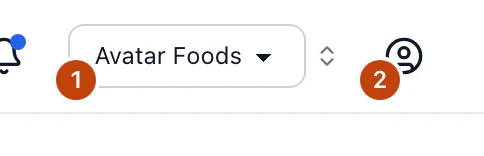
If you run more than one company, the Active company picker sits near the
top right. Choose a company and Bettr Manager reloads in its context — every
lot, order, and run you see from then on belongs to that company. If your
companies span more than one organization, the picker groups them under each
organization's name.
4
Open the account menu
The Account menu button in the top-right corner shows your name and email,
then links to My Profile and Plan & billing, with a Sign out button
at the bottom.
At the top right: (1) the Active company picker, and (2) the account menu for your profile and sign out.
Read your home dashboard
The dashboard gathers the day's work on one screen so you don't have to go
looking for it:
Welcome and setup — a greeting by name, and while you're getting started, a
Finish setting up Bettrchecklist
that walks you through adding companies, inviting your team, and connecting your
accounting system. Once you're set up,
you dismiss the card and it stays gone.
Quick actions — today's production run with shortcuts into its output,
cooking log, cooling log, and staff attendance, plus quick ways into production
runs, work in progress, and kitchen returns.
Modules — a grid with a card for every module your plan turns on. Each card
is a door into that part of the app, and a module you don't have simply isn't
shown.
Both the Quick actions and the Modules grid change with your plan and what's
happening on the floor, so your dashboard reflects your operation rather than a
fixed template.
Switch between your companies
The Active company picker only appears if you belong to more than one
company. Run a single site and there's nothing to switch — everything is already
scoped to your one company. Run a production kitchen and a separate commissary,
say, and the picker lets you move between them without signing out.
Switching keeps you where you are. Filter your products list, pick the other
company, and the same filtered list comes back for that company. A screen showing
one record is the exception — that order, run, or lot belongs to the company you
left — so Bettr Manager takes you back to the list it came from. If the other
company doesn't have that screen, you land on your home dashboard. If it has the
screen but your role there doesn't reach it, you get the no-access message, so
you know why you didn't arrive.
When the companies you belong to sit under more than one organization, the picker
groups them by organization, listing each company under its organization's name.
Belong to companies in a single organization and the picker stays a plain list.
You work in one company at a time
Everything you see and change belongs to the company named in the Active
company picker. If a lot, order, or run seems to be missing, check that you're
in the right company before you treat it as gone.
The account menu, and signing out
The Account menu button lives in the top-right corner, past the company
picker. Open it and it's headed by your name and email, so you can confirm which
account you're signed in as. Below that:
Plan & billing takes you to your current plan, your seats, and the modules
it turns on.
Sign out ends your session.
Because Bettr Manager has no passwords, signing out is clean: there's nothing to
remember, and next time you sign in with a fresh one-time link from your email.