Pull a department's leftover kitchen stock out of production, approve the counts, and finish the return to book whole cases back into warehouse locations.
On this page
Was this helpful?
Real help from real food people
Chef Diego runs a real food plant. If this page didn't get you there, tell us — a person reads every message.
The retail-bowls line over-pulled rice this morning, and now the shift is winding
down with whole cases still on the bench. Left there, it ages out in the kitchen
while the warehouse reads short. A kitchen return moves that surplus the other
way — it pulls the cases out of the kitchen and books them back into warehouse
locations as counted, located stock you can pick against tomorrow. Open
Kitchen Returns
to see the returns already in flight. Plant+
Build the return from kitchen stock
A return is built from what's staged in the kitchen. Each line is one
sitting in a department, sent back to the warehouse as whole cases.
1
Start a new return
On Kitchen Returns, select New.
2
Pick the department and load its stock
Choose the Department the stock is staged in, then select Load kitchen
stock. Bettr fills the Items list with every returnable WIP lot in that
department and pre-fills each one with the cases it suggests sending back —
what's on the kitchen beyond tomorrow's demand. Set a Production run
first to narrow the load to one run's leftovers.
Pick the department, then select Load kitchen stock to fill the return with that department's returnable WIP lots.
3
Set the cases and locations
For each lot, set Qty to return (cases) — a return moves whole cases, so
any remainder stays in the kitchen, and the line shows the pounds each
quantity pulls. Under Locations, add the warehouse location the cases go
back to, or split them across a few.
4
Create the return
Select Create return. It opens as a draft, and its badge names what it
still needs before it can finish — approval, then a location.
Approve final-product counts
A finished-recipe lot carries a Final product badge, and its output count
needs a second set of eyes before the return can finish. Raw-material and
sub-recipe lots don't — they finish on the quantity you set.
1
Open the item's approval
Find the item marked Final product and select Approve quantity.
2
Confirm or adjust the count
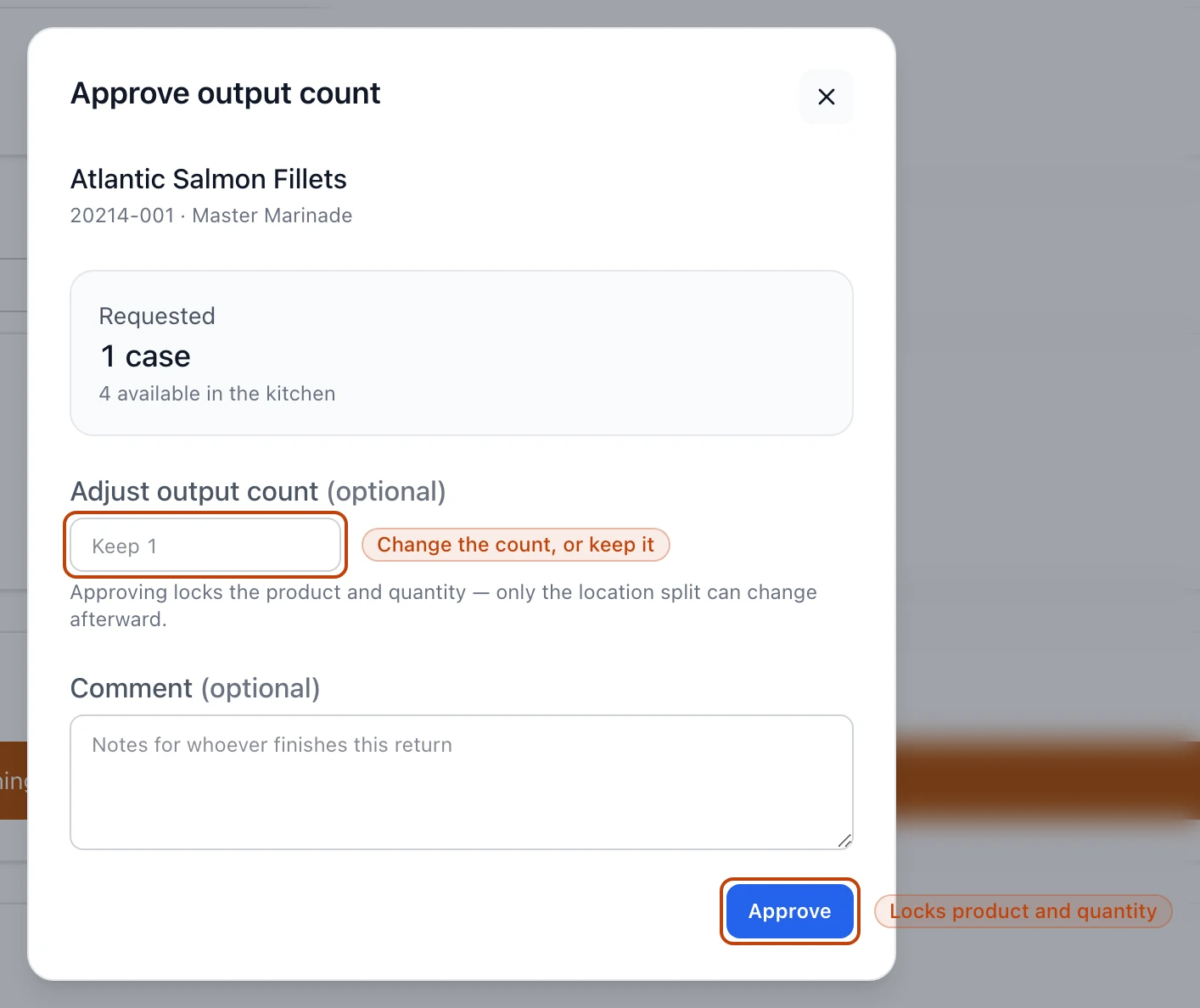
The dialog shows the requested cases and how many are available in the
kitchen. Approve it as-is, or type an Adjust output count to change it
and split that quantity across locations. Add a comment for whoever finishes
the return.
The approval dialog shows the requested cases against what's on hand. Approving locks the product and quantity, leaving only the location split to change.
3
Approve
Select Approve. Approving locks the product and quantity; only the
location split can change afterward.
Scan a case instead of scrolling
On a long return, select Scan QR and scan a case's lot label — Bettr jumps
to that item and opens its approval, so the floor checks off cases as they
stack them.
Finish the return
Once every final-product count is approved and every item has a location, the
return reads Ready to complete. Finishing is the move that matters: it pulls
each item's whole cases out of the kitchen and books them into the warehouse
locations you set.
1
Finish the return
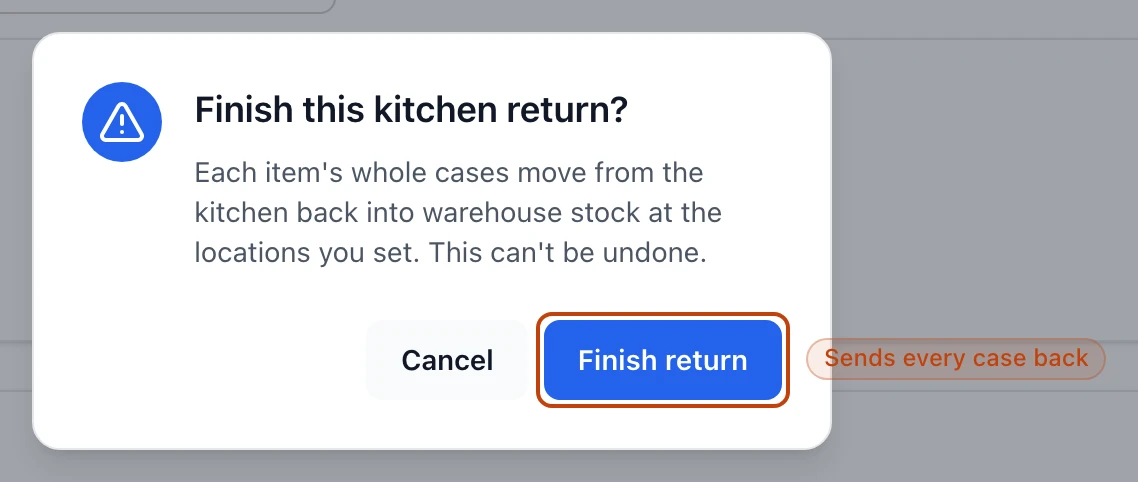
Select Finish return and confirm.
Confirming Finish return draws each item's whole cases out of the kitchen and into warehouse stock at the locations you set.
Finishing can't be undone
The cases move from the kitchen into warehouse stock the moment you confirm,
and a finished return can't be reversed or deleted. Check the quantities and
locations first.
The return now reads Completed, and its stock is live warehouse inventory at
those locations, ready to pick.
Release to a sister company
If the department cooked for another company in your organization — a commissary
producing for a storefront — a completed return can go one step further. Select
Release and Bettr mints a sales order at the producing company and a purchase
order at the receiving company, so the hand-off lands as real orders on both
sides of the transfer.
Why kitchen returns need Sales and Purchasing on
Release is why this surface asks for Sales and Purchasing alongside Production.
It only fires when the return's contact is linked to a receiving company in the
same organization, both sides carry the counterparty customer and vendor
contacts, and the receiving company stocks a product with a matching code —
otherwise releasing stops and names what's still missing.
Print a label
Every return can carry a sticker for the tote or pallet heading back to the
warehouse. Select Print label for a kitchen-return label with the return
number, department, and a QR code that reads back to the return, then Print
label again in the dialog to send it to your printer.
Not the same as early kitchen returns
Inventory has a similarly named tool. Log early kitchen returns
captures stock coming back off the line early, built up through a shift. This
one lives in Production, works from a department's WIP lots, and can release
the stock to a sister company — reach for it when you're clearing a run's
leftover WIP at the end of the day.