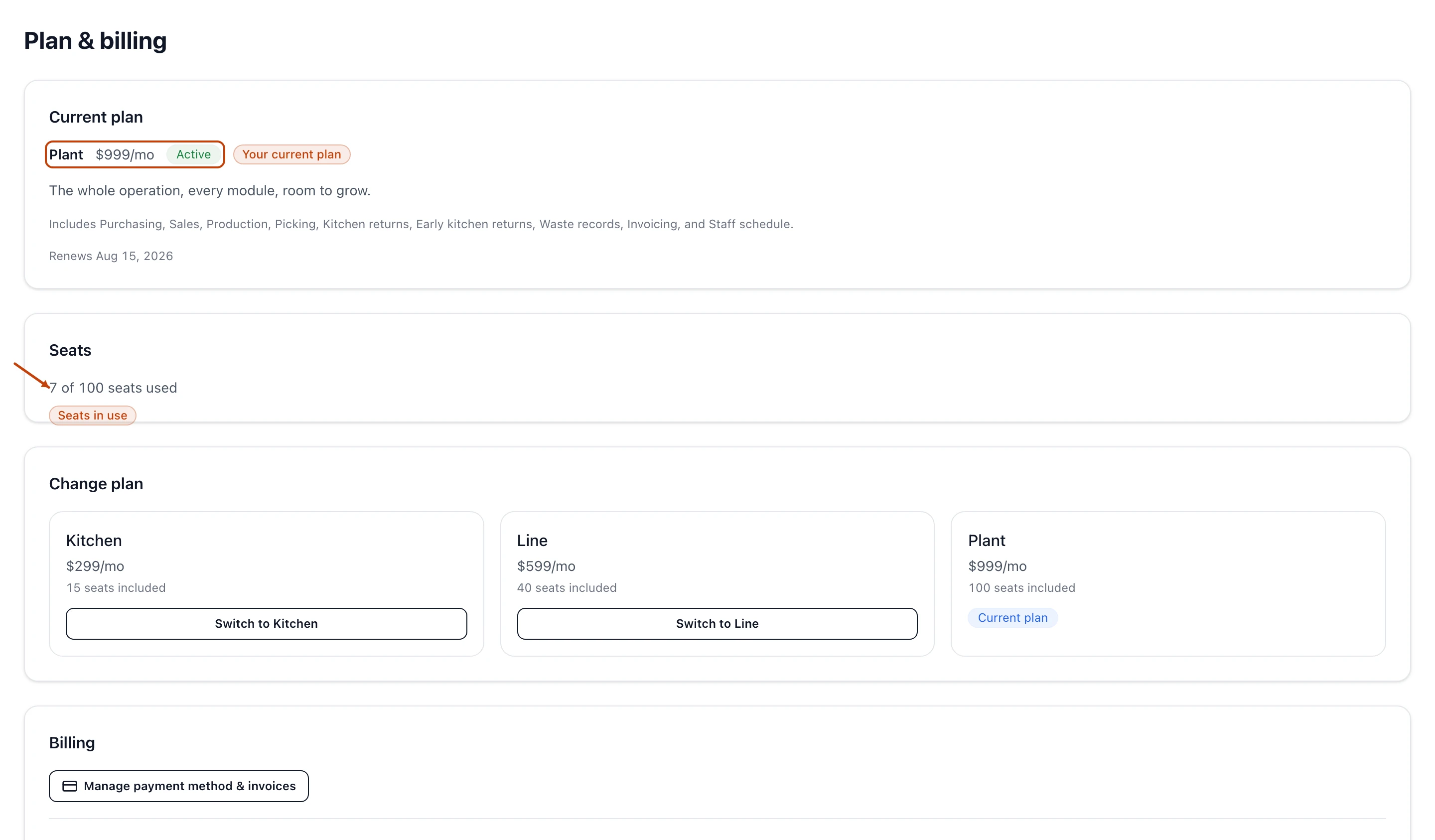
Check the plan you're on — its price, seats, and the modules it turns on — then upgrade or downgrade it yourself from Plan & billing.
On this page
Was this helpful?
Real help from real food people
Chef Diego runs a real food plant. If this page didn't get you there, tell us — a person reads every message.
You just landed a grocery chain, and two things are suddenly in your way: you need
to invoice them, but the Invoices area is dark on your Kitchen plan, and you want to
bring the new account manager and one more person in the office into the system. Both
are one plan away. You check where you stand and move up from
Plan & billing, the one screen
that shows your plan and lets you change it yourself.
Check what you're on
Open the account menu in the top-right corner and select Plan & billing. The
screen opens on two cards. Current plan names your plan, its price, and a status
badge — Active when everything's current, Trialing during your first 14 days
— then the plan's one-line summary, the modules it turns on, and when it renews.
Seats shows how many of your plan's seats are in use; it flags Near your
limit once you're close.
A is how Bettr counts your team against your plan, so the
seat count is usually far smaller than your headcount.
Plan & billing on a plan you run yourself: your current plan with its price and Active status, your seats in use, and the change and billing controls below.
A plan the Bettr team set up
If your plan was arranged with the Bettr team — a comp, or a Group plan — Plan &
billing shows a Managed by Bettr Manager badge in place of the change controls,
and a note to reach out to us. On a plan like that, a human on our team makes any
change with you.
Change your plan
On a plan you started yourself, the Change plan section sits below your seats,
with a card for each self-serve plan — Kitchen, Line, and Plant. Your current plan
carries a Current plan badge; every other card has a button.
1
Open Plan & billing
From the account menu, select
Plan & billing. The plan you
change is the one for the company you're signed into — switch companies in the top
navigation first if you run more than one.
2
Compare the plans
Each card in Change plan shows the plan's price and the seats it includes.
Read them against what you're missing — a module that's still dark, or more seats
than your plan holds. The full price and module breakdown lives in the
plans and pricing reference.
3
Pick the plan you want
Select Upgrade to Line or Upgrade to Plant to move up, or Switch to
Kitchen to move down. Bettr applies the change and brings you back to Plan &
billing — there's no separate checkout to walk through.
There's no confirmation step
Selecting a plan switches it the moment you press — Bettr doesn't ask "are you
sure?" Moving up commits you to the higher price, which Bettr prorates onto your
next bill, so read the card before you select it.
What changes right away
The switch takes hold the moment you select the plan:
Modules open or close immediately. Move up and the new plan's modules — say,
Invoicing on Line — come on right away. Move down and the modules that plan doesn't
include go dark.
Bettr prorates the price. A lands on your next
bill, so you pay for what you actually used.
Your seat cap moves with the plan. Upgrading raises the number of people who
can sign in; downgrading lowers it.
Payment method and receipts stay in the Stripe customer
portal, which you reach from
the Manage payment method & invoices button further down Plan & billing.
Seat caps when you downgrade or add people
Your plan's seat cap is a hard limit, and Bettr holds you to it from both directions.
If you try to move down to a plan with fewer seats than your team already fills, the
button for that plan is disabled and tells you how many people to remove first — for
example, that you're using 18 seats and Kitchen includes 15, so you'd need to remove
3 before switching. Take those people out of their companies, then the downgrade
opens up.
The same cap applies when you add someone to a
company: once every seat is in use, Bettr
blocks the next person and points you here to move up a plan. Adding people never
changes your bill on its own — you only pay more when a bigger plan is what fits.