Every field, status, tab, and control on a production run — the runs list, line items and batches, output records, cooking and cooling logs, and the exports the floor and auditors need.
On this page
Was this helpful?
Real help from real food people
Chef Diego runs a real food plant. If this page didn't get you there, tell us — a person reads every message.
The teriyaki line started weighing at six, the marinade crew rolls in at eight, and
you need one screen that says what's due today, how far each recipe has gotten, and
whether last night's cooling temperatures ever got signed off. That screen is a
production run. Open
Production runs and each
day's work is one run you drill into. This page names every field, status, tab, and
control on the list and on a run, and where each figure comes from.
Kitchen+
The production runs list
The list opens on Production runs — every run on the floor, newest at the top.
Above it sit a New button, which opens a blank run, and a WIP inventory link
across to work-in-progress stock. A row of filters narrows the list:
Search by name or number — matches a run's name or its reference, like PR-7.
All statuses — filters to Pending, Ongoing, or Completed runs.
From and To — bound the list to runs dated inside a window.
Clear all — drops every filter at once, and shows only when one is set.
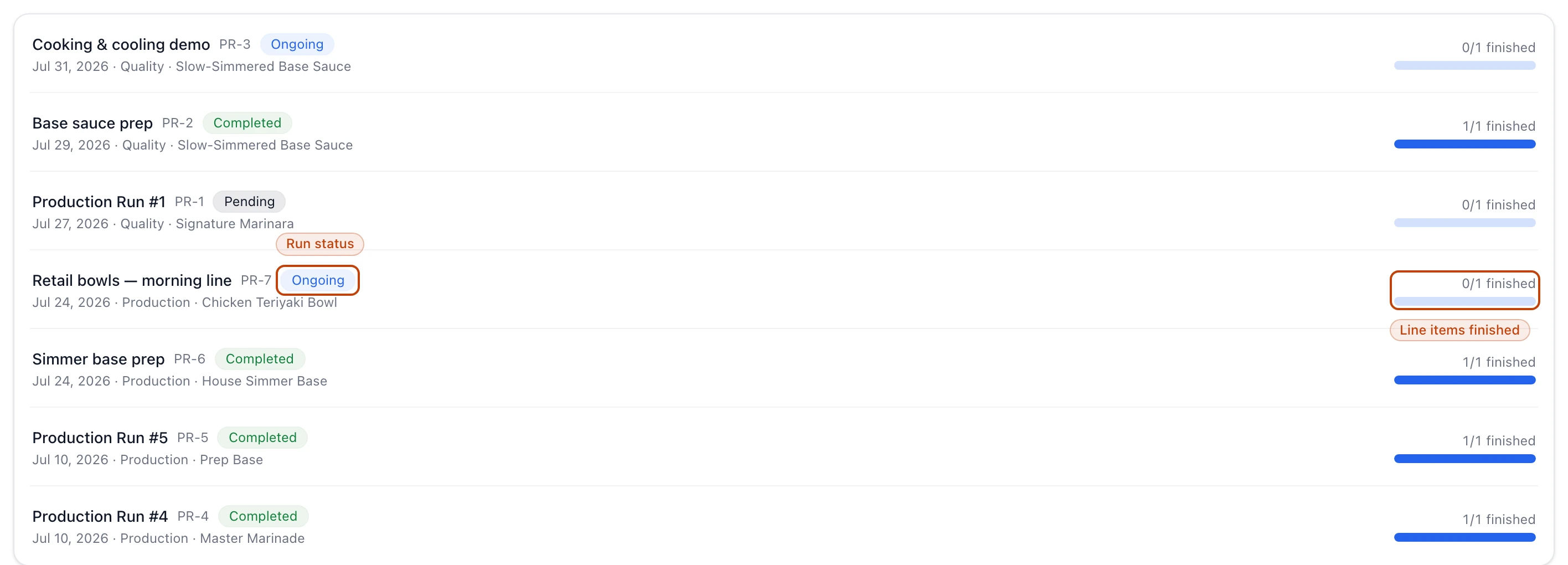
Each row is one run. It carries the run's name and reference, a status badge, and a
second line reading the run's date, its departments, and the recipes on it — up to
four, then +N more. On the right, a counter and bar show how many of the run's line
items are finished. When a run has cooking or cooling readings that haven't been
exported to a PDF yet, a warning sits under its name, like Cooking Log PDF not
generated. An empty list reads No production runs found.
The production runs list: each run's name and PR reference, a status badge, and — on the right — how many of its line items are finished.
Run statuses
A run's status is figured from its line items, not set by hand — so it moves on its
own as the floor works:
Pending — the run has no line items yet, or has them but none has started. Its
badge is grey.
Ongoing — at least one line item has started and the run isn't finished. Its
badge is blue.
Completed — every line item on the run is finished. Its badge is green.
A run is named when you create it; leave the name blank and it shows as Production
Run #N. Its reference — PR- followed by a number — is assigned for you and never
changes.
The run's tabs
A run opens across a row of tabs. Recipes and Output records always show; the
two log tabs and the staff tab appear only when the run calls for them:
Recipes — the line items on the run, grouped by department. This is where the
floor starts, weighs, and finishes each recipe.
Output records — every batch's finished quantity against its target.
Cooking Log — the consolidated cooking temperatures, shown only when a recipe on
the run tracks a cooking temperature.
Cooling Log — the consolidated cooling temperatures, shown only when a recipe
tracks a cooling temperature.
Staff attendance — who worked the run. It shows in the supervisor view for
anyone who can view the daily staff schedule.
Operator and supervisor views
A toggle on the right switches between an Operator view and a Supervisor
view. Which one you land in — and whether you can switch at all — comes from your
role. If a role you hold sets its default production view to Supervisor, you open in
the supervisor view and can switch to the operator view; otherwise you see the
operator view alone. The operator view keeps the floor on the batch in front of
them; the supervisor view adds scheduled-versus-produced figures, staff attendance,
and the controls that change the run.
When a run spans more than one department, a Department dropdown under the tabs
filters everything below it to one department.
The Recipes tab
Each row on the Recipes tab is one
. A row carries the recipe's name, its allergen
badges, and a status badge, over a line naming its plan and scheduled date. When a
line still owes work, red and amber badges spell it out: Weigh inputs (N) for
ingredients left to weigh, Weigh output (N) for output left to record.
A button on the right opens the line — labeled Start on a pending line,
Continue on one underway, and View on a finished one. Beside it, a Finish
button and a Remove button sit on any line that isn't finished yet, for anyone who
can change the run.
Above the rows, filter tabs narrow the list to the lines that need a particular kind
of attention — All, Weigh inputs, Weigh output, Pending, and
Finished — each with a count, and each shown only when it has lines to show.
Line-item statuses
Pending — the line hasn't been started. Grey badge.
In progress — the line has been started but not finished. Blue badge.
Finished — the line is signed off and counts toward the run's progress. Green
badge.
Batches and input format
A recipe runs in one of two input formats, which decides how its batches are counted:
Weigh per batch — the schedule is split into full batches of the recipe's yield,
plus a smaller final batch for the remainder. The operator view reads Batch X of Y
(Z remaining), and ingredients and output are weighed batch by batch.
Weigh per run — the whole run is one continuous batch. The operator view reads
Continuous production, and inputs and output are weighed once against the run's
full scheduled quantity.
Schedule details
In the supervisor view, an info button on each line opens its schedule details — a
read-only panel of the fields behind the line:
Order — the line's position in the day's sequence, or a dash when it isn't
ordered.
Plan — the production plan the line came from.
Recipe type — Final for a finished product, Sub-recipe for a component
made to feed another recipe.
Input format — Weigh per batch or Weigh per run, as above.
Scheduled and Produced — the quantity planned and the quantity recorded so
far, in the recipe's yield unit.
Status — the line-item status.
Department — the department that runs the line.
Input tolerance — how far under an ingredient's target a weigh can land and still
count as complete, as a percent. It's set per recipe and defaults to 1%.
Requires output — whether a batch's output must be recorded before the next batch
can start.
Cooking log and Cooling log — whether each temperature log is enabled on the
recipe.
Allergens — the recipe's allergens, when it carries any.
Output records
The Output records tab lists every batch on the run and tracks what it produced.
One row per batch:
The Output records tab: one row per batch, with its target, what's recorded, what remains, and a Weigh or Count action while the batch is still open.
Recipe — the recipe and, under it, its department.
Batch — the batch number.
Target — the quantity this batch is expected to yield.
Quantity — what's been recorded against this batch.
Remaining — target minus quantity, what's left to record.
Total produced — the recipe's recorded output across every batch on the run.
Containers — how many containers the batch's output has been split into.
Status — Pending while nothing is recorded, Partial while a batch is
under target, Complete once it's met.
While a batch is open, a Weigh button records output as a scale reading, and a
Count button appears when the recipe is packaged, so output can be tallied as full
containers plus loose units instead.
Cooking and cooling logs
When a recipe on the run carries a
, the run grows a Cooking Log or
Cooling Log tab. Each consolidates every recipe's batches into one table, grouped
by regulatory authority (FDA or USDA) when the run mixes both:
Batch — the batch number.
Temperatures — the readings for the batch, joined like 172 → 171 → 170 °F.
Times — the times they were recorded.
Status — how complete and how safe the batch's readings are.
A cooking batch reads Missing with nothing logged, Incomplete or Partial
as readings come in, Complete once every reading is in and within limit, and
Alert when a logged temperature falls below the recipe's minimum. Cooling batches
run the same way but have no Alert state — a cooling breach surfaces on the
individual reading rather than as a batch status.
Exports
Above each log table sit export buttons — one per document template that fits the
recipe's authority and log:
Cooking — FDA Cooking (CCP-1B), USDA Kettle, USDA Oven, Pita Baking, and CCP-3B
temperature monitoring.
Cooling — FDA Cooling (CCP-2B), USDA IQF, and USDA Non-IQF.
Each button opens a print-ready PDF of that log in a new tab; when a department filter
is set, the export covers only that department. These PDFs are the run's batch
records — the paper an auditor asks for. Print labels and export batch
records walks the procedure.
What you can change
New and Edit — create a run, or change its name, date, and notes. Both need
the permission to add or change production runs.
Add recipe — add another scheduled recipe to a run, in the supervisor view,
until the run is completed.
Delete — remove a run, available only while none of its line items are finished.
Deleting removes the run from the list but keeps it in history — like every write on
a run, it's recorded, never erased.
A run reports live: while the floor weighs and finishes, the list and the run refresh
on their own, so a supervisor watching from the office sees the same picture as the
crew on the line.