Ask a question from the help card on any docs page, or report a bug from inside Bettr — a real person reads every message and replies by email.
On this page
Was this helpful?
Real help from real food people
Chef Diego runs a real food plant. If this page didn't get you there, tell us — a person reads every message.
Everyone hits a wall now and then — a page that doesn't answer the question, or a screen in Bettr that doesn't do what you expected. There are two ways to reach us, and both land with a person, not a bot and not a queue that hands you a ticket number and forgets you.
Ask a question from any help page
Every page in these docs — this one included — ends with a card headed Real help from real food people. Chef Diego, whose name is on it, runs a real food plant, and a person reads every message it sends. If a page didn't get you where you needed to go, this is the quickest way to say so, whether you're mid-task or reading ahead.
1
Open the question form
Scroll to the card at the bottom of the page and press Ask a question. A short form opens over the article — you don't lose your place or leave the page.
2
Tell us what you're working on
Fill in Your name, your Email, and a few lines under What can we help with? — what you're trying to do and where it went sideways. The page you asked from is attached for us on its own, so you never have to explain which article you were reading.
3
Send it
Press Send message. The form confirms your message is in and shows the email address we'll reply to, so you can check it's the one you actually watch.
You don't have to be signed in
The question card works on any docs page whether or not you're signed in — the same team reads it either way. Reach for it before you're a customer, while you're setting up, or years in.
Report a bug from inside Bettr
When something in the app itself is wrong — a number that looks off, a button that doesn't do what it says — tell us from right where it happened. A Report a bug button sits in the bottom-right corner of every screen in Bettr, from your profile to a production run, so there's nothing to go find first.
1
Open the bug form
Press Report a bug in the bottom-right corner. A small form opens in place, over whatever screen you're on.
2
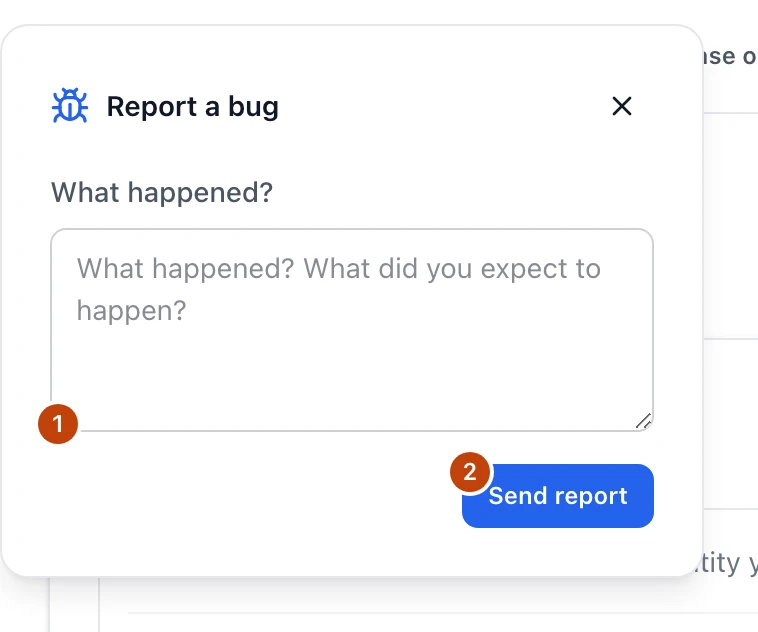
Describe what happened
Under What happened?, write what you saw and what you expected instead. The address of the screen you're on is attached on its own, so we can see exactly where the problem is without asking you to retrace your steps.
3
Send the report
Press Send report. You get a quick thank-you, and the report is on its way.
The Report a bug form, opened from the button in the corner of every screen: write what happened (1), then press Send report (2). The address of the screen you're on is attached for us automatically.
What happens after you send
A person on our team reads every message — no bots, no ticket-number runaround. We reply by email: to the address you typed on the question form, or to the email on your account for a bug report. Your note arrives with the page you were on, and for a bug, your company too, so we can pick up the thread instead of opening with a dozen questions.
That reply only reaches you if your email is current, so if yours ever changes, keep it up to date on your profile.