Turn a customer's order into a priced sales order — customer, products, quantities, and prices — that sits in Pending until someone approves it.
On this page
Was this helpful?
Real help from real food people
Chef Diego runs a real food plant. If this page didn't get you there, tell us — a person reads every message.
A buyer at a grocery chain emails you: twenty cases of jasmine rice, on the truck by the eighteenth. Before anyone on your floor pulls a case, that order has to land somewhere the whole team can see it, price it, and act on it. You enter it on the Sales orders screen as a , priced line by line. A new order opens in Pending and waits there until someone approves it. Kitchen+
Enter the order
1
Open the order builder
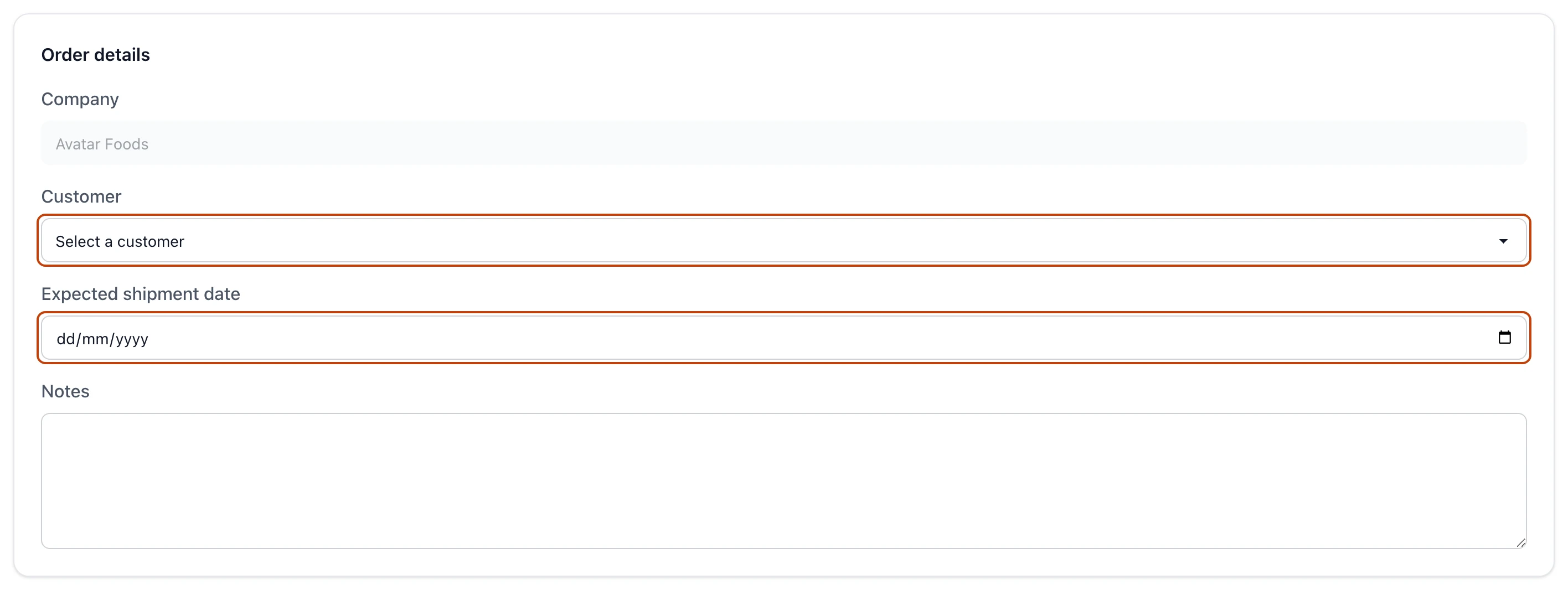
From Sales orders, select New in the top right. The builder opens with your current company already filled in — every order belongs to the company you're working in.
2
Pick the customer
Choose the buyer from the Customer dropdown. It lists the customer contacts for this company, so the buyer has to exist in your contacts before you can select them here.
3
Set the expected shipment date
Enter the Expected shipment date — the day you expect the order to leave your dock. It can't be a date in the past. Add a note in Notes if there's anything the floor or the reviewer should know.
4
Add each product
Under Add product, search by product name or code and pick the one you want. Set the Quantity, then leave Unit price blank to bill at the product's list price or type a number to set your own for this order. Select Add product to drop it onto the order, and repeat for every product the customer asked for.
5
Check the total and create it
Each product you add lands under Added products with its own line total, and the order total updates as you go. Create sales order stays disabled until at least one product is on the order. When the order matches what the customer asked for, select it.
The order builder. Pick the buyer from your contacts and set the day the order should leave your dock.
The buyer comes from your contacts
The Customer dropdown only shows contacts marked as customers for this company. If the buyer isn't there yet, add them to your contacts first, then come back and start the order.
Charge what you agreed on
Leave Unit price blank and the line bills at the product's list price. Type a number instead to lock a negotiated price for this one order — it changes this order's line, not the product's price everywhere else.
What you get
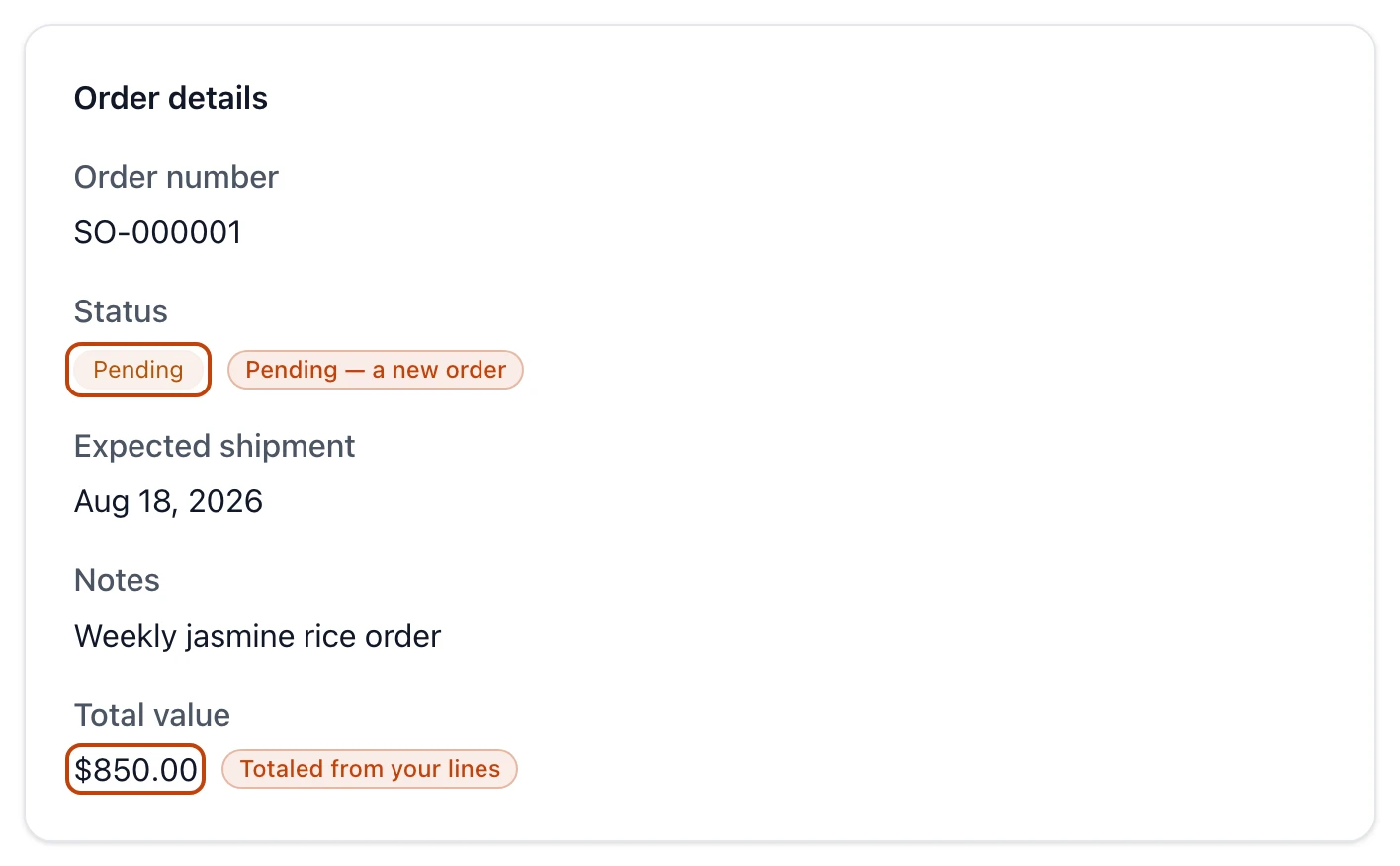
Creating the order takes you straight to it. It carries an order number like SO-000001 and wears a Pending status badge — a new order still waiting on a decision. You're recorded as the requester, and the total is added up from the lines you entered.
The order you just created, sitting in Pending with its total added up from the lines you entered.
Pending is the one stage where the order is still yours to change. Nothing has been committed, no stock has moved, and no one has been asked to prepare it yet. The order stays here until someone with the authority approves or rejects it.
Change the order before it's approved
While the order is in Pending, an Edit button sits at the top of it. Editing reopens the same builder and replaces the order's products, quantities, customer, and details with whatever you save.
Once the order is approved, that window closes: the lines lock, and Edit goes away. If a Pending order turns out to be a mistake rather than a real sale, you can Discard it instead — that drops it from your lists for good, without leaving a rejected order behind.
Related
How sales and shipping flow — where a sales order goes after you create it, from approval through picking and shipping.