Stage the on-hand lots that fill a prepared order, cover every line, then ship it — the point where stock leaves your books against the exact lots that went out.
On this page
Was this helpful?
Real help from real food people
Chef Diego runs a real food plant. If this page didn't get you there, tell us — a person reads every message.
The truck backs up to your dock at two, and the jasmine rice order for Whole Foods is sitting in Preparing — approved and prepared, waiting on the actual lots. Building the shipment is where you name them: line by line you point at the on-hand lot and the location the cases come from, then ship, and the stock walks off your books against the exact lots that left. You do it on the Prepare shipment screen of the order, opened from Sales orders. Kitchen+
You reach this screen by preparing the order first — only an order that is being prepared opens here. This shipment path fills each line straight from stock on hand; it is not fed by a picking, which is a separate floor job that ends in its own delivery.
Build the shipment
1
Open the order's shipment screen
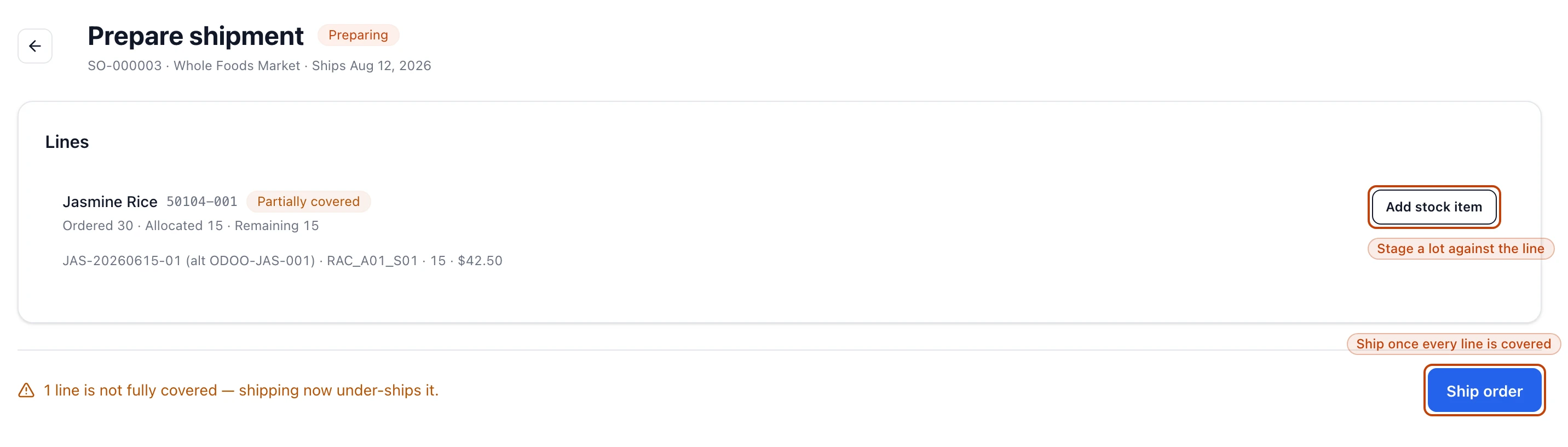
From Sales orders, open the order — it has to read Preparing. Select Continue preparing to reopen the Prepare shipment screen, where every ordered line is laid out with the cases still to cover. An order in any other status turns you away here with a notice.
2
Stage a lot against a line
On a line, select Add stock item. Pick the lot and the location the cases come from, set the quantity, and select Add. Each staged lot becomes a and shows up under the line.
3
Cover every line
Repeat until each line reads Covered. A line takes as many staged lots as it needs — split a line across two lots and locations when no single one holds the full quantity.
4
Ship the order
Select Ship order and confirm. Bettr books the stock out and moves the order to Shipped.
The Prepare shipment screen for a Preparing order. Each line carries its staged lots and an Add stock item button; the bar along the bottom ships the order once every line is covered.
Staging a lot
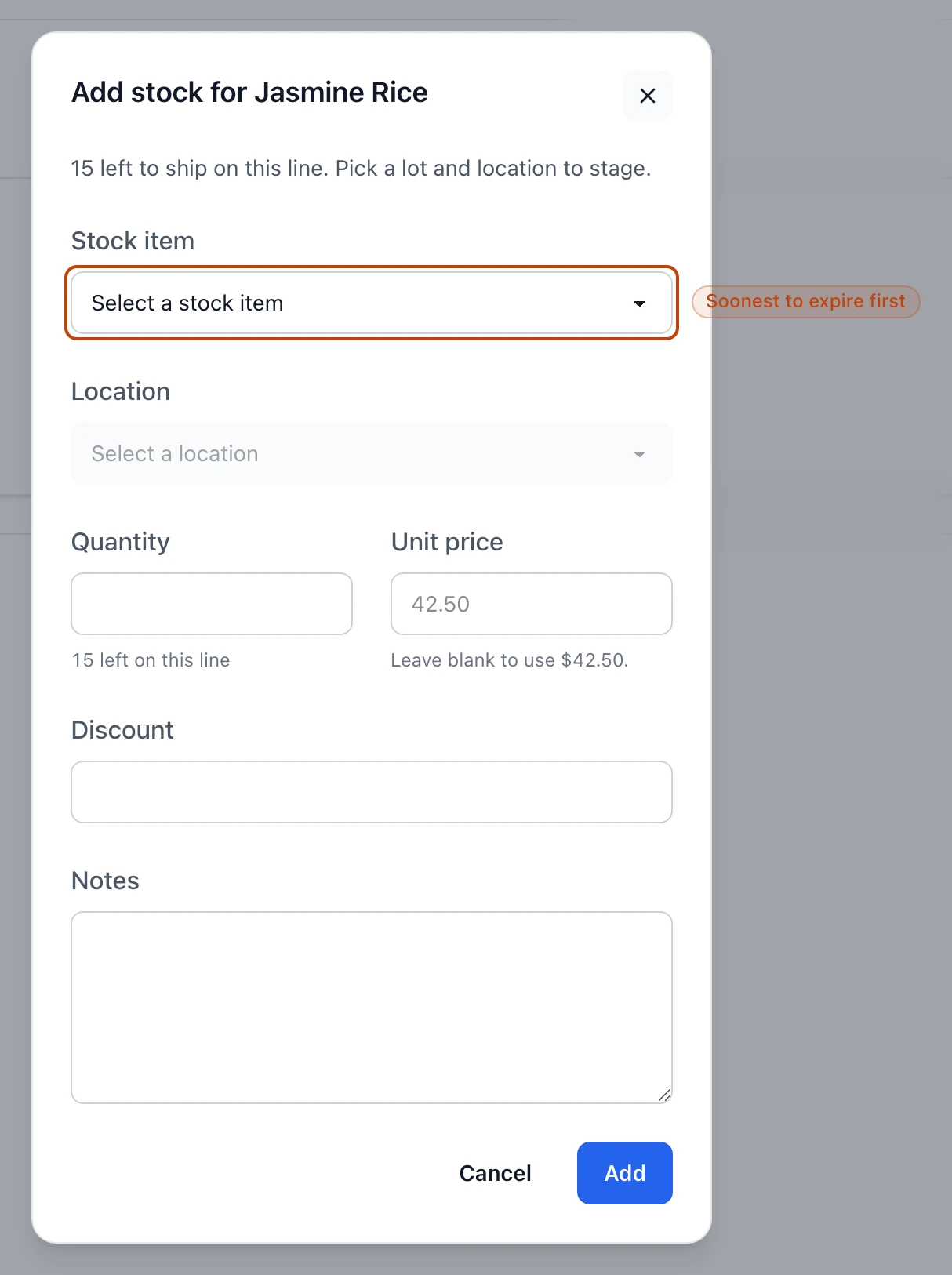
Add stock item opens a short form for the line. It reminds you how many cases are still left to ship on that line, then asks for two things: which lot, and which location.
Stock item lists the on-hand lots of that product, ordered by . The soonest-to-expire lot sits at the top of the list.
Location lists the places that lot is held, each with the cases on hand there. You cannot stage more than a location holds, and never more than the line still needs — the quantity is capped at the smaller of the two.
Unit price defaults to the line's price; leave it blank to use it, or override it for this lot. Discount and Notes are optional.
If a product has nothing on hand, the form says so — No on-hand stock of this product to stage — and there is nothing to add until stock arrives.
Staging a lot against the Jasmine Rice line. The stock-item list offers on-hand lots soonest-to-expire first, and the quantity can't exceed what the chosen location holds.
Coverage, and shipping short
Each line wears a coverage badge that tells you where it stands:
Needs stock — nothing staged yet.
Partially covered — some stock staged, but short of the ordered quantity.
Covered — the full quantity is staged.
The bar at the bottom reads the whole order. Once every line has stock against it, Ship order turns on; until then it stays disabled and reads Add stock for every line first. If every line is covered but one is still short of its full quantity, Bettr lets you ship and warns you that it will under-ship that line — the cases you did not stage simply do not go out, and the shortfall is not held open for a later run.
Remove a staged lot
Staged the wrong lot? While the order is still Preparing, each staged line shows a remove control — clear it and the lot drops off the shipment. Nothing has left your shelves yet at this point, so removing a staged lot only changes the plan for what will ship.
What shipping records
Shipping is the write. When you confirm Ship order, Bettr records one for every staged lot, draws those cases out of their locations, and moves the order to Shipped. Before it writes anything it checks the stock is still there: if a lot was used up elsewhere or a location no longer holds enough, the ship stops and names the shortfall so you can restage.
That set of movements is the trace that follows the stock out the door. From a lot you can find every order it shipped on, and from a shipped order the exact lots that filled it — the record an auditor or a recall asks for.
Shipping can't be undone
Confirming Ship order books the stock out for good — the movements are recorded and the order becomes Shipped. Cover the lines with the lots you truly sent before you ship; there is no reversing it from this screen.
Shipping is its own permission
Staging lots and shipping are separate rights. Someone who can add stock to a shipment may not be the one allowed to ship it, so the Ship order button only shows for a role that can ship.
Related
Prepare a sales order — the step that moves an order into Preparing and opens this screen.