Add each plant or entity you run, set its details and time zone, and switch between them from one login.
On this page
Was this helpful?
Real help from real food people
Chef Diego runs a real food plant. If this page didn't get you there, tell us — a person reads every message.
A company in Bettr Manager is one plant or legal entity — a production site, a
commissary, a distribution operation. You add one for each place you run, and
everything else in Bettr Manager (products, stock, orders, records) belongs to a
company. Open Companies to
add one or open one you already have.
Add a company
1
Open the new-company form
On the companies list, select New.
2
Name the company
Give it a Name and a short Code — the code shows next to the name
everywhere it appears, like AVA_1. Add a Description so anyone can tell
the sites apart.
3
Link it to Odoo (optional)
If you run Odoo, enter its Odoo company ID so the two line up. Leave it
blank if you don't.
4
Create it
Leave Active checked and select Create. The company joins the
list.
Edit a company
Open a company from the list and select Edit — or the pencil that appears on
its row. The edit dialog holds three groups of settings, and each one saves on
its own:
Details — the name, code, description, and Odoo company ID. Select
Save.
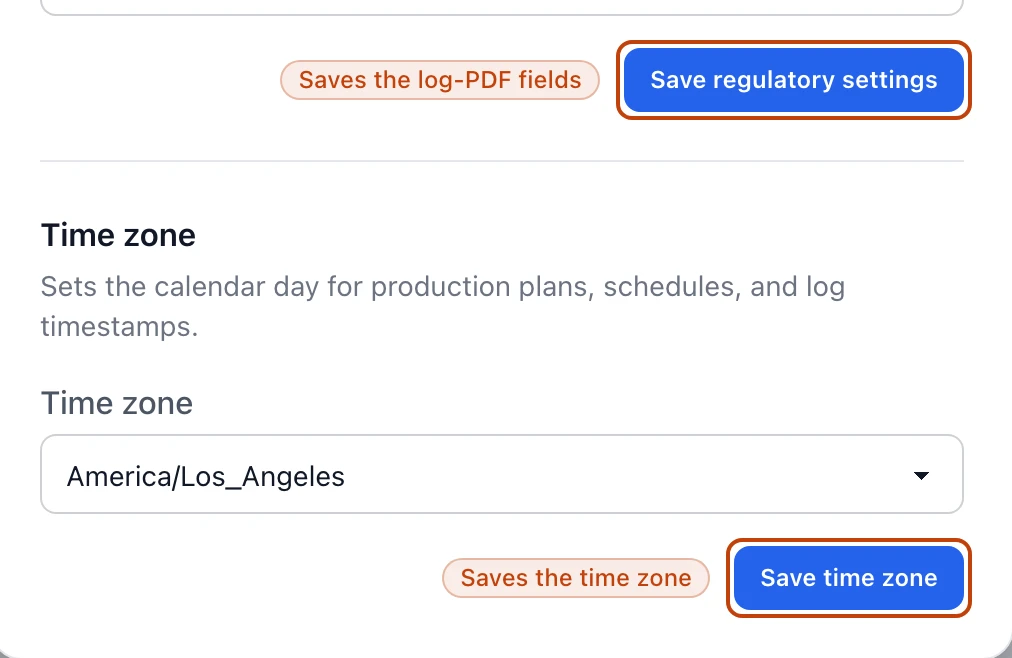
Time zone — sets the calendar day for production plans, schedules, and log
timestamps, so a late shift lands on the day it worked. Select Save time
zone.
Regulatory exports — the plant address and USDA establishment number that
print on your cooking and cooling log PDFs. Select Save regulatory
settings, and leave them blank until you have them.
Regulatory exports and time zone are separate sections in the edit dialog — each keeps its own save button.
Three buttons, three saves
Saving the details doesn't save the time zone or the regulatory fields, and
the other way around. Use each section's own button so nothing you changed gets
left behind.
Switch between companies
Each company keeps its own products, stock, orders, and records, so you always
work in one company at a time. When you belong to more than one, a company picker
sits in the top bar — pick another company and the whole app moves to it. With a
single company, the picker just shows its name.
While you're in the middle of adding or editing certain records, the picker
locks, so you can't strand a half-finished record in the wrong company. Finish or
close what you started and it unlocks.
Delete a company
When a site closes, open it and select Delete company in the danger zone.
That hides it from every company list and the picker.
Deleting can't be undone
A deleted company won't come back in any list or the picker. Its records stay
in place for audit and traceability — nothing is erased — but you can't restore
the company itself.