Draw the exact lots for a delivery line by line, then finish the picking so the stock that leaves your shelves is booked out as a sales order.
On this page
Was this helpful?
Real help from real food people
Chef Diego runs a real food plant. If this page didn't get you there, tell us — a person reads every message.
Your line lead radios up: pull nine cases for the run going out at two — five of jasmine rice, four of basmati, off the racks. A turns that into an exact job — the lots, the shelves they sit on, and the case counts — so the crew grabs the right stock and books it out cleanly instead of guessing. You work it from Picking under Inventory. Line+
A picking does not start from a sales order — it starts on the floor. You build the pull list, the crew draws the lots, and when the picking is finished the stock that left is recorded as a shipped delivery. That delivery lands on your books as a sales order, so the cases that walked out the door stay counted and traceable, whether or not an order was ever typed in first.
Pick a delivery
1
Start a picking
From Picking, select New. Choose the department the stock is headed to — its destination — set the expected picking date, and add each lot and location to pull, with the number of cases. Select Create picking order once you have at least one line. The picking opens with an Approved badge, ready for the crew.
2
Open the worklist
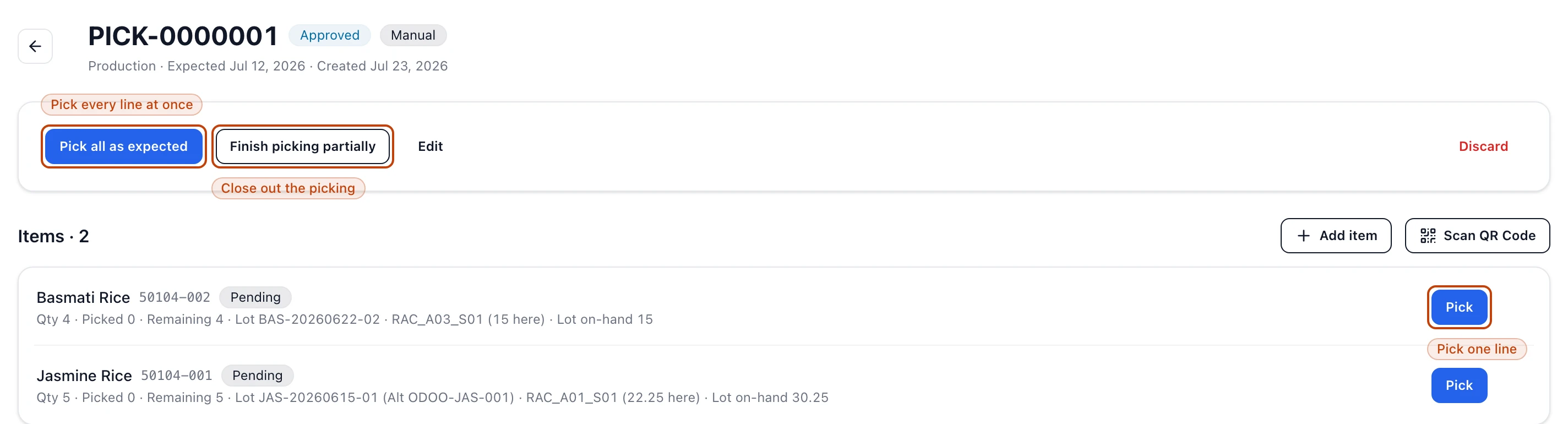
Each line lays out what to pull: the product and its lot, the location holding it, and the ordered, picked, and remaining case counts. A line wears a Pending badge until every case on it is picked, then flips to Complete.
3
Pick each line
Select Pick on a line, enter the number of cases you actually pulled, and confirm. Pick all, Pick half, and Pick 1 set the quantity for you. Picking a line draws that stock down and records who pulled it. If your lots carry QR labels, Scan QR Code jumps you straight to the matching line instead of hunting for it.
4
Close out the picking
When every line is picked, select Pick all as expected to fill any lines still open at their full quantity, or Finish picking partially to ship only what you pulled. Either way, the picked cases become a shipped delivery and leave your on-hand count.
An approved picking: the close-out actions sit up top, and each line below names its lot, its location, and the cases to pull. Pick draws one line down; Pick all as expected fills them all.
The lot order when you add items
When you add a line, Bettr lists the on-hand lots of that product ordered by . The soonest-to-expire lot sits at the top, so the right stock goes out in the right order without anyone reading date codes off boxes. Each location under a lot shows how many cases are available there, and you cannot pull more than the location holds.
Closing out, and what it books
An approved picking carries two ways to finish, and both end the same way — picked stock becomes a shipped delivery.
Pick all as expected picks every remaining line at its ordered quantity in one step. A line whose stock is not ready to pull is skipped, not forced.
Finish picking partially closes the picking with only what you have pulled so far. Unpicked quantities are not held open or re-created — what you did not pick simply stays on the shelf.
Whichever you choose, the cases you picked move out of their locations and onto a shipped delivery, recorded against the exact lots that left. That is the trace that follows the stock out the door: from a lot you can find every delivery it went out on, and from a delivery the lots that filled it.
Adding and removing lines
While a picking is still Approved, you can adjust it. Add item opens the same lot-and-location picker to append a line. A line you have not started — nothing picked against it yet — carries a remove control; once a line has any picked cases, it locks so the record of what left stays intact.
Finishing is final
A finished picking cannot be reopened, and the shipped delivery it creates stays on the books. Pick the quantities you truly pulled before you close it out — unpicked cases are not reserved for a later pass.
A picking is its own path
Picking does not stage a sales order's shipment. A sales order you approved and prepared is filled from stock on hand on its own screen; a picking is a separate floor job that ends in its own shipped delivery. The two do not cross.
Discarding an approved picking
Need to walk one back? Discard hides the picking from your lists. Any stock the crew already drew stays recorded — discarding hides the order, it does not put cases back on the shelf.