Count your stock location by location — build a count, record what's actually on the shelf at each spot, and hand a finished count to a manager to review.
On this page
Was this helpful?
Real help from real food people
Chef Diego runs a real food plant. If this page didn't get you there, tell us — a person reads every message.
It's the last Friday of the month and the on-screen numbers have quietly stopped
matching the racks — a case here, two there. You want someone to walk the floor
and count what's really on the shelf, freezer by rack by cooler, without shutting
the warehouse down while they do it. That's an . Open
Inventory counts
next to this page, and you build one, pick its locations, and count each spot from
your phone.
Build a count and pick its locations
1
Start a new count
In the top navigation, open Inventory and select Inventory Counts,
then select New. The list is where every count lives, each with its
number — IC-000002 — and its status.
2
Name it and add a note
Give the count a name that says what it is, like Freezer Cycle Count, and
add a note if the crew should know why you're running it. Both are optional —
leave the name blank and Bettr just calls it Inventory Count.
3
Pick the locations to count
Under Locations, check every spot this count covers. Use Search by code
or name to find a rack fast, or Select all to take the whole list. A
location that's already being counted somewhere else shows an In another
count badge and can't be picked — no spot is counted twice at once.
4
Create the count
Select Create count — the button carries how many locations you chose,
Create count (2). Bettr opens the new count, sitting in Draft with each
location waiting.
Locations are your count's map
A count can only cover locations you've already set up, so the spots you count
are the bins and rooms you modeled. If a rack is missing from the list, set it
up first and come back.
Start the count
A fresh count opens in Draft — the locations are chosen but no one's counting
yet. When you're ready to send people to the floor, select Start Count. The
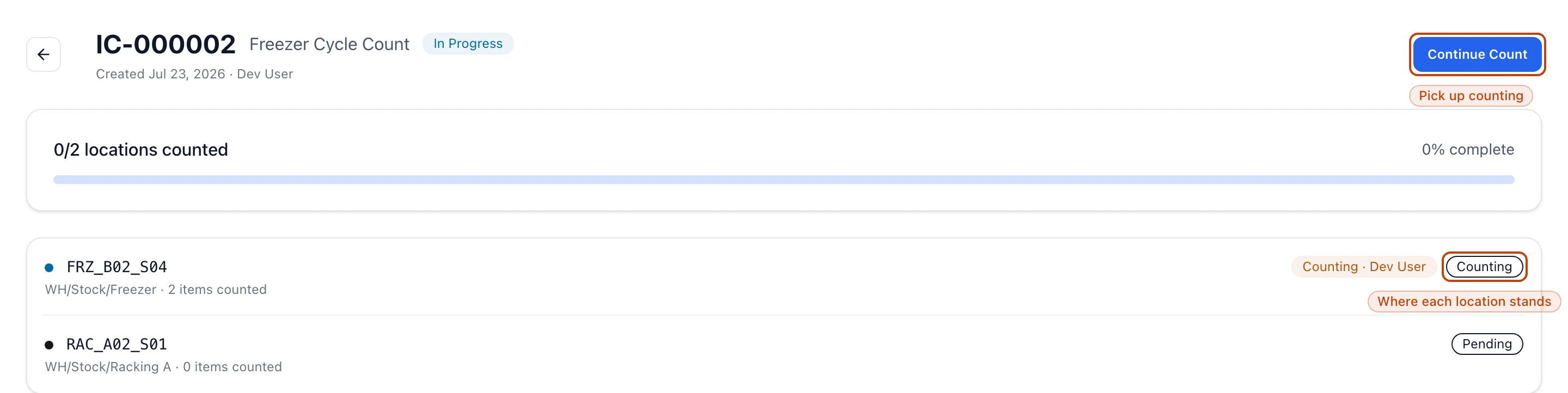
count moves to In Progress, and its detail becomes the board you watch: a
progress bar reading 0/2 locations counted, and every location listed with its
own state — Pending until someone opens it, Counting while it's in hand,
Completed once it's done.
An in-progress count's detail: the progress bar tracks how many locations are done, and each location shows whether it's Pending, Counting, or Completed. Continue Count picks up where the floor left off.
Once a count is in progress you don't come back through Start Count — the same
button reads Continue Count and drops you straight onto the counting screen.
Count a location
Counting happens one location at a time. On the counting screen, the header reads
Location 1 of 2, and Previous and Next step you through the spots.
1
Open the location
A location you haven't touched yet shows Start Location Count. Select it,
and the location is now yours to count — teammates see it's taken and can pick
up a different spot.
2
Find the item in front of you
Search Find a stock item by product name, code, or lot, or type an exact
number under Enter lot number and select Find. On a phone, Scan QR
Code reads the label and pulls the up for you.
3
Record the count
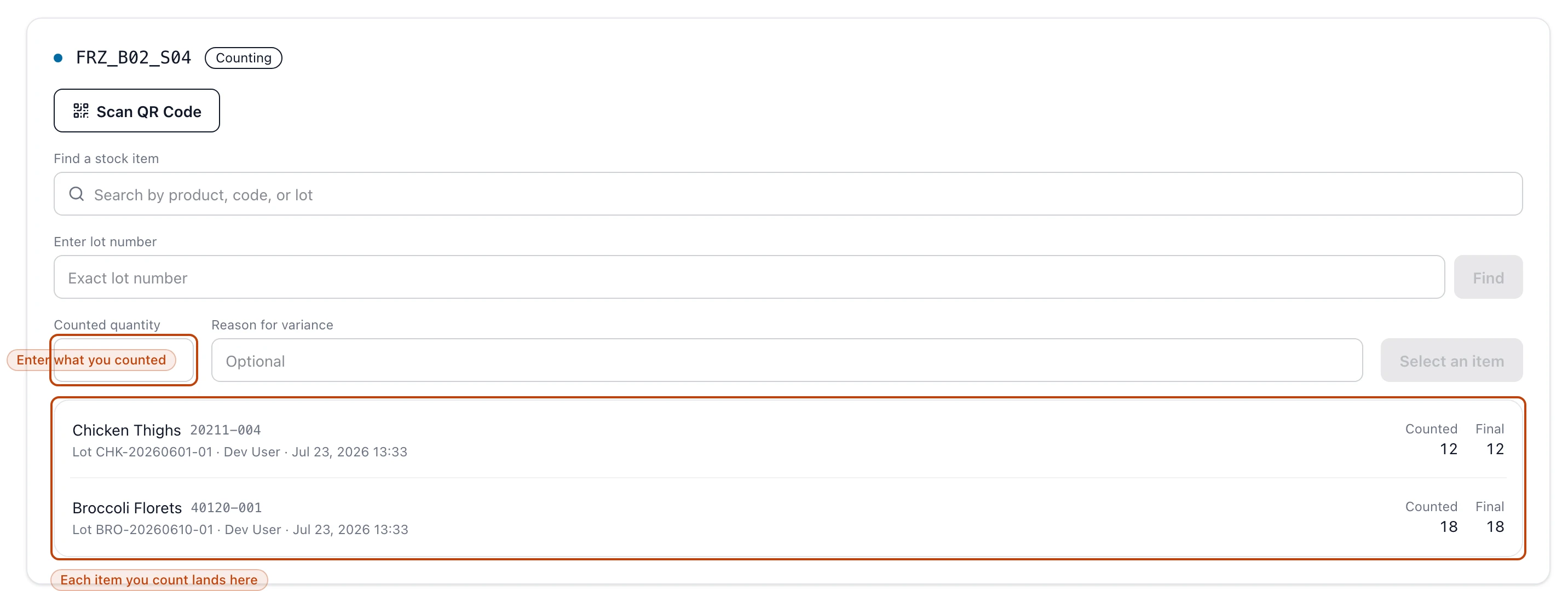
With an item picked, enter the real quantity in Counted quantity and select
Count item. If what you found doesn't match what Bettr expected, note why
in Reason for variance — it's optional, but a line like Two cases pulled for line 3 saves the manager a phone call later. Each item you record lands in
the list below, with the quantity you counted.
4
Complete the location
When the spot is fully counted, select Complete Location. If you counted
nothing there, Bettr asks you to Confirm empty first, so an untouched
location and a genuinely empty one never look the same.
Counting a freezer location: pick or scan an item, enter what you counted, and select Count item. Everything you record collects in the list below, each line holding the counted quantity for its lot.
It's built for the floor, not the office
The counting screen is made to work from a phone with cold hands — big fields,
a lot scanner, and a running list of what you've counted. Count where the stock
is, not back at a desk from a clipboard.
Count as a team, and pick up where you left off
A count doesn't have to be one person's afternoon. When several people open the
same count, each Start Location Count locks that spot to whoever opened it —
the detail shows Counting · Dana on a location in hand, and anyone else who
opens it reads Dana is counting this location. Two people never overwrite each
other's numbers, and the progress board updates on its own as locations finish.
Nothing about a count is a race against the clock. Complete the locations you can
reach today, close the app, and open the count tomorrow — it's still In
Progress, your finished locations still Completed, and Continue Count
takes you back to the ones that are left.
What each status means
A count moves through a short life, and its badge on the list tells you exactly
where it stands:
Draft — created, with its locations chosen, but not yet started. A draft is
the only state you can Delete outright, since nothing's been counted.
In Progress — started, and being counted location by location. This is where
most of the work lives.
Under Review — every location is counted, and the count is waiting for a
manager to weigh the variances and decide what to apply. Completing the last
location moves the count here on its own.
From Under Review, a manager reviews the count and applies the corrections,
which is a separate job with its own screen —
reviewing and applying a count's adjustments
turns the counted numbers into recorded stock movements, and the count lands on
Applied (or Partially Applied when only some lines are applied).
A manager can also Reject a count that doesn't add up or Discard one that
shouldn't have been run; both ask for a reason, and both leave the count closed
without changing a single quantity.
A count corrects stock only after it's applied
Recording a quantity doesn't move your on-hand. Counting builds the picture;
the correction happens when a manager applies the count under review, and it's
written as stock movements you can trace — never a number typed over the old
one. Until then, the shelf and the ledger can still disagree.