What a role and a person's extra permissions each control, the catalog they draw from, and how the two add up to what someone can do.
On this page
Was this helpful?
Real help from real food people
Chef Diego runs a real food plant. If this page didn't get you there, tell us — a person reads every message.
Every person in Bettr Manager can do exactly what their role allows, plus any
single permissions you grant them on top. You build the roles on
Roles and assign
them, one person at a time, on
User companies —
both under Settings in the sidebar.
The two screens
Roles is where a role is defined: its name, its default production view,
and the set of permissions it grants. A role is
.
User companies is where each person meets those roles: you give someone a
role, grant a few extra permissions on top when they need them, and set which
companies they belong to.
What the roles list shows
Each role sits on its own row, carrying:
Name — the job the role stands for, unique within your organization.
Default production view — an Operator view or Supervisor view
badge. It decides which view a holder of the role opens a production run in:
an operator weighs and records the batch in front of them, a supervisor sees
the whole run.
Member count — how many people hold the role right now.
Permission preview — a few of the permissions the role grants, with a
+N count standing in for the rest.
Point at a row to reveal its actions: the key icon opens the role's
permissions, the pencil edits its name and view, and the trash deletes
it. Selecting the role's name opens its Members panel.
Every organization starts with an Administrator role that holds every
permission. It is the role the first person holds, and the one you assign to
anyone who needs the run of the whole system.
The permission catalog
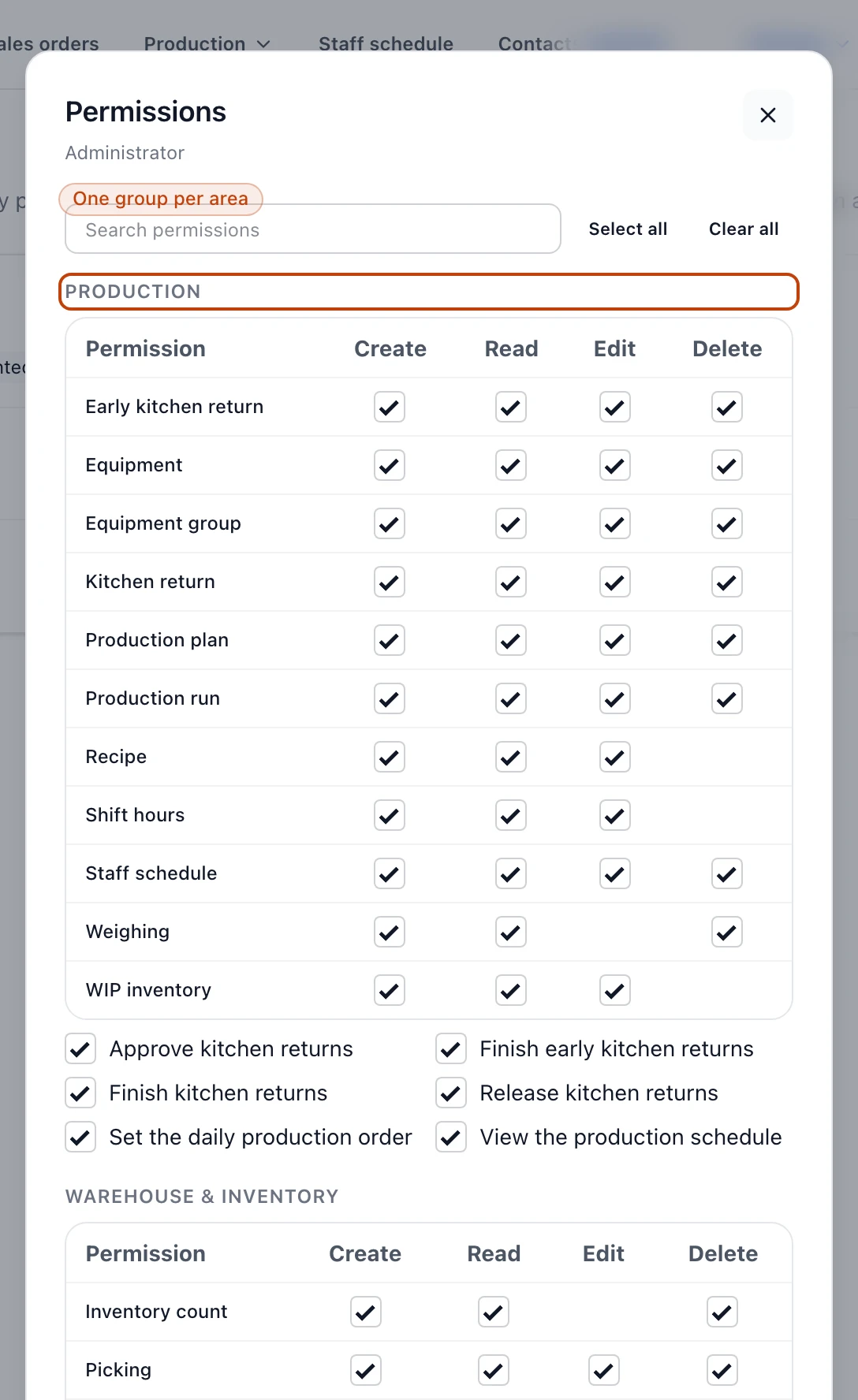
A role's permissions live on their own screen, apart from its name. The catalog
there is grouped by area of the app:
Production, Warehouse & Inventory, Procurement & Sales,
Contacts & Billing, Workforce, Companies, and Access
Administration each list their record types across Create, Read,
Edit, and Delete columns — the right to make, see, change, and remove
that kind of record. A record shows a checkbox only for the actions that apply
to it, so a few leave a column blank.
On top of those, actions that do not fit create/read/edit/delete sit as their
own checkboxes in the same areas — Approve purchase orders, Ship sales
orders, Receive purchase orders, Adjust counted items, Update
salaries, Manage the plan and billing, and the like.
Notifications and Integrations are named permissions rather than a
grid: Manage or View notification recipients and types, and
Configure or View the Odoo and QuickBooks connections.
The permission catalog, grouped by area, with Create, Read, Edit, and Delete for each kind of record.
Search by name to jump to a permission, or use Select all and Clear all
to move quickly. The same catalog appears in the role editor and in a person's
Additional permissions.
Roles on recipes
A role can also be named as a required approver on a recipe version. When it is,
the role's members are the people whose sign-off a new version needs. That is
why a role still in use on a recipe cannot be deleted until you clear it from
those recipes first.
What the user companies list shows
A Search users box sits at the top, and each person has a row with their
name and email and three controls:
Manage companies — which companies in your organization the person
belongs to.
Role — the single role they hold.
Additional permissions — any rights granted to them directly, on top of
their role.
The row itself does not show the role a person holds; open the Role control
to see or change it.
Manage companies
The Manage companies panel lists every company in your organization with a
checkbox each. Tick a company to give the person access to it; a Current
access tag marks the companies they already belong to. Select all and
Clear all move every company at once, a counter reads back how many are
selected, and Save commits the change.
A person's role
The Role panel is a single menu listing every role you have built, plus No
role. A person holds one role at a time, so choosing a new one replaces
whatever they held before and clears any extra permissions granted on top of it.
Save stays disabled until you actually change the selection, so you never
re-save the role someone already holds.
Additional permissions
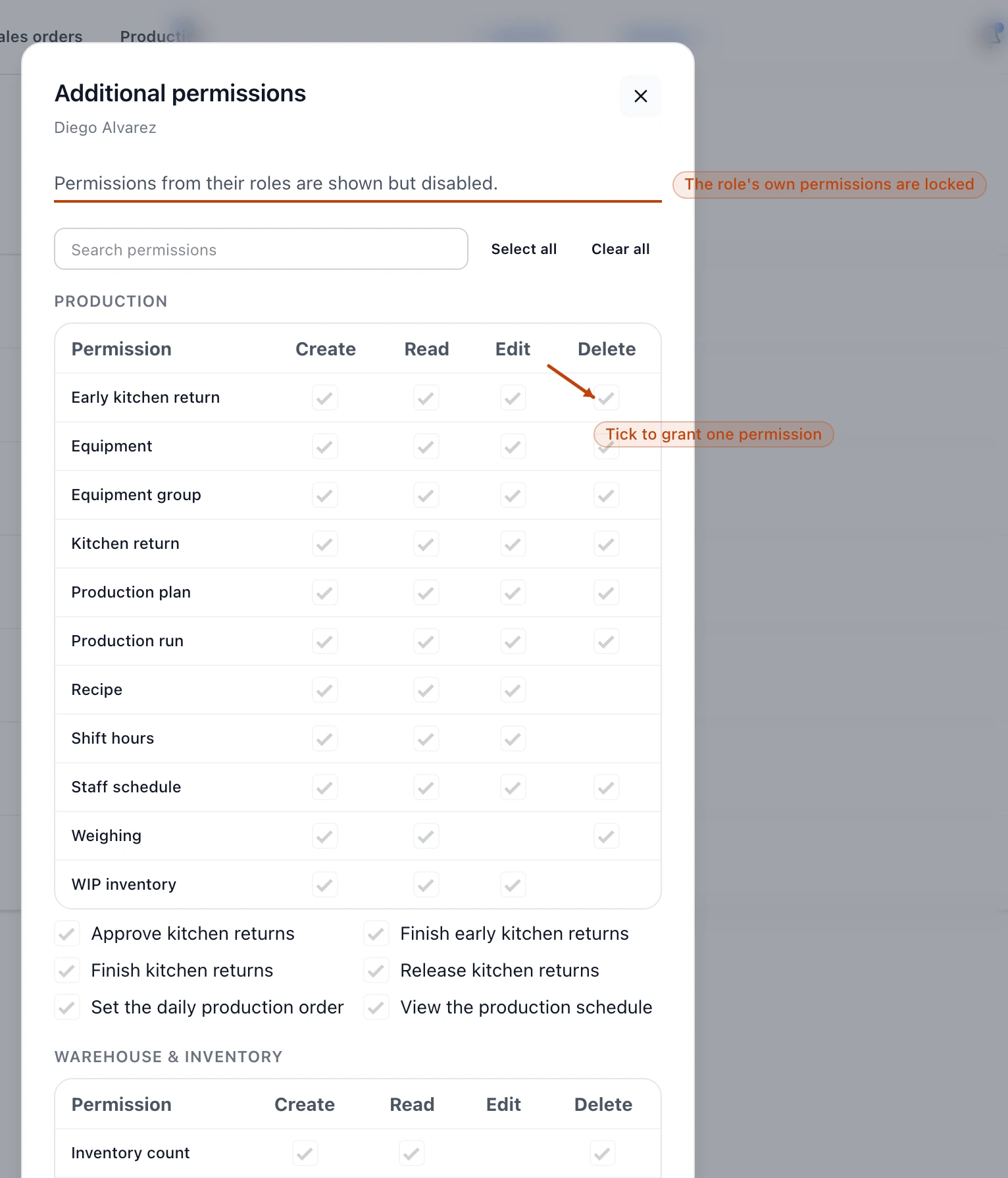
The Additional permissions grid is the full catalog again — the same areas
and checkboxes as a role. Here you grant one person a single right their role
does not carry, without touching anyone else who shares the role. These are
.
The permissions the person's role already grants show up ticked and disabled:
you can add here, never take a role's permission away from one person. Save
changes commits what you ticked.
The Additional permissions grid. Permissions a person's role already grants appear ticked and locked; you tick the rest to add them.
How a role and extra permissions combine
A person's real access is one sum: everything their role grants, plus anything
extra you added on top. The role is the baseline you reuse across a crew; the
extras are the exception for one person.
Because the role is the baseline, two changes reset a person's extras:
Assigning a different role replaces the current one and clears every extra
granted on top of it. Start from the role that fits the job, then layer on
only the one-off rights the person genuinely needs.
Editing a role's permissions clears the extras of everyone who holds it.
They keep the role's new set; their one-off extras reset to nothing.
To take access back, open Role and choose No role — the person keeps
only the extras you granted directly. To drop an extra, untick it in
Additional permissions and save; you can only untick the extras, since a
role's own permissions stay locked.