Every field, amount, status, and permission on an invoice — what it means, where its value comes from, and who on your team can change it.
On this page
Was this helpful?
Real help from real food people
Chef Diego runs a real food plant. If this page didn't get you there, tell us — a person reads every message.
A buyer calls about last month's bill. They quote their own PO number, your total
reads higher than they remember, and the invoice shows a different number across
the top than the one they wrote down. You open it in
Invoices and read it back to
them, field by field. This page names every part of an invoice — the two numbers it
carries, where each amount comes from, the four states it moves through, and who can
change it. Line+
The invoices list
Invoices opens on a list of every invoice in the company you're signed into, newest
first. Each row leads with your reference code and a colored status badge,
and shows the total in the invoice's currency, the requested date, and — when
one is set — the delivery date. Switch companies in the top navigation to see a
different plant's invoices; an invoice belongs to one company and never crosses over.
Three controls narrow the list:
Search by reference code matches the reference you typed, not the customer's
name.
Status filters to Draft, Sent, Paid, or Overdue, or shows all.
Sort reorders by reference, total, status, requested date, or delivery date,
and the arrow beside it flips between ascending and descending.
New starts a blank invoice. It shows only if your role can create invoices.
Invoice details
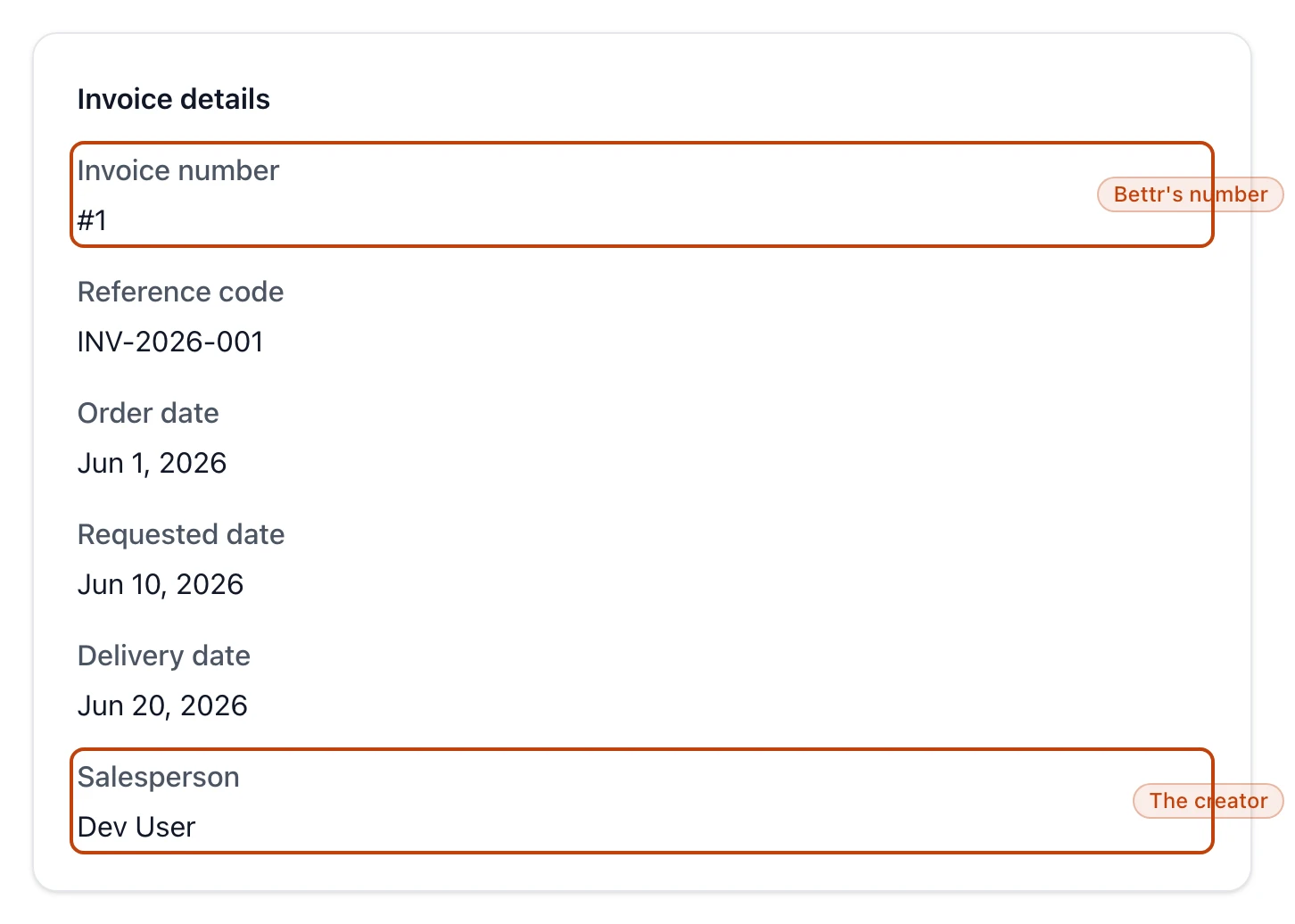
Open any row and the invoice's details sit in the Invoice details panel. This is
where the two numbers live, and they are not the same thing.
Invoice number — Bettr's own handle for the invoice, written #1, #2, and
up. It's assigned when you create the invoice, counts up on its own within each
company, and you never type or change it.
Reference code — your number for the invoice: the PO or invoice number you and
the customer both quote. You set it, it's required, and it has to be unique across
your whole organization, so no two invoices in any of your companies can share one.
Order date and Requested date — when the order was placed and when it's
wanted. The requested date can't fall before the order date.
Delivery date — optional. It only appears once you've set one.
Salesperson — the person who created the invoice. Bettr fills this in from
their account and you can't edit it.
The Invoice details panel: Bettr's own #1 up top, your reference code below it, and the salesperson Bettr filled in.
Who you're billing
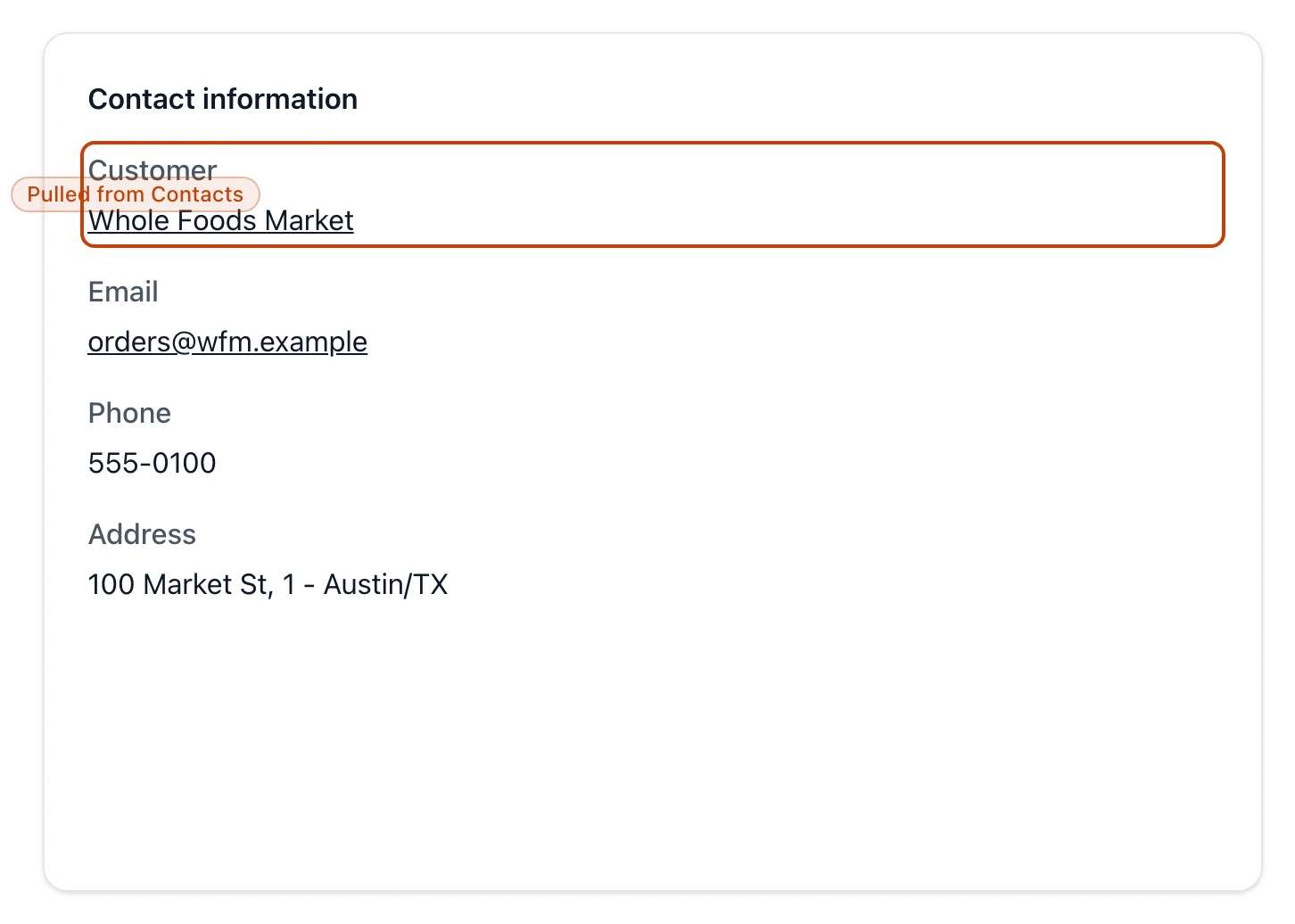
The Contact information panel names the customer and pulls the rest from their
record in Contacts — you don't retype it on the invoice.
Customer — the contact you're billing, and only contacts marked as customers
can go here. The name links straight to their record.
Email, Phone, and Address — read from the customer's current contact
details. Change them in Contacts and the invoice reflects the change; each line
shows only if the contact has it.
The Contact information panel reads from the customer's record — the name links back to Contacts.
Line items and the total
Every product on the invoice is a
. Each line shows the product name
and code, then Qty, the unit price, and the tax rate as a percent. The
amount on the right of a line is quantity times unit price — tax isn't folded into it.
The Financial summary builds the total from those lines, and you never type the
total yourself:
Subtotal — every line's quantity times its unit price, added up.
Tax — each line's tax rate applied to that line, added up.
Shipping — the single shipping charge on the invoice, or nothing if you left
it off.
Total — subtotal plus tax plus shipping, in the invoice's currency: US
dollars, euros, pounds, or Brazilian reais. One currency covers the whole invoice.
Status
Every invoice carries one status, and you set it by hand — Bettr doesn't move an
invoice between states for you. The badge is color-coded so you can read the list at
a glance:
Draft (gray) — you're still building it. A draft is the only invoice you can
delete.
Sent (blue) — it's gone to the customer and you're waiting on payment.
Paid (green) — the money's in.
Overdue (red) — you've marked it past due because payment is late.
Attachments and notes
An invoice holds up to five PDF attachments — a signed delivery ticket, the
customer's purchase order — of up to 10 MB each, and each shows a View link. The
Attachments panel appears only when the invoice has at least one. Notes hold
free text for anything the customer should see, and that panel shows only when you've
written something.
View invoices opens the Invoices area and every invoice in it. Without it, the
area stays closed.
Create invoices shows New.
Edit invoices shows Edit. Saving an edit replaces the invoice's line items
and details with what's on the form rather than merging them.
Delete invoices shows Delete, and only on a draft.
Deleting hides an invoice, it doesn't erase it
Only a Draft can be deleted. Deleting drops it from every list, but the record
is kept for audit and its number and reference code stay reserved — so the trail
stays complete and no number is ever reused. To remove a Sent, Paid, or
Overdue invoice, set it back to Draft first.
Where an invoice comes from
Every invoice in this list is one you entered by hand. There's no source field and no
button that turns a sales order into a Bettr invoice — the list doesn't sort invoices
into "from an order" and "typed in," because they're all typed in.
The one exception is Odoo
If you run your accounting on Odoo, a shipped sales order lets you download the
invoice Odoo raised for that order as a
PDF. That document lives in
Odoo, not in this list — it's a copy of Odoo's invoice, not a Bettr record you
edit here.