Download the invoice for a sales order you shipped — raised in the accounting system you've connected and pulled back as a PDF, straight from the order.
On this page
Was this helpful?
Real help from real food people
Chef Diego runs a real food plant. If this page didn't get you there, tell us — a person reads every message.
The chicken thighs went out to Pacific Foods this morning, and now someone in the office needs the invoice to chase payment. You don't cut it by hand. Because this order flows to the accounting system you already run on, shipping it handed the delivery across, and the invoice was raised and there against the same customer and lines. Back on the order in Sales orders, a Download invoice button waits — select it to pull that invoice as a PDF. Kitchen+
This path runs through your accounting integration, not a separate invoice screen inside Bettr. Your company has to be connected to Odoo and the order has to have synced across; Bettr raises the invoice there and keeps no editable copy of its own. Set that connection up once in Connect Odoo, and every order you ship from then on carries its invoice back to you here.
Download the invoice
1
Ship the order
Ship the sales order the usual way. When it reaches Shipped, Bettr hands the delivery to your accounting system, which raises and posts the invoice there. Do this from Build and ship a shipment.
2
Open the shipped order
From Sales orders, open the order. It reads Shipped, or Delivered once the delivery has been confirmed.
3
Download the invoice
Select Download invoice in the action bar at the top of the order. Bettr fetches the posted invoice from your accounting system and saves it as a PDF named for the order.
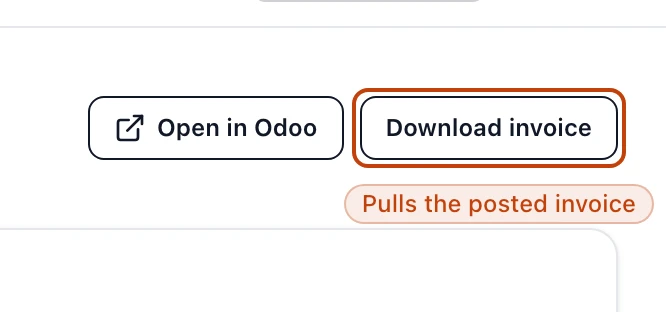
The action bar at the top of a shipped sales order. Download invoice pulls the invoice your accounting system raised; Open in Odoo, beside it, opens the same order in your books.
What the invoice carries
The invoice is built from the order, so you never key the numbers twice. The customer you sold to and the lines you approved carry straight through — the same products, quantities, and prices you agreed on the sales order become the lines on the bill. That is the point of syncing the order across before it ships: the invoice can only match the dock if it was built from the same order the floor picked and loaded.
When the button appears
Download invoice shows only when two things are true:
The order is Shipped, or has moved on to Partially delivered or Delivered. An order still being prepared has nothing to invoice yet.
The order has synced to your accounting system and the invoice has been raised there. An order on a company with no Odoo connection never shows the button, however far along it is.
Alongside it sits Open in Odoo, which opens the same order in your accounting system in a new tab.
When the download does not come through
The button appearing is not a promise the PDF is waiting. The invoice lives in your accounting system, and plenty can be true there that Bettr only finds out when it asks. When the pull comes back with nothing, Bettr returns you to the order and names the one thing standing in the way — the invoice is still a draft rather than posted, the order carries no invoice at all, the Odoo connection was removed, or your accounting system did not answer. Each message ends with the step that clears it, so you fix that one thing and select Download invoice again. One message ends somewhere else: an order that never reached your accounting system has no invoice there to pull, and the order's Odoo sync card says what stopped the send.
Change the invoice
Bettr hands you the invoice but does not own it. To correct a price, add a line, or reissue it, work in your accounting system — Open in Odoo takes you straight to the record. Download invoice always pulls the current posted version, so once you fix it there, download it again here and you have the corrected PDF.
Two kinds of invoice
This is the invoice your accounting system raised from a sales order. It is separate from an invoice you build by hand inside Bettr — that one lives on its own screen and is not tied to an order.