Every field on a contact record — its customer or vendor type, the addresses and people it holds, its payment terms, and the vendor validation status Bettr derives — plus what the contacts list shows and who can change it.
On this page
Was this helpful?
Real help from real food people
Chef Diego runs a real food plant. If this page didn't get you there, tell us — a person reads every message.
Contacts is your directory of the businesses you deal with — the vendors you buy
from and the customers you sell to. Every purchase order and sales order draws
its other party from this list, so a contact's fields decide what those orders
can carry. This page walks a contact field by field: what the list shows, what
each part of the form sets, and the vendor validation status Bettr works out on
its own. Open Contacts to
read along.
The contacts list
The list shows one row per contact, with controls above it to narrow it down.
Each row carries:
Name, and beneath it the contact's email and main phone joined by a dot. A
contact with no real email shows just the phone.
An Inactive badge next to the name when the contact isn't active.
A Customer badge, a Vendor badge, or both — one contact can be both.
The validation badge — the vendor validation status (Approved, Pending,
Incomplete, or Not Applicable), covered below.
Each row's actions are View (open the record), Edit (change it), and
Vendor validation (open the validation file) — the last shows only on a
vendor. New opens a blank contact. The edit action and New appear only
for people who hold the matching permission.
The controls above the list:
Search filters by name.
Status limits to Active or Inactive, or leaves it on All statuses.
Type limits to Customer or Vendor, or All types.
Department limits to one department's customers — vendors carry no
department.
Sort orders by name, status, or creation date, and the arrow beside it
flips ascending or descending.
Clear all resets the search, filters, and sort.
When the list runs long, a per-page control and pagination sit beneath it. With
no matches, the list reads "No contacts found."
Contact type
Every contact is a Customer, a Vendor, or both, set by two checkboxes;
you must check at least one. The choice decides where the contact turns up:
vendors on purchase orders, customers on sales orders. A business you both buy
from and sell to is one contact with both boxes checked.
Check Customer and a Department field appears, so you can file customers
under a department — Production, Logistics, or Quality — and filter the list to
one. Vendors carry no department. Check Vendor and the contact gains a
validation file, described below.
Basic information
Company — locked to the company you're working in, since a contact belongs
to one plant. Switch companies in the top navigation to add a contact
elsewhere.
Name — required.
Email — a valid address. It's required once you mark the contact a
Customer, because that's where its paperwork goes.
Website — a valid web address, optional.
Status — Active or Inactive. An inactive contact stays on record but reads
Inactive on the list, and the status filter reads the same setting.
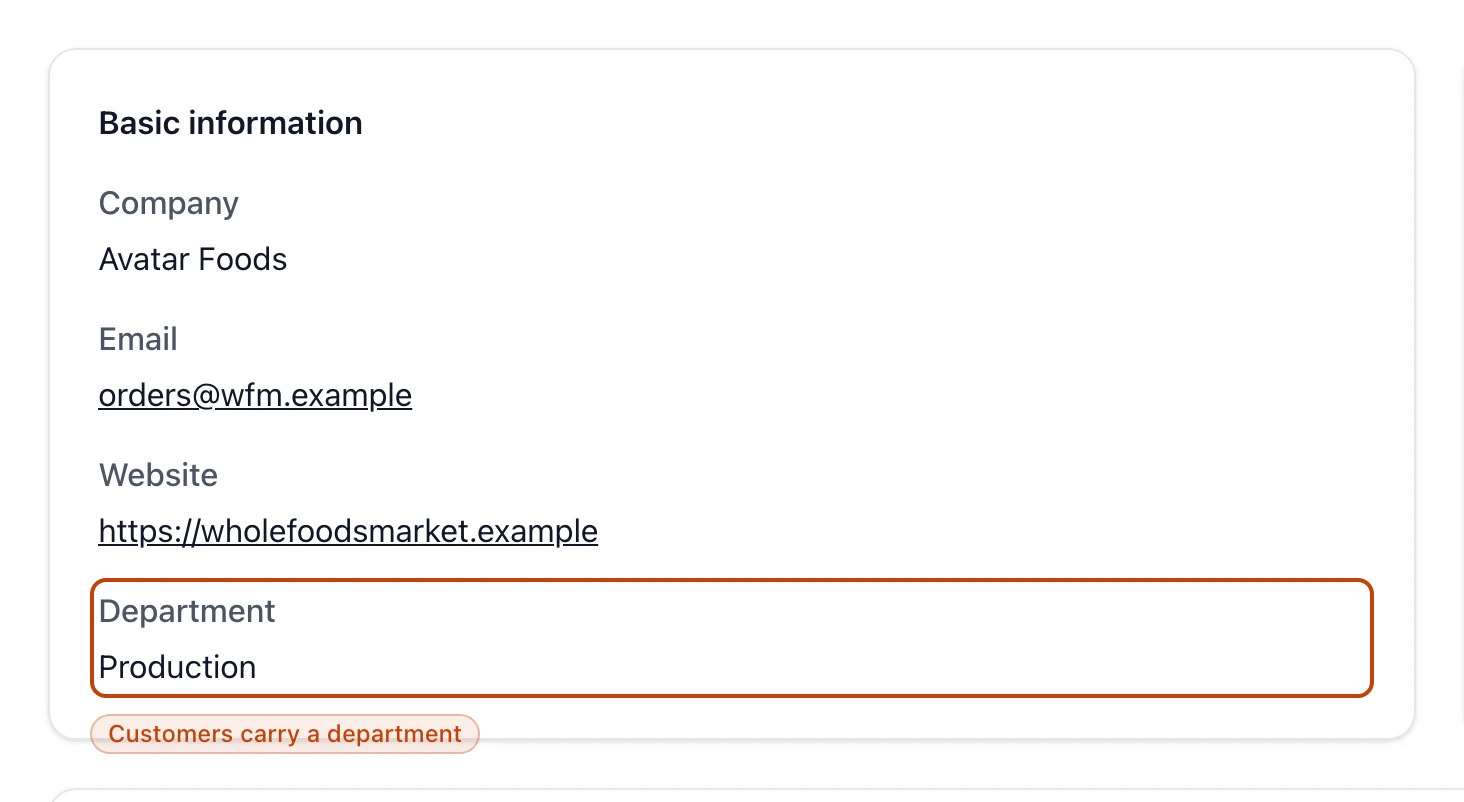
A customer's basic information — Company is locked to the active company, and the Department field appears only on a contact marked Customer.
Phones, addresses, and people
A contact holds three lists, each needing at least one entry:
Phones — at least one, with one marked Main. The type is Main, Mobile,
or Office, and the detail page labels each by type, like "Main phone."
Addresses — at least one, each a full address: street, number, complement,
neighborhood, postal code, city, state, and country. The type is Address
(the main one), Billing Address, or Delivery Address, and each type is
used at most once.
People — at least one, with exactly one marked Billing Contact. The
type is Contact, Primary Contact, or Billing Contact, each used at most once,
and every person carries a name, position, email, and phone.
Payment information
Two fields carry the deal you struck with the contact, so you set them once here
instead of on every order — the method it pays by and its
:
Payment method — Credit, Debit, Wire, or Check.
Payment terms — Net 10, Net 21, and Net 30 fall due that many days after the
invoice date; COD is cash on delivery, paid when the goods arrive.
A vendor's terms follow it onto its purchase orders, and a customer's onto its
invoices.
Vendor validation
Only a contact marked Vendor carries a
file. Bettr derives its status
from what's on file — you never set it by hand. The file holds:
Two required assessments — Risk assessment and QA contact.
Six required documents — Third-party Audit, Third-party Audit Report,
Letter of Guarantee (LOG), Certificate of Insurance (COI), HACCP Certificate,
and FDA Registration.
Three optional statements — Lot code explanation, Social responsibility
statement, and Prop 65 statement. These don't change the status; they keep the
paperwork in one place.
The status shows on the list and on the vendor's contact card:
Pending — nothing saved yet, where a new vendor starts.
Incomplete — something saved, but an assessment or a document is still
missing.
Approved — both assessments written and all six documents on file.
Not Applicable — the contact isn't a vendor, so it carries no validation
file.
When a contact is linked to Odoo, its detail page shows an Open in Odoo
button that jumps to the matching partner there. A contact you haven't linked
shows no button.
Every save — a new contact or an edit — sets off a send to Odoo, and the Odoo
sync card at the foot of the contact says what became of each one. The card
appears once your organization has Odoo connected, and it lists the sends newest
first: what each carried (New contact or Contact changes), when you
saved it, and the Odoo contact it reached.
The card leads with where the newest send stands:
Sent to Odoo — Odoo took it.
Sending — it's on its way.
Not sent — something about the setup stopped it before it left. The card
names what, and links to the screen that settles it.
Odoo refused it — Odoo turned it down. Bettr keeps retrying for a while.
Stuck — it stopped before Odoo answered, and nothing is retrying it.
The Odoo sync card on a contact whose edit never left — the badge reads Not sent, and the warning beneath it names the gap and links to the fix.
There is no resend button, and the card needs none: saving the contact again
files a fresh send. So the fix for anything but Sent to Odoo is to close the
gap the card names, then open Edit and save.
Who can manage contacts
Viewing, adding, changing, and deleting contacts are each their own permission.
The New button, the edit pencil on a row, and the Danger zone on a
contact's Edit page show only for people who hold the matching one.
Deleting a contact — from the Danger zone — hides it and its addresses,
phones, and people from every list and lookup. The record is kept for audit, and
any purchase or sales order that already named the contact still shows it. You
just can't pick it for anything new.