Every field on a company record — its name, code, description, time zone, and the regulatory details that print on your log PDFs — and where each one shows up.
On this page
Was this helpful?
Real help from real food people
Chef Diego runs a real food plant. If this page didn't get you there, tell us — a person reads every message.
A company in Bettr Manager is one plant or legal entity — a production site, a
commissary, a distribution operation — and every product, lot, order, and record
belongs to one. This page walks a company field by field: what the list shows,
what the detail page holds, and what each section of the edit dialog sets. Open
Companies to follow along.
The companies list
The list shows one row per company, sorted by name. Each row carries the
company's name, its code in a badge, and a summary line — the description, the
Odoo ID when one is set, and the date the company was created. A company that
isn't active wears an Inactive badge next to its name.
Above the list sit the controls that narrow it:
Search filters by name.
Status limits the list to Active or Inactive, or leaves it on All statuses.
Sort orders by name, code, Odoo ID, or created date, and the arrow beside
it flips ascending or descending.
Clear all resets the search, status, and sort back to the default.
New opens the new-company form. When the list runs long, a per-page control
and pagination sit beneath it.
A company's details
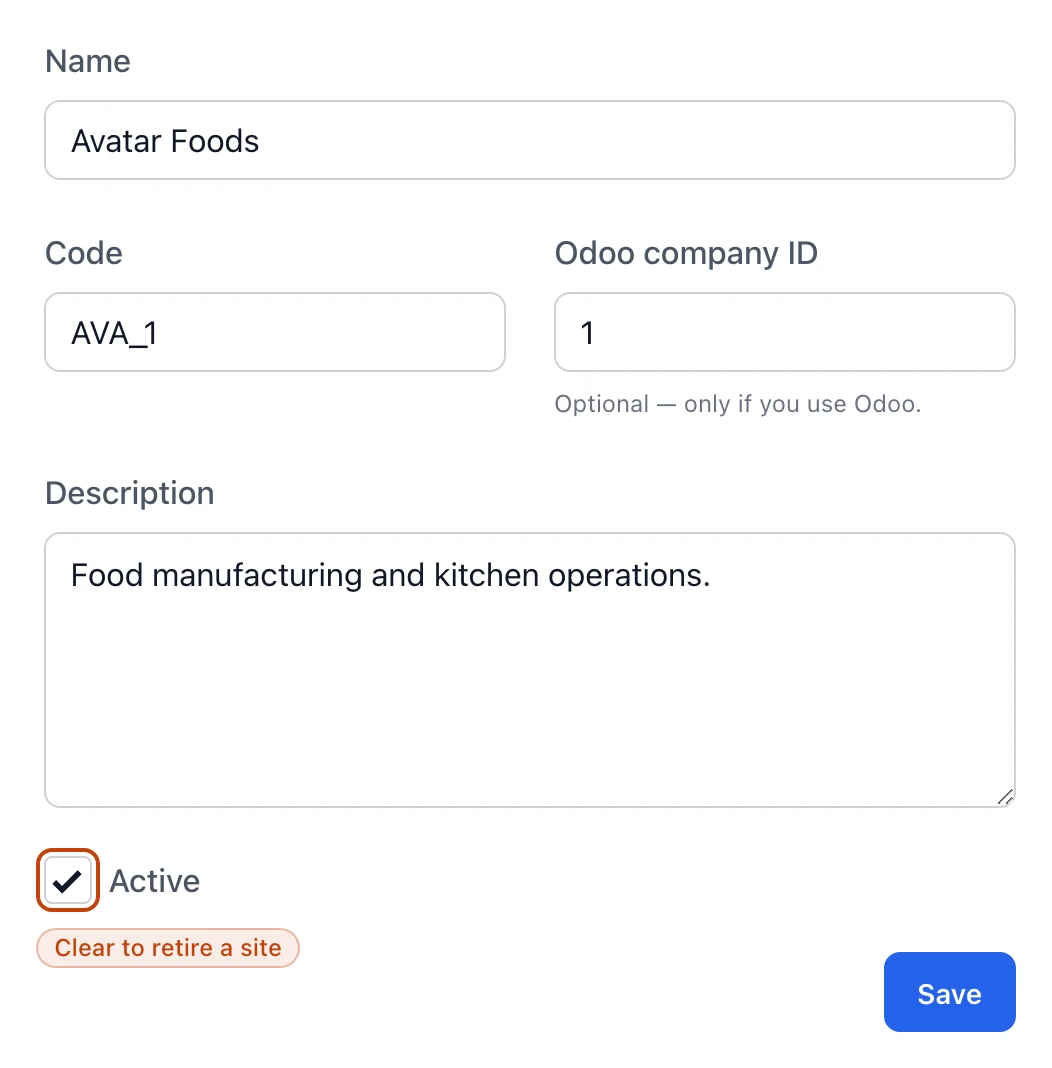
Open a company to read its record, and select Edit to change it. Five fields
make up a company:
Name — required, up to 255 characters. The company's full name, shown at
the top of every list and page.
Code — required, up to 50 characters. A short identifier like AVA_1,
shown in a badge next to the name everywhere the company appears.
Description — required. A line that tells one site from another; it shows
on the list row and the detail page.
Odoo company ID — optional, a whole number. The id of the matching company
in Odoo, so the two line up. It reads N/A on the detail page until you set it,
and you only need it if you run Odoo.
Active — a checkbox. An active company is one you're working in; clear it
to retire a site without deleting it. The detail page shows Active or Inactive,
and the status filter reads the same setting.
The detail page also stamps when the company was created and last updated.
The details section of the edit dialog holds a company's core fields; the code shows as a badge everywhere the company appears.
Time zone
A company's time zone sets the calendar day for its production plans, schedules,
and log timestamps, so a late shift lands on the day it actually worked. You pick
it from the full list of time zones, and it saves on its own button in the edit
dialog — separate from the details above it.
Regulatory exports
Two fields feed the cooking and cooling log PDFs your floor prints and your
auditor reads: the Plant address (up to 500 characters) and the
(up to 50). They're
blank until you have them, and they save on their own button, apart from the
details and the time zone.
Working across companies
Each company keeps its own products, stock, orders, and records, so you always
work in one at a time. When you belong to more than one, an Active company
picker sits in the top bar — pick another and the whole app moves to it. With a
single company, the picker just shows its name.
While you're mid-record — adding or editing something that belongs to a company —
the picker locks, so you can't strand a half-finished record in the wrong place.
Finish or close what you started and it unlocks.
Who can manage companies
Viewing, adding, editing, and deleting companies are each controlled by
permissions. The New button, the edit pencil on a row, and the danger zone on
a company show only for people who hold the matching permission.
Deleting a company — from the danger zone on its detail page — hides it from
every list and the Active company picker. Its records stay in place for audit and
traceability; nothing is erased, and the company itself can't be brought back.