Create the bins, racks, and rooms your stock lives in — each with a storage type and a weight capacity — so every lot has a home you can find.
On this page
Was this helpful?
Real help from real food people
Chef Diego runs a real food plant. If this page didn't get you there, tell us — a person reads every message.
A walk-in freezer goes in over the weekend, or a pallet of rice lands in a corner
nobody has a name for — and by Tuesday the floor is guessing where things sit.
Before a lot can have a home in Bettr, the spot has to exist first: every bin,
rack, and cold room your stock lives in is a location you set up once. After that,
a batch you receive or produce lands somewhere real, and it turns up when you go
looking. That list is
Stock locations,
under Inventory.
Create a stock location
1
Open Inventory → Stock locations
In the top navigation, open Inventory and select Stock locations,
then select New.
2
Build the location code
Give the spot a . Pick a Quick template to start from a common shape,
or type each segment yourself. A code runs 2 to 5 segments, each exactly 3
characters (letters and numbers). As you go, a badge reads Available or
Already exists, so you never reuse a code.
3
Set its storage type and capacity
Choose one or more — Dry (ambient), Refrigerated, or Frozen
— and enter a Max weight capacity with its unit.
4
Map it to Odoo, when you're connected
When your organization is connected to Odoo, pick the Odoo location this
spot maps to — every stock location then points at one Odoo internal location,
so Bettr and your accounting system count the same stock. Without a
connection, there is no mapping to make and the section doesn't appear.
5
Create the location
Select Create. The new spot appears on the Stock locations list, ready to
hold stock.
Connected to Odoo but unreachable
With Odoo connected, a stock location can't be saved without an Odoo internal
location to map it to — and if Bettr can't reach your Odoo account, the form is
replaced by a notice until the connection is fixed in
Connect Odoo. Without an Odoo connection at all,
locations are simply created without a mapping and don't sync anywhere.
Name locations so they survive growth
The reason the code is built from fixed-length segments is that consistent names
still sort and filter cleanly a year from now, when one aisle has become twenty.
Keep each level the same width — a three-character warehouse, aisle, and bin — and
RAC_A01_S01 reads the same way as RAC_A12_S04. The Quick templates seed the
shapes most plants use:
Warehouse → Street → Bin
Building → Floor → Row → Bin
Zone → Aisle → Rack → Shelf
Complex warehouse
When you're adding a run of bins that only differ by a number, don't start each one
cold. Copy last reuses the code and settings of the location you just made, and
Browse locations copies an existing one's whole configuration as a starting
point — so a whole aisle ends up consistent. Use Add segment and Remove last
to change how many levels a code carries, within the 2-to-5 range.
Cold, frozen, or ambient
Storage type is how Bettr knows a spot's temperature class, and a location can carry
more than one — a cooler that also keeps dry goods is both Refrigerated and
Dry. Each type shows as a badge on the Stock locations list, and the All
storage types filter narrows the list to just your freezers or just your dry
racking when you're deciding where a delivery goes.
Search by code
The list also has a Search by code box. Because your codes share a prefix per
area, typing FRZ or RAC pulls up every bin in that zone at once.
See what's in a location
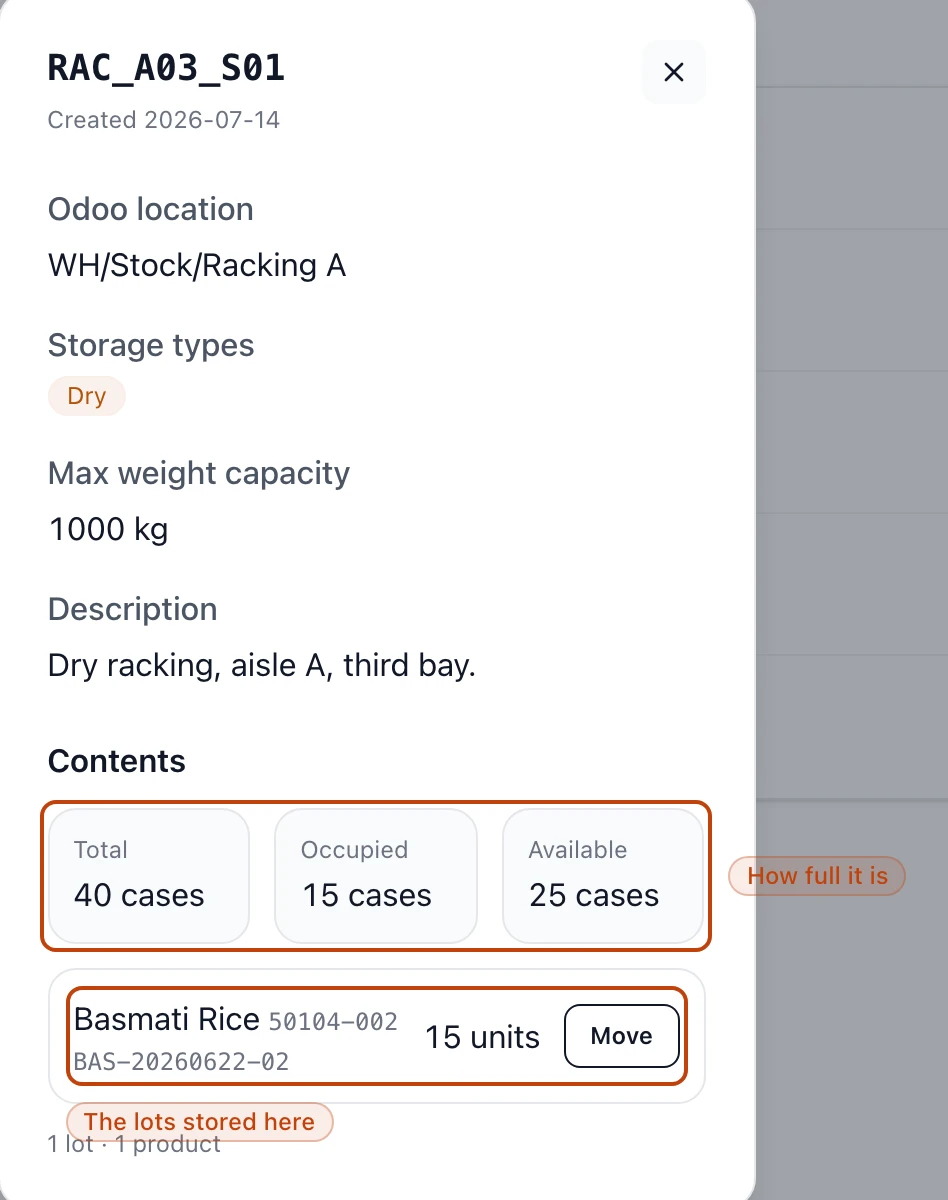
Select any location to open its detail — its storage types, weight capacity, the
Odoo location it maps to, and everything stored inside right now.
A location's detail: its storage type, how full it is in cases, and the lots stored inside.
Under Contents, Bettr shows how full the spot is — Total, Occupied, and
Available cases. It can only total them when a single product sits there; a
location shared across products reads as untracked instead. Below that sits every
lot in the spot, each with its product, lot number, and quantity. Move beside a
lot relocates it to another location without losing its
history — the move is recorded, not
typed over.