Register the machines your floor runs on, keep each one's status current, and gather interchangeable machines into groups.
On this page
Was this helpful?
Real help from real food people
Chef Diego runs a real food plant. If this page didn't get you there, tell us — a person reads every message.
The rotary oven throws a belt halfway through the morning bake. Before anyone
schedules the next batch onto it, you mark it down — and the reason is logged
against the machine so its service history stays complete. Every machine on your
floor lives on Equipment:
what it is, whether it's running, and which line it belongs to. This is where you
add machines, keep their status current, and gather interchangeable ones into
groups. Kitchen+
Give the machine a Name and pick the Department that runs it. The
department matters past the label: a recipe step can only reach for equipment
in its own department, so a mixer filed under Production is what shows up when
you write a Production recipe. Model, Serial number, and Internal
machine number are optional.
3
Set how it runs
Choose the Equipment type — Non-Continuous for a machine that works one
batch at a time, like a mixer or a blast chiller, Continuous for one that
runs at a steady rate, like an oven conveyor or a label printer, or
Container for the thing a batch goes into rather than through, like a tote
or a bin. Set the Input type to LB or Unit. A continuous machine
needs a Capacity, its throughput per minute; a container takes How many
fit, what a full one holds, which is where a
count level reads it
from; a non-continuous machine takes a Minimum and Maximum batch
weight, the range it can hold.
4
Add calibration and reference details
Record the Last and Next calibration dates if you track them — Bettr
flags a machine on the list when its next calibration falls within 30 days or
has already passed. You can also attach external Links, like an operating
manual, and key-and-value Settings, like a target temperature or a cycle
time.
5
Create
Select Create. The machine gets its own page, where you change its status
and edit its details later.
Change a machine's status
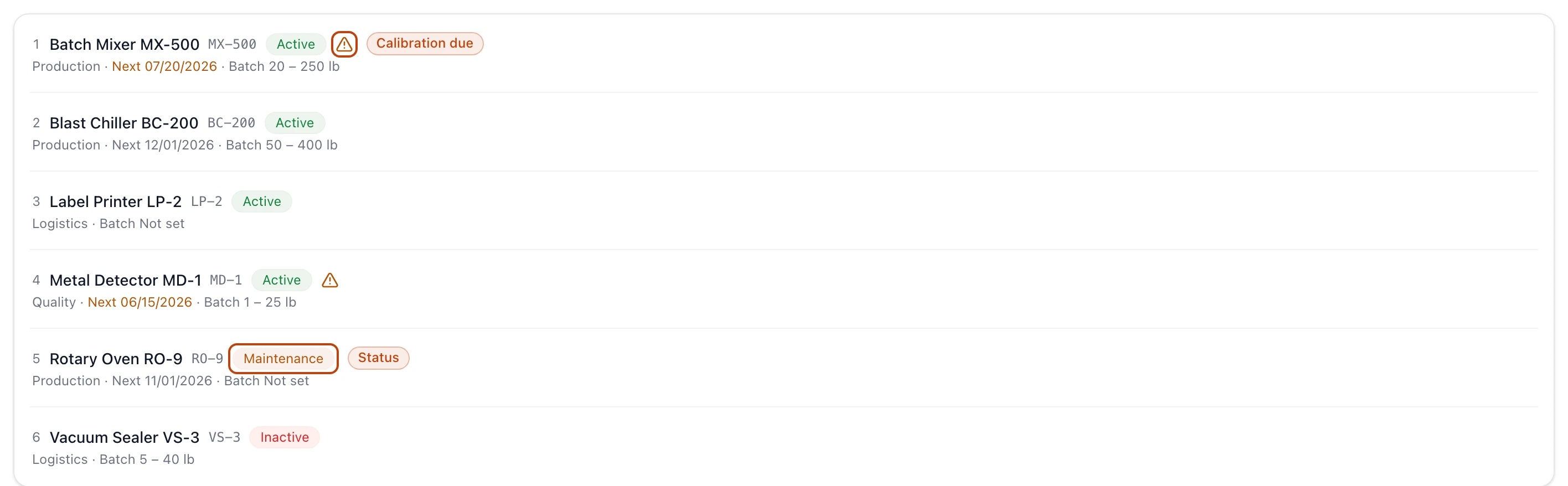
A machine is Active when it's ready to run, Maintenance when it's down for
a repair or a check, and Inactive when it's retired from the line. The status
shows on the list and on the machine's page, so anyone planning a run can see at a
glance what's available — and a triangle marks any machine whose calibration is
due or overdue.
The Equipment list carries each machine's status as a badge, with a warning triangle on any machine whose calibration is due or overdue.
To change it, open the machine and select Change status. Pick the new status,
set the date and time it happened, and write a reason. Bettr records the change in
the machine's Event history and names it for you — a machine going from Active
straight to Maintenance is logged as a Failure, and bringing it back is a
Maintenance End. Nothing is overwritten, so the history reads as the machine's
full service record.
Pull up everything that's down
The status and department filters at the top of the list narrow it in place, so
before a shift you can call up every machine in Maintenance, or every machine in
one department, without scrolling the whole floor.
Group interchangeable machines
When two ovens can each bake the same line, the schedule shouldn't have to care
which one. An gathers them under a single
name.
Give it a Name that reads on the floor, like Baking Line or Packaging Line.
The group belongs to your current company; switch companies from the top bar
first if you meant a different one.
3
Choose the machines
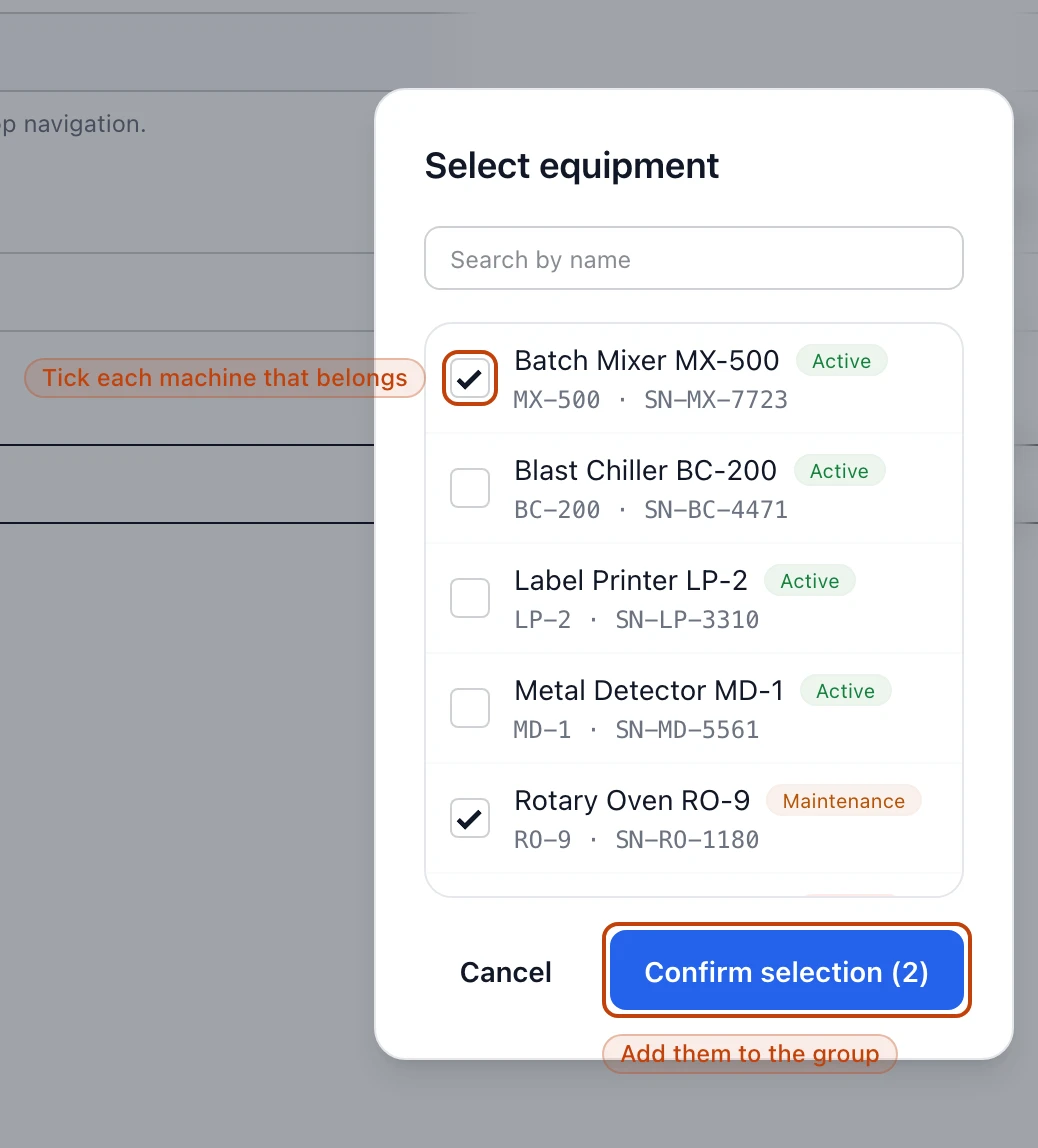
Select Choose equipment for this group to open the picker, tick every
machine that belongs, and select Confirm selection. You can search by name,
and each machine shows its status so you don't group in one that's already
retired.
4
Create
Select Create. It stays off until you've picked at least one machine.
The picker lists every machine in the company with its status; check the ones that can stand in for each other, then confirm the selection.
Recipes name a machine, not a group
A recipe's production steps point at one specific piece of equipment, not a
group — see Create a recipe. A group is a
planning convenience: interchangeable machines under one name, so you can reason
about them as a set.
Delete equipment or a group
To retire a machine for good, open it, select Edit, and use Delete
equipment in the Danger zone at the bottom. Deleting hides it from every
list and equipment group — but, as with everything in Bettr, the record is kept
for audit; nothing is truly erased. Marking a machine Inactive is the lighter
touch: it stays a machine you can see and bring back, just flagged as off the line.
A group works the same way. Edit the group and use Delete equipment group.
Deleting a group leaves its machines untouched — it only removes the grouping.