Book an approved order's stock in against its lines, record what actually arrived, and hand each delivery off to QC or putaway.
On this page
Was this helpful?
Real help from real food people
Chef Diego runs a real food plant. If this page didn't get you there, tell us — a person reads every message.
A pallet of basmati rice you approved last week just came off the truck. Before
any of it counts as stock you can use, it has to be booked in against the order it
arrived on — that is what Receiving does. It records what actually turned up, runs
any checks the goods need, and hands each delivery off to be put away as stock. Open
Receiving to see
the orders waiting on you. Kitchen+
Receive an approved order
You can only receive an order once it's been
approved. Open a pending or
rejected order in Receiving and you'll see a note that it can't be received yet,
not the lines — approval is what makes an order receivable.
1
Open the receiving worklist
Go to Receiving.
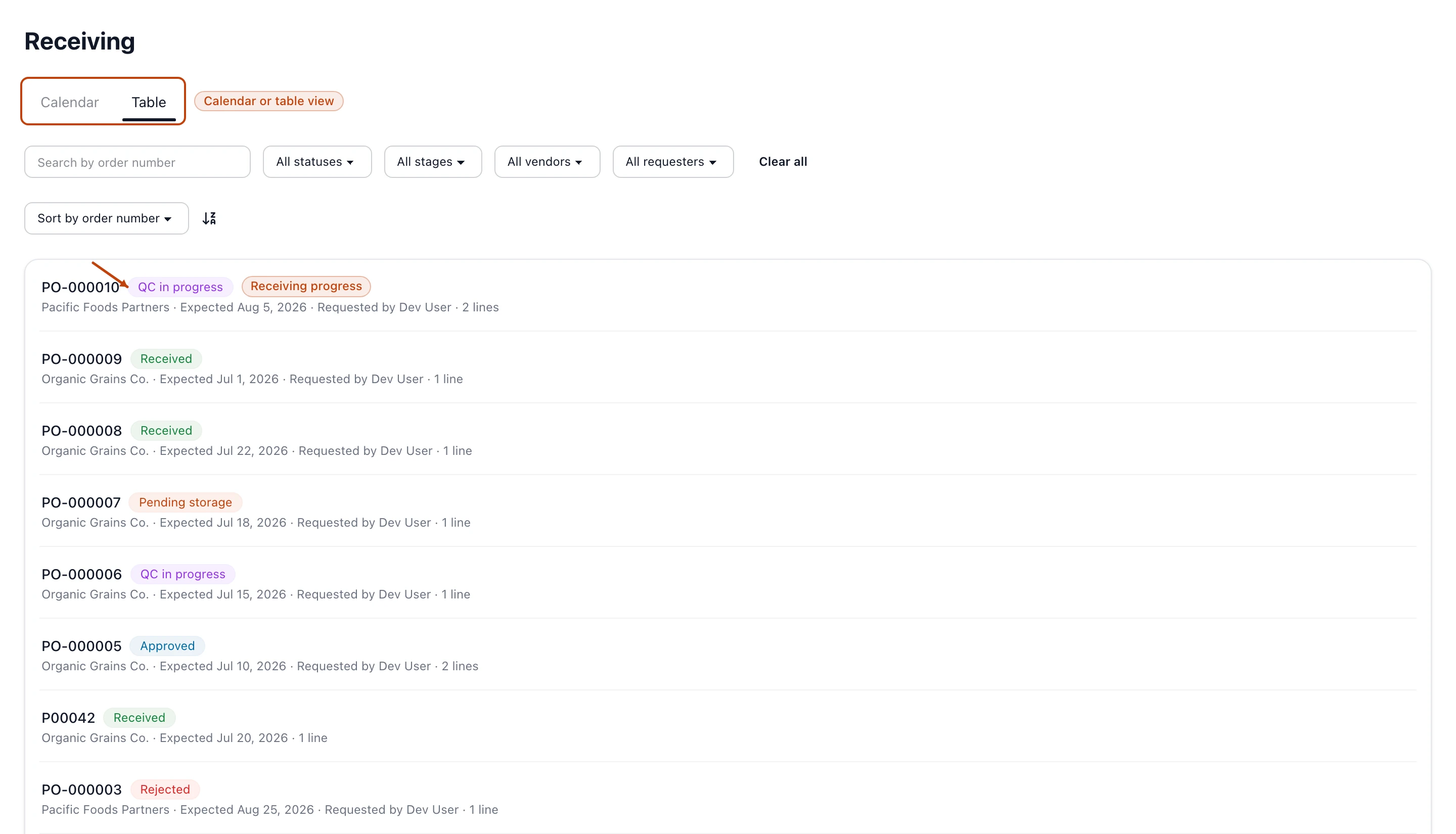
It opens on the orders that are approved and waiting on stock. Read it as a
Calendar to see what's expected on which day, or switch to the Table
for a straight list, and filter by vendor, requester, or receiving stage.
2
Open the order that arrived
Select the order's number to open it. You'll see its vendor and totals, any
truck-shipping records, and a Lines section with one row per product you
ordered.
3
Receive each line
A line you haven't booked in yet reads Ready to receive and carries a
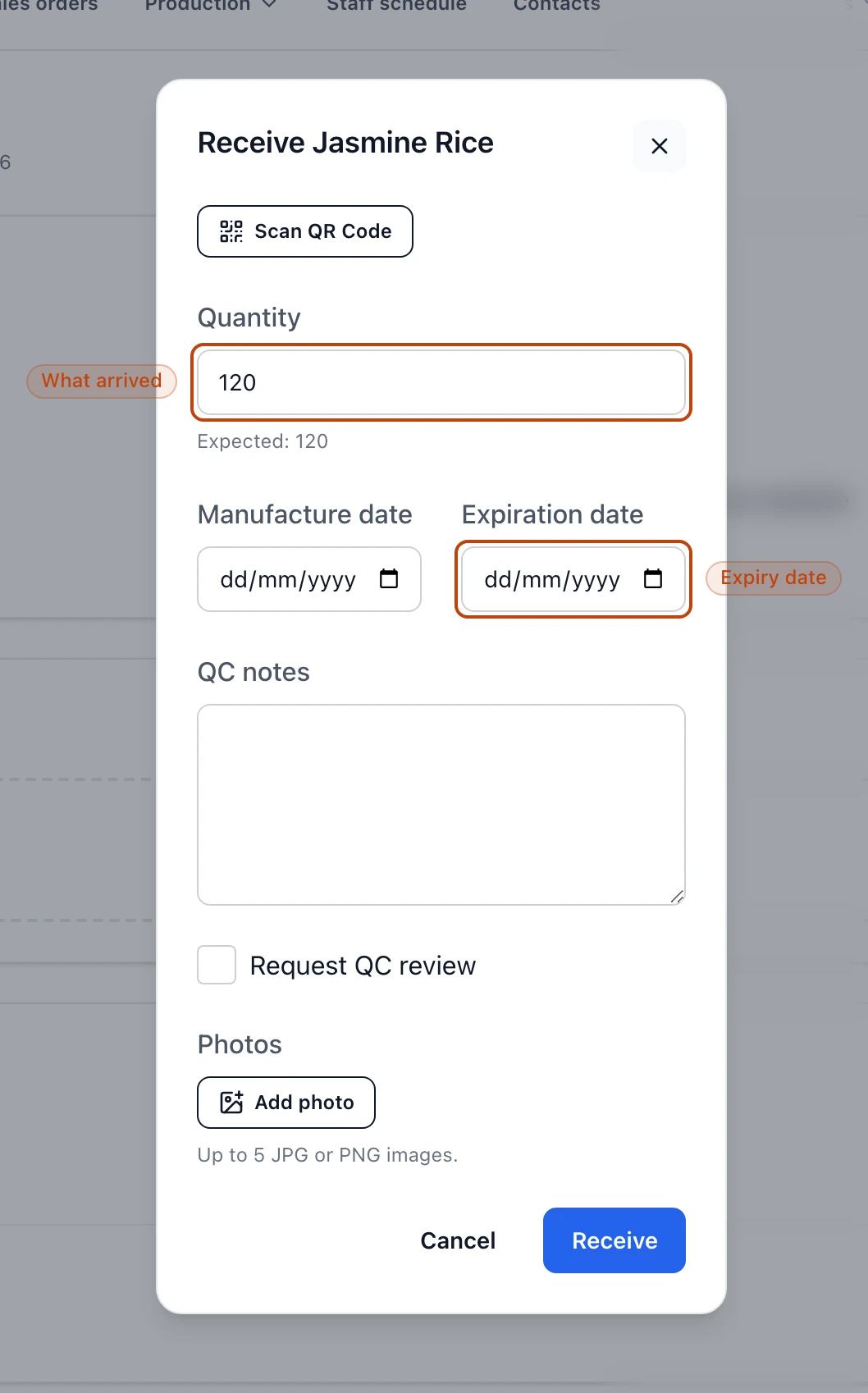
Receive button. Select Receive, then record what actually arrived: the
Quantity (it starts at the amount you ordered), the Manufacture date,
and the Expiration date. Select Receive to book the line in.
The receiving worklist tracks every order by its progress. Switch between the calendar and a table, and the status tells you where each order sits.
An approved order opens on its lines. A line you haven't booked in yet reads
Ready to receive and carries the Receive button that starts it off.
Each line on an approved order shows Ready to receive with a Receive button until it's booked in.
Selecting Receive opens a short form. The Quantity starts at what you
ordered — change it to what actually turned up — and you set the delivery's
Manufacture date and Expiration date before booking it in.
The receive form: the quantity that arrived, and the manufacture and expiration dates that ride with the lot.
Booking a line in creates a . The tracked lots
themselves aren't created here; those come later, when you put the stock away.
Line stages, from ready to received
Every line carries a stage badge that moves as the delivery works through
receiving:
Ready to receive — nothing booked in yet. The Receive button is here.
Awaiting QC — received, and held for a quality check before it can move on.
QC approved — cleared QC and ready to put away.
Its button reads Assign location.
Received — put away and on hand. The line now offers its Details, lot
labels, and returns.
The order's own status climbs alongside its lines — from Approved through
QC in progress and Pending storage to Received — so the worklist tells
you at a glance how far along each delivery is.
What happens after you receive
When you book a line in, Bettr either clears it or holds it:
If the product needs no quality check and the goods pass, the receipt lands at
QC approved — ready for .
If the product is flagged QC required, you ask for a review, or a shelf-life
or temperature check fails, the receipt lands at Awaiting QC and waits for
someone to sign it off.
Send a line to QC yourself
The receive form has a Request QC review checkbox. Tick it to route a
delivery to quality control even when the product wouldn't normally need it —
useful when a load looks off and you want a second set of eyes before it moves.
A cold reading routes, it doesn't block
For a temperature-tracked product the receive form adds a required Temperature
reading. A reading above the product's limit still books the stock in — it just
sends the receipt to Awaiting QC so someone decides before the stock is used,
rather than turning the truck away at the form.
Partial deliveries
The Quantity field starts at the amount you ordered, but you record what showed
up. If the delivery came up short, receive the smaller number — the line then reads
Received 80 of 120, so the shortfall is on the record. You can't book in more
than you ordered; Bettr won't accept a quantity above the ordered amount.
A line takes one receipt
Once you book a line in, it moves on to QC or putaway — it doesn't reopen for a
second delivery. Receive a line only when the count in front of you is the count
you mean to keep for it.