Every field, filter, and capacity figure on the stock locations list and a location's detail — what each one means and where its value comes from.
On this page
Was this helpful?
Real help from real food people
Chef Diego runs a real food plant. If this page didn't get you there, tell us — a person reads every message.
A pallet of frozen fish lands at the dock and the crew needs to know which
freezer bay still has room before it thaws on the floor. Every spot your stock
can live in is a , and they all read on one screen with the
temperature each one keeps and the weight it holds. Open
Stock locations
under Inventory to read along.
The stock locations list
The list holds every location in the company you're working in, one per row,
sorted by code. Two controls sit above it:
Search by code — filters the list as you type, matching the location code.
All storage types — narrows the list to one temperature class: Dry,
Frozen, or Refrigerated.
New sits at the top right for anyone who can add locations; it opens the
create form. A Clear all link appears once a search or filter is active and
returns the list to its default. When nothing matches, the list reads No
locations found. Once you hold more locations than fit on a page, a per-page
selector and a pager sit below the list.
Reading a row left to right:
Location code, in monospace, with the Odoo location it maps to reading
underneath in faint text — or Not mapped when it has none.
Max weight capacity, with its unit, on the right.
Storage type badges — one per temperature class the spot keeps.
A location's fields
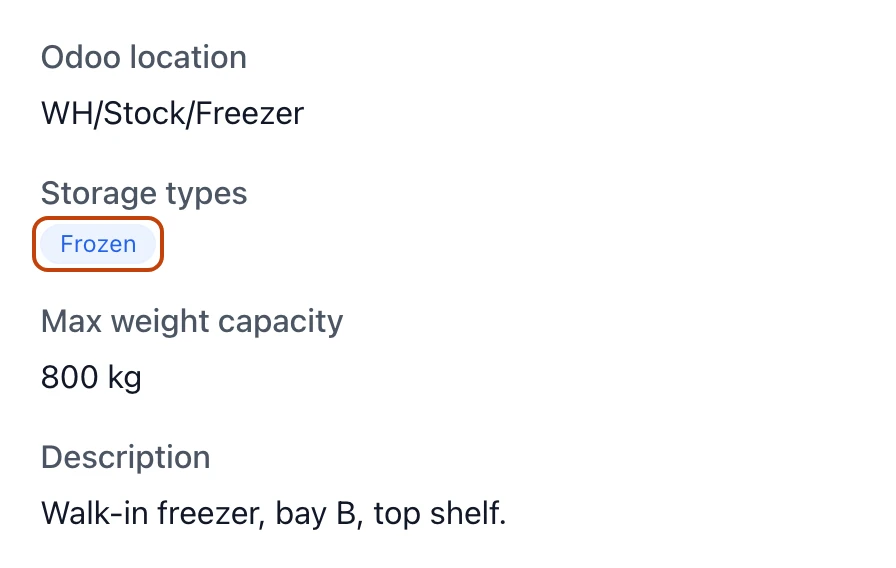
A location's detail fields: the Odoo location it maps to, its storage type, and a max weight capacity read as a weight, not a case count.
Selecting a row opens the location's detail. Its
heads the panel, with the date it was created underneath, and the
fields below describe the spot:
Odoo location — the Odoo internal location this spot maps to, so Bettr and
your accounting system count the same stock in the same place. The mapping is
required only when your organization is connected to Odoo; a location created
without a connection reads Not mapped.
Storage types — the temperature class or classes the spot keeps, each as a
badge.
Max weight capacity — the most weight the spot is meant to hold, with its
unit. This is a weight limit, set when the location is created; it is not the
same as the case figures under Contents.
Description — free-text notes about the spot. It shows only when someone
wrote one.
Storage types
A is one of three: Dry (ambient),
Refrigerated, or Frozen. A location can carry more than one — a cooler
that also holds dry goods reads as both Refrigerated and Dry. Each type
shows as a colored badge on the list and the detail, and the All storage
types filter narrows the list to just your freezers or just your dry racking
when you're deciding where a delivery goes.
Contents and how full a spot is
Under Contents, three figures read how full the spot is, counted in cases:
Total — the room the spot has.
Occupied — the cases sitting there now.
Available — what's left.
Bettr can only total these when a single product sits in the location, because
the room is measured against that product's cases-per-pallet. A spot holding more
than one product, or a product with no cases-per-pallet set, reads Total and
Available as ∞ with a note — Multiple products — capacity not tracked
or Capacity not tracked for this product — rather than a false number.
Two capacities, two units
A location carries two separate limits. Max weight capacity is a weight, set
when the spot is created. The Total / Occupied / Available figures under
Contents are counts of cases, derived from what's stored. Read each in its
own unit — one is not the other.
Below the figures sits every lot in the spot, each with its product name and
code, its lot number — and a supplier's own code alongside as Alt: when there
is one — and the quantity stored there. Move beside a lot relocates it to
another location without losing its history; see Move stock between
locations. A location with nothing
in it reads No stock placements yet. When there is stock, a line at the foot
totals the spot's lots and the distinct products across them.
Where a location's values come from
You don't edit a location on this screen, and you don't remove one here either. A
location's code, storage types, weight capacity, and Odoo mapping are set once
when you create it — see Set up warehouse
locations. The Contents figures
aren't typed at all: Bettr sums the placements in the spot each time you open it,
so what you read is derived from stock movements rather than a number kept by
hand. How inventory works in Bettr
explains why every movement is recorded instead of overwritten.
Who can view and create stock locations
Access is set per role, under Warehouse & Inventory in the permission
catalog:
View stock locations — open the list and any location's detail. Without it,
the page redirects to an unauthorized notice.
Create stock locations — show New and add a location through the create
form.