Put each person on a day and shift, copy a day you've already filled, and keep the week lined up with what production has planned.
On this page
Was this helpful?
Real help from real food people
Chef Diego runs a real food plant. If this page didn't get you there, tell us — a person reads every message.
Your staff schedule is a week at a glance — seven days, each showing who's on,
in which department, and for the hours you set. You open it to plan the coming
days before the run sheets go out: who's cooking, who's on the dock, who's on
QA. Open it from
Staff schedule in the
sidebar. Plant+
Add someone to a day
Each entry on the schedule is an
—
you build the week one assignment at a time.
1
Open the schedule and pick a day
In the sidebar, open Staff schedule. You land on the current week. Select any
day in the grid, and its panel opens on the right with everyone already scheduled
for that day.
2
Start a new assignment
In the day panel, select Add. The Add assignment form opens, already set
to that date.
3
Choose the person and their department
Pick an Employee and the Department they'll work that day. The date is
fixed to the day you opened — it's shown for reference, not something you set
here.
4
Set the shift
Enter a Shift start time. Add a Shift end (optional) if you know it, or
leave it blank for an open-ended shift and the schedule shows a dash in its place.
Use Room / Notes for the line, station, or anything the person needs to know.
5
Add it to the day
Select Add. The assignment lands in the day panel under its department, and
the day's headcount in the grid ticks up.
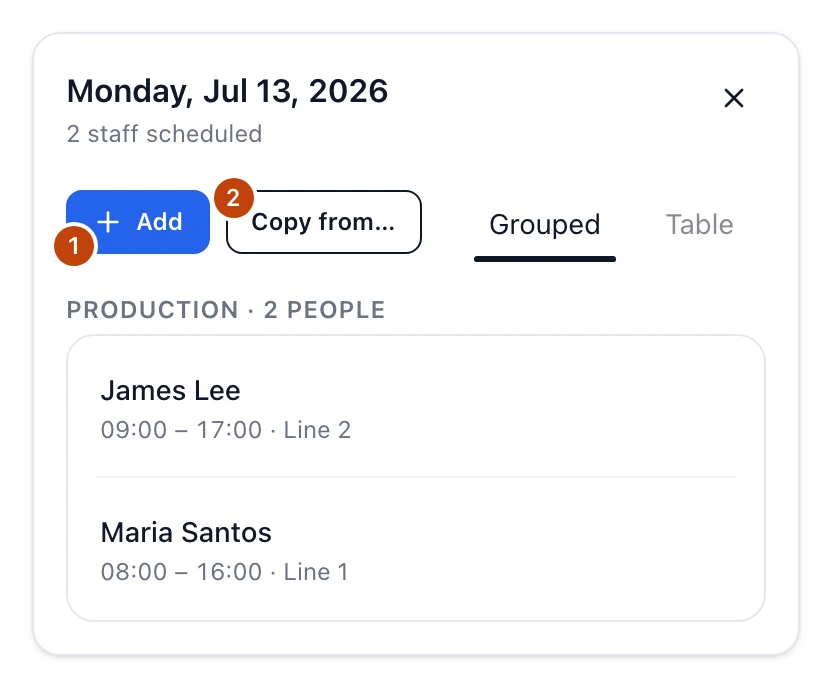
A day's panel lists the production scheduled for that day, then groups the people on it by department. Add (1) puts one person on the day; Copy from… (2) reuses a whole day.
Read the week
The grid runs Monday to Sunday. Each day lists who's on, grouped under their
department, with their shift times, and a headcount badge once anyone is
scheduled. Move around with Today and the previous- and next-week arrows; the
range beside them names the week you're looking at.
Two filters narrow the grid: pick a single department or a single employee
to see only their shifts, and Clear filters puts everyone back. Inside a day's
panel you can switch how the roster reads:
Grouped stacks people under their department, the way you'd walk the floor.
Table puts everyone in one flat list, each row showing the person's employee
code and department alongside their shift.
Copy a day's shifts
When a day repeats — same crew, same shifts — copy it instead of re-adding each
person. Open the day you want to fill, select Copy from…, choose a Source
date, and select Copy. Every shift from the source day is copied onto the
day you have open.
Roll a week forward fast
To set next Monday, open it and copy from this Monday, then adjust the handful of
shifts that changed. It beats building the day from scratch.
Edit or remove an assignment
Point at a person's row in the day panel to show its edit and remove buttons.
Select the pencil to open Edit assignment, where you can change the
Department, Shift start, Shift end, and Room / Notes. The person
and the date stay put — to move someone to another day, remove the assignment and
add it on the day you want.
Select the trash icon to take an assignment off the day.
Removing takes effect right away
There's no confirmation step. The assignment comes off the day the moment you
select the trash icon, so remove the row you mean to.
How it lines up with production
When a day has production scheduled, its panel also shows a Production
schedules table — the department, recipe, plan, and scheduled quantity for that
day — so you can staff against the work that's actually planned, not a guess.
Think of the staff schedule as the plan for who should be in. Recording who
actually worked a batch happens later, on the production run's Staff
attendance tab. And each person's recurring availability, set on their employee
record, tells you the hours they can be on the floor as you fill the week — see
Add and manage employees.