Every column, lens, and field on the master calendar — how Required and Open are figured, what the WIP, Production, and Orders lenses show, the day breakdown, and shift hours.
On this page
Was this helpful?
Real help from real food people
Chef Diego runs a real food plant. If this page didn't get you there, tell us — a person reads every message.
Two recipes cook down the same base sauce, a spice blend feeds three products, and
a retail order lands for Friday. Before you commit the floor you want one read: for
every recipe this week, is it covered or short — and if a day runs its stock
negative, what's eating it? The master calendar answers that on a single week-grid,
one row per recipe, with a color on each that tells you where you stand. This page
names every column, lens, and field, and where each number is figured. Open it at
Master calendar.
Kitchen+
The grid
The grid holds one row per recipe, grouped by department, with a column for each of
the seven days in the shown week. Three columns on the left summarize the week and
carry over no matter which lens you're in.
Recipe — the recipe's name, with its unit beneath. A
shows in blue and
is measured in un (units — the cases or jars you ship). Every other recipe is a
component measured in LB.
Required — the week's demand for that recipe across every active plan,
including what it owes as an ingredient inside other recipes. It reads a dash when
no plan calls for it this week.
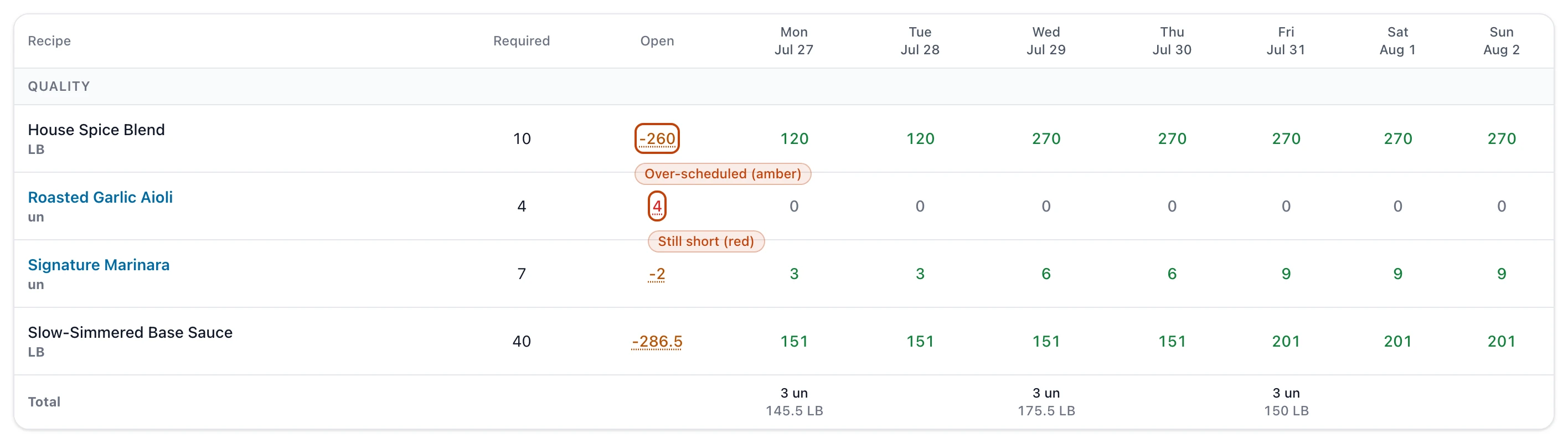
Open — what's still uncovered: Required minus what's scheduled this week minus
the
already on hand. Its color is the whole point of the column: red when Open is
positive and the recipe is still short, amber when it's negative because more
is scheduled than the week needs, green when it balances. Select the number to
read the arithmetic behind it — Required, Scheduled, WIP available, and Open.
The grid's shared columns, filtered to the Quality team: Required is each recipe's demand for the week, and Open reads red where the recipe is still short and amber where more is scheduled than the week needs.
Beneath every recipe, a Total row sums each day's scheduled amount by unit — un
for finished products, LB for components.
Week and department controls
Previous and Next move a week at a time; Today appears once you've
moved off the current week and jumps back. The label between them names the week's
date range.
The calendar runs from the current week through four weeks ahead. It doesn't look
back — Previous is disabled on the current week — and Next stops at the
fourth week out.
The department filter narrows the grid to one team or leaves it on All
departments. It lists only the departments you're assigned to. When nothing is
planned or scheduled in the window, the grid reads No recipes are scheduled or
planned in this window.
The three lenses
Three buttons in the top corner — WIP, Production, and Orders — change
what each day cell reports. Switching keeps your week and department in place.
WIP
The default lens. Each day cell projects that recipe's stock balance for the day:
green when it holds positive, red when the day runs it negative, faint when
it's zero. An exp badge under a cell flags WIP set to expire that day. A day
already in the past shows what was actually produced, in faint text, instead of a
projection.
Production
Opens an editable sub-row under each recipe — one per plan that makes it. The sub-row
carries the plan number and its own required and open for that recipe, then a
number field for each day. Type an amount to schedule it; the field shows the batch
count it works out to as N bt, and saves on its own when you move off it — a
Saved stamp confirms it. A cell locks when its day is already begun on the floor
(Locked — production run already started) or in the past.
Editing a Production cell schedules it
Typing into a Production-lens cell is the same act as scheduling from the plan
itself — the day lands on that plan's schedule and flows to the floor. The full
flow is in Schedule a plan into runs.
Orders
Adds two summary columns — Open orders (the open sales-order units every
product the recipe sells under still owes) and Stock (the finished stock on
hand across those same products) — and turns each day cell into three lines: the
amount scheduled that day (blue badge), the open orders it must cover
(amber badge), and the running balance of stock plus scheduled minus orders
(green when positive, red when negative). The Total row gains matching
open-orders and stock totals.
A day's breakdown
Selecting any day cell opens a side panel — the full supply-and-demand ledger for
one recipe on one date. Its sections:
WIP at start of day — the recipe's stock carried into the day.
Planned to produce — one line per plan scheduled that day, then a total. On a
past day it reads Produced and shows what was actually made.
WIP reductions — everything that draws the stock down: Consumed elsewhere,
Waste, Kitchen returns, and Manual consumption.
Will expire — the amount lapsing that day, in red when any lot expires.
Plan to consume — the recipes and plans set to draw on this one that day, each
with its quantity, then a total. It reads Nothing consumes this recipe on this
day. when nothing does.
Shift hours
The Shift hours button opens a modal for the working hours you expect from each
department, day by day — the capacity side of the picture.
A department picker at the top, listing the departments you're assigned to.
One row per day of the week with an hours field: 0 to 24, in half-hour steps,
defaulting to 8. Days in the past are read-only.
A day whose hours you cut below what a pending plan already commits flags May
affect pending and names the plans, so you can judge whether the day still
absorbs them.
Shift hours are advisory
Hours inform planning but never move stock and never block a schedule. Nothing on
the calendar waits on them.
Who can view and change
Access is set per role, under Production in the permission catalog:
View production plans — open the calendar and any day's panel. Without it, the
calendar redirects to an unauthorized notice.
Change production plans — edit the scheduled amounts in the Production lens.
Without it the cells show their numbers but won't accept input.
View shift hours — open the Shift hours modal.
Manage shift hours — set the hours. It needs both the add and change
shift-hours permissions.