Enter everything already in the building in one sitting — a keyboard-first grid with one row per lot, a review of the totals, and a single commit.
On this page
Was this helpful?
Real help from real food people
Chef Diego runs a real food plant. If this page didn't get you there, tell us — a person reads every message.
The day you start with Bettr, the freezer and racks are already full — and none
of it has a receipt behind it. Opening inventory puts all of it on the record in
one sitting: a grid with one row per , built so
your hands stay on the keyboard while you walk the building. Open
Stock items
under Inventory and select Opening inventory to follow along. For a
single batch, add stock by hand is the
shorter path.
Load your stock
1
Start the first row
Under Product, type a name or product code and select the match — the
cursor jumps straight to Quantity, ready for the count. If the batch in
front of you isn't in the catalog yet,
add the product first.
2
Fill the row left to right
Quantity takes whole cases. Manufacture date and Expiration
date describe the batch — date them from the case, not from today, because
the expiration date decides the lot's place in the stock list's expiry
order. Location is where the cases sit; once a product is picked, a spot
that can't hold its storage type reads Incompatible storage and can't be
selected. Lot number reads Auto if blank — leave it empty and Bettr
assigns one when the batch is stored, or type the code the case already
carries.
3
Press Enter and keep going
Enter moves through the row field by field, and from the last field of
a finished row it starts the next one. The new row carries the location and
both dates forward — a walkthrough usually goes shelf by shelf, so the next
lot tends to sit in the same spot — while the product and lot number start
empty and the count resets. Add row below the grid does the same by
mouse, and the
trash icon removes a row you didn't mean to keep.
4
Split a lot across locations
When one batch sits in two spots — half in the cooler, half on a rack —
select the split icon at the end of its row. The Location cell changes
to Split with a running location count, and rows appear underneath to
place cases spot by spot with Add location. The split quantities have to
add up to the row's total before the batch counts as complete.
5
Watch the running count
The bar at the foot of the page keeps the tally — how many items and cases
the grid holds — and names the first thing still missing, row by row:
Row 2 — select a location. When every row is whole it reads
Complete, and Review switches on. A row you left empty never blocks
you — it simply isn't part of the batch.
6
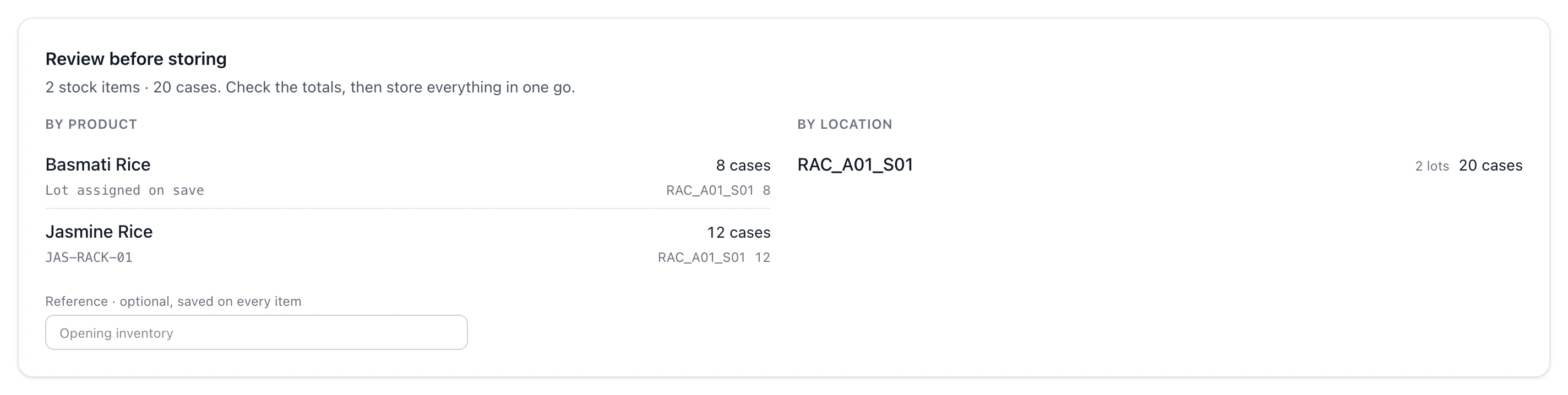
Review before storing
Select Review. The grid gives way to a summary grouped two ways — by
product, each lot with its number, spots, and cases, and by location, each
spot with the lots and cases headed into it. Check the totals against your
walkthrough sheet; Back to editing returns to the grid with every row
intact. A Reference field here is saved on every item — a note like
Opening inventory gathers the whole batch in the movements feed later.
7
Create everything in one go
Select Create … stock items — the button counts the batch for you. Every
lot is stored in a single commit and the stock items list opens with
stock items stored, counting what landed.
The grid mid-entry: a finished Jasmine Rice row, and the next row already carrying its location and dates — only the product, count, and lot are left to type. The ringed fork icon splits a row across locations.
The whole batch stores, or none of it
Every row is checked before anything is written: the lot numbers you typed
can't repeat inside the batch, can't collide with a lot already on the record,
and every split has to balance. If any row fails, nothing is stored — the grid
returns with the problem named on the offending row, you fix it, and create
again. There is no half-loaded state to untangle.
A batch holds at most 200 stock items — the grid says Batch full when you
reach it. A building with more lots than that takes a second sitting: create
the first batch, then come back and start the next.
The review step: the batch grouped by product and by location, with a lot left blank reading how it will be numbered on save.
On a brand-new company
Opening inventory needs a product catalog to name the stock and locations to
place it in. Open the page before the company has either and a panel says which
is missing and links straight to New product or New location —
add a product and
set up your warehouse locations,
then come back and load the building.
What the batch writes
Each row becomes its own lot with an inbound movement under the Manual
Entry source — the same append-only record every batch entered by hand
carries, so an opening lot counts, picks, and traces exactly like one that
arrived on a purchase order. Find the whole batch on the
stock movements feed under the
Manual Entry source filter, carrying the reference you gave it at review.
The flow is governed by the Create stock items permission, under
Warehouse & Inventory in the permission catalog — without it the Opening
inventory button doesn't render and the page redirects to an unauthorized
notice.