Create a record for everyone who works your floor — their sign-in, status, weekly availability, pay, and documents — and keep it current.
On this page
Was this helpful?
Real help from real food people
Chef Diego runs a real food plant. If this page didn't get you there, tell us — a person reads every message.
Your employees directory holds a record for every person on your team, and each
record is also the Bettr account that person signs in with. From here you decide
who's active, capture their weekly hours, set their pay, and keep their documents
on file. You add and manage it all from
Employees.
Add an employee
1
Open Employees and start a new one
In the sidebar, open Settings → Employees and select New. The New
employee form opens.
2
Enter their basic information
Fill in First name, Last name, and Email. The name is how this person
appears in your organization — in your directory and on their record. The email is
the person's sign-in identity — it's how they log in — so use an address they
actually check. Add a Phone number if you keep one.
3
Add their address (optional)
The Address fields — street, city, state, ZIP, and country — are all
optional. Fill in whatever you hold on record.
4
Fill in their employment details
Give them an Employee code and a Hire date. Pick a Role, which sets
what they can do in Bettr once they sign in. Name a
if you track one. When you have permission to see pay, set a Salary and a
Pay period.
5
Assign at least one department
Tick each Department this person works in — you have to pick at least one.
Turn on Limit by department to hold their department-scoped data and pickers
to just those departments.
6
Create the record
Select Create. Bettr saves the employee and sends them an invitation to sign
in. They land on your list as Pending until the first time they sign in.
An employee is also a sign-in
Adding an employee does two things at once: it creates their workforce record and
it creates the Bettr account they sign in with. That's why the Email is their
sign-in identity and can't be changed once the record exists — it's their login.
A new employee starts Pending, and the account activates on its own the first
time they sign in from the invitation.
Their Role and their company access are managed on their own screens. On the
record, the Role and company access section shows the current role and links
straight to both — see
Set a user's role and permissions
and Add people to your companies.
Add someone who already uses Bettr Manager
Some people work for more than one operation. When the Email you enter already
belongs to a Bettr Manager account, Bettr doesn't create a second one — it adds
that person to your organization and keeps the account they already have. No new
password, no separate login: they sign in the way they always have.
Because the account already exists, there's no fresh sign-in invitation to send.
Bettr emails the person to let them know your organization added them, and they
sign in with the account they already have — the same email, the same way.
Adding them here puts them on your team, but it doesn't grant access to your
companies on its own — that's a separate step. Open their record and select
Manage company access in the Role and company access section to pick the
companies they work in — see
Add people to your companies for how
that panel works. Until you grant a company, they stay on your team without
reaching any of it.
Set an employee's status
An employee's status controls their access to this organization's companies — not
whether they can sign in. Open the employee to work it in the Account status
card:
Pending — the account is waiting for its first sign-in. It activates on its
own, so there is nothing to set.
Active — they have access to this organization's companies.
Inactive — their access to this organization is paused.
Terminated — they've left; their access to this organization ends.
To change it, pick Active, Inactive, or Terminated under Set
status, then select Update status. You can't set someone back to
Pending — that's only the starting state.
Inactive and terminated remove access
Both Inactive and Terminated remove the person's access to this
organization's companies as soon as you save. They don't block the account — the
person can still sign in, but they land on a screen telling them they have no
active access until you set them back to Active. Use them when someone leaves
or steps away, not as a note.
Upload a photo
In the Photo card, select Upload photo to add a JPG or PNG headshot of up
to 5MB. Once a photo is set you can Replace or Remove it.
Set weekly availability
An employee's
tell you and your schedulers when they can be on the floor. In the
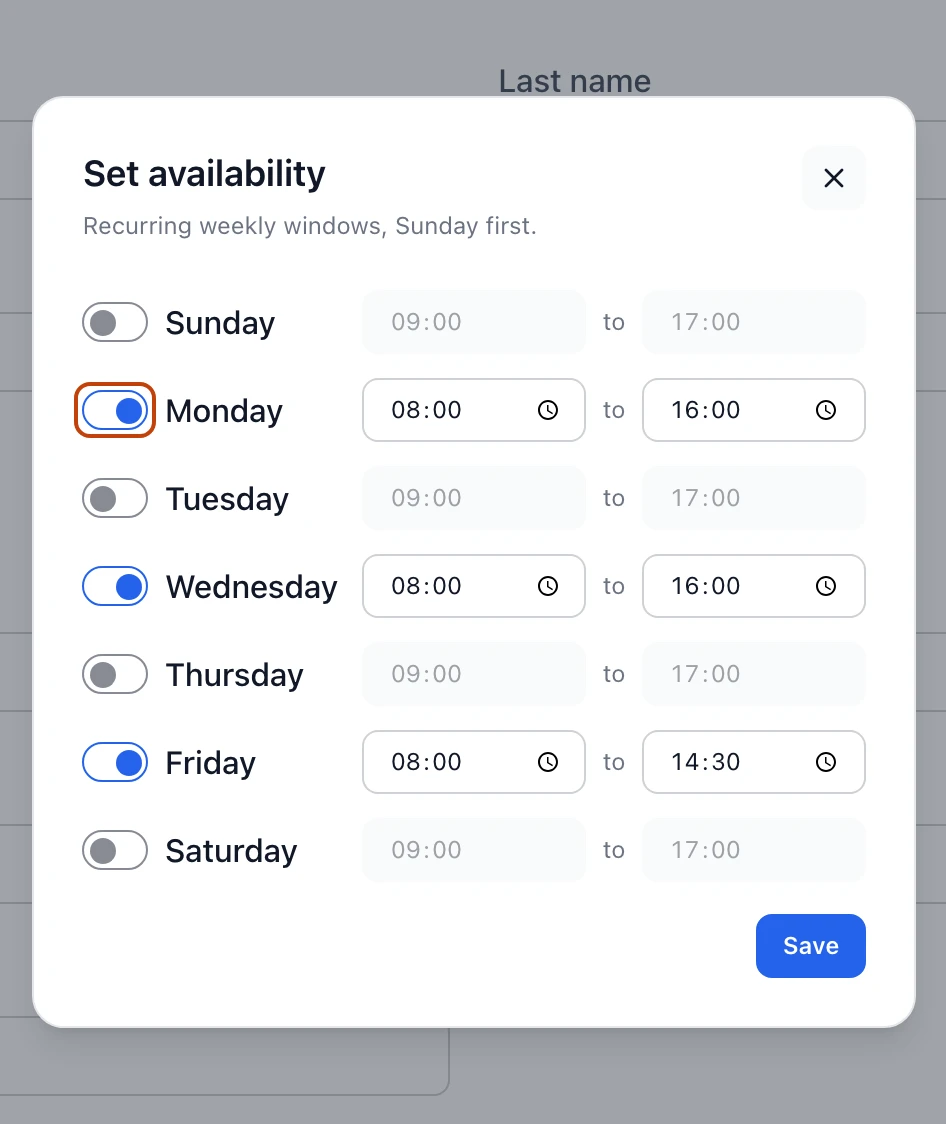
Availability card, select Set availability. The editor lists every day of
the week, Sunday first. Turn on the days this person works and set a start and end
time for each, then select Save.
The availability editor lists the week Sunday first; turn on a day and set its start and end time.
Availability is recurring — you set it once and it holds every week until you
change it. It's the standing record of when each person can work, so you know
their hours when you plan the week on the
staff schedule.
Record pay
The Employment section also holds a Salary and a Pay period —
Hourly, Daily, Monthly, or Annual. Pay is sensitive, so Bettr
keeps it behind its own permissions: choose which roles can see or change it from
Create and edit roles.
Keep documents on file
Every employee has a Documents section with two tabs:
Personal — the person's own paperwork, like certifications, licenses, and
ID. A personal document can carry an Expiration date, so a lapsing
certificate doesn't catch you out.
Coaching — notes and records from coaching or reviews.
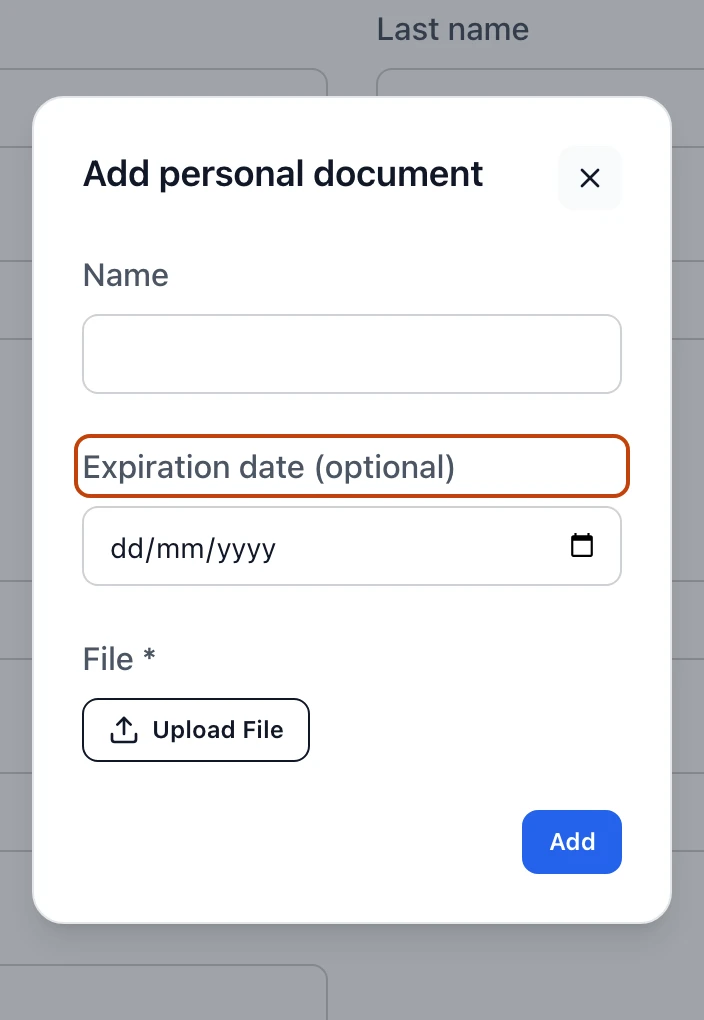
To add one, pick the tab and select Add document. Give it a Name, set an
Expiration date if it has one, attach the File, and select Add. Bettr
takes a PDF, Word, Excel, image, or text file of up to 10MB. Each document you add
appears on its tab with a link to open it, and you can remove it there.
Adding a personal document takes a name, an optional expiration date, and the file itself.
Browse and filter the directory
The Employees list is your whole directory. Each row shows the person's name,
email, department, hire date, company, and a status badge. Across the top you can
Search by name or email, filter by status, and sort by name or by
hire date. Clear all resets it.