Review a pending order, then commit to it, decline it with a note on the record, or discard one that was keyed by mistake.
On this page
Was this helpful?
Real help from real food people
Chef Diego runs a real food plant. If this page didn't get you there, tell us — a person reads every message.
Someone on your team took a call from a grocery buyer this morning and entered the order — twenty cases of jasmine rice — and it's sitting in Pending, waiting on you. Nothing moves on the floor until you open that , check that the lines match what was agreed, and either commit to it or turn it down. You make that call on the Sales orders screen. Kitchen+
Approve or reject the order
1
Open the pending order
From Sales orders, select the order you want to review. Check that it wears a Pending badge — that is the only status where you can approve, reject, or discard it. An order that has already been approved is locked, and these choices are gone.
2
Check what you're committing to
Read the line items against what the customer asked for: the product on each line, the Quantity, and the Unit price. Confirm the Customer and the Expected shipment date. This is the last moment to catch a wrong quantity or price — once you approve, the lines lock and can't be edited.
3
Make the call
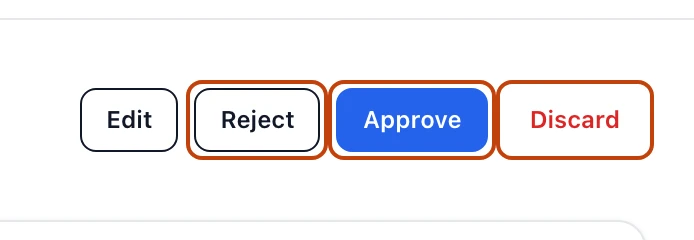
Three buttons sit at the top of the order. Approve commits to it. Reject turns it down and asks you for a note explaining why. Discard drops an order that should never have been entered. Each opens a short dialog to confirm before anything is recorded.
The decisions at the top of a pending order: approve to commit, reject to decline with a note, or discard a mistake.
What each decision does
Approve moves the order to Approved and records you as the reviewer, with the date. The lines lock — no more edits — and the order becomes ready to prepare. This is the go-ahead that lets your floor start pulling stock for it.
Reject turns the order down for good. Bettr asks for a note before it will let you reject, so there is always a reason on the record: the confirm button stays disabled until you write one. The order moves to Rejected, and your note shows on it as the rejection notes. A rejected order is final — you can't reopen it.
Discard removes the order from your lists as if it was never entered, and it can't be brought back. Use it for a duplicate or an order someone keyed by mistake — something with no real customer behind it.
Reject or discard?
Reject a real order you are declining — the customer backed out, or you can't fill it — and the rejected order stays on the books with your note. Discard an order that shouldn't exist at all, like a duplicate. Discarding leaves no trace; rejecting keeps the paper trail.
After you approve
Approval is the gate the rest of fulfillment waits on. An approved order can be prepared for shipment, its stock picked lot by lot, and then shipped — none of which is possible while the order is still Pending. Each stage only opens once the one before it is done, which is what keeps a half-checked order from going out the door.
You can't step back, either. Once an order is approved, the Approve, Reject, and Discard buttons are gone, and so is Edit — the order is committed. Handling a change after that happens downstream, in preparing and shipping, not by un-approving.
Who can approve
Approving, rejecting, and discarding are three separate permissions. A teammate who can enter orders may not be the one who can commit them, so the buttons you see depend on what your role allows.
Related
Create a sales order — enter the order that lands in Pending for you to decide on.
Prepare a sales order — the step an approved order moves into next, where each line gets stock staged.