Raise a return against a received delivery, pick the lots and quantities going back, then validate it to pull that stock and record the transfer to your vendor.
On this page
Was this helpful?
Real help from real food people
Chef Diego runs a real food plant. If this page didn't get you there, tell us — a person reads every message.
Two cases of the rice you booked in last week turn up split and leaking on the
shelf, and they're not going into a batch. You're not eating the loss — they're
going back to the vendor. A
captures exactly that: which lots, how much, out of which bins, and why. You raise
it from the receipt in
Receiving, the
same place you booked the delivery in. Kitchen+
Raise a return
A return is built against one receipt — one delivery against one order line — and
you can only send back stock that's already Received and put away, because
that's when its lots land on hand. Open the order, find the received line, and its
Returns button is right beside Details and Lot labels.
1
Open Returns on the receipt
Go to Receiving,
open the order the stock came in on, and select Returns on the received
line. The panel lists any returns already raised against that receipt.
2
Start a new return
Select New return. The header tells you how much of the delivery isn't on
a return yet — the received quantity, less whatever's already on one.
3
Say why it's going back
Pick a Reason: Defective, Damaged in transit, Wrong product,
Quality issues, Expired or near expiration, or Other. Add Notes
if the reason needs a sentence.
4
Pick the lot and quantity
Under Item 1, choose the Lot you're returning — each option shows what
it has on hand — and set the Return quantity. You can't return more than is
on hand.
5
Split it across its locations
Under Locations, assign the quantity to the bins that hold the lot; use
Add location when it's split across more than one. The Allocated count
has to match the return quantity before the return is complete. Add another lot
with Add item.
6
Create the return
Select Create return. It saves as a Draft — recorded, but nothing has
left your shelves yet.
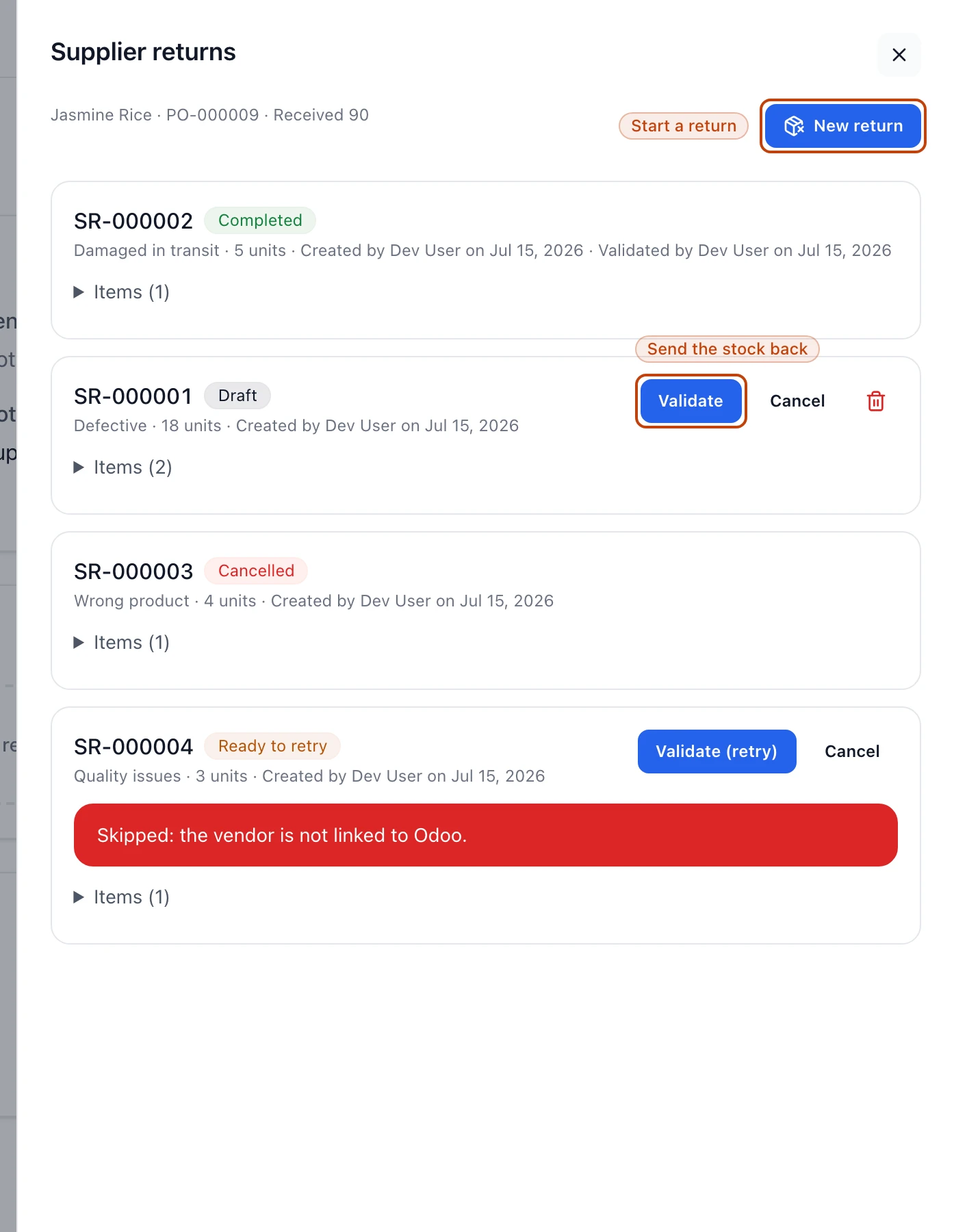
The returns raised against a receipt, each with its status. A draft carries Validate, Cancel, and delete; a validated one reads Completed and is done.
No Returns button on the line?
Returns only appears once a line is received and put away — that's what
creates the lots you'd send back. If the line is still in receiving or QC, finish
putting it away first.
Validate it to pull the stock
A draft return is a plan: it names the lots and quantities but hasn't touched your
inventory. To act on it, it from the returns panel. Bettr asks you to confirm, because
this is where the stock actually moves.
Validating can't be undone
Confirming Validate removes the stock from inventory and records the outgoing
transfer to your vendor. There's no reopening it afterward — validate a return
only when the count and the lots are the ones you mean to send back.
When the transfer can't go through — the vendor isn't linked to your ERP yet, say —
the return lands at Ready to retry with the gap named on the card, and your
stock stays exactly where it was. Close the gap, then select Validate (retry) to
send it through.
Sometimes the setup is fine and your ERP still turns the transfer down. The card
says so and asks you to send it again; your stock hasn't moved either way. The exact
wording your ERP replied with stays off the card — if the retry keeps failing, write
to support and we'll read it back to you.
Once in a while the transfer reaches your ERP and the return still doesn't finish,
because the lots were used elsewhere in the seconds it took or someone put the same
return through at the same moment. The card says so and tells you to cancel that
transfer in your ERP, so the same stock isn't counted out twice.
Cancel or delete before you validate
Changed your mind on a return you haven't validated? You have two ways to drop it,
and they leave different trails:
Cancel works on a draft or a ready-to-retry return. It leaves a Cancelled
record on the receipt — no stock moves, and it can't be reopened. Use it when you
want the decision on the record.
Delete works only on a draft. It removes the return from the receipt
entirely, as if it was never raised.
What each state means
The status badge on every return tells you where it stands and what your stock has
done:
Draft — raised, nothing pulled. It carries Validate, Cancel, and
delete.
Completed — validated. The stock is off your shelves and the vendor transfer
is recorded. Final.
Cancelled — called off before validating. No stock moved. Final.
Ready to retry — validation was attempted and didn't finish. Your stock is
untouched, the card names what it ran into, and you can validate again.