Save what each vendor charges for a product, add quantity discounts, and let every purchase order fill in the right price on its own.
On this page
Was this helpful?
Real help from real food people
Chef Diego runs a real food plant. If this page didn't get you there, tell us — a person reads every message.
Your rice supplier just agreed to take 8% off once you order 200 sacks or more.
Rather than keep that in your head until the next order, you save it once on the
product, and it fills in the right price on every purchase order you raise. You
keep these numbers under Vendors & pricing on each product — open
Products and pick
the one you're pricing.
Add a vendor price
Every vendor you buy a product from gets its own . Save one for each vendor that sells you the product.
1
Open the product
From Products, open the product you're pricing and scroll to the
Vendors & pricing section near the bottom.
2
Start a new price
Select Add vendor. A panel opens with the fields for one vendor's price.
3
Pick the vendor and enter the price
Choose the Vendor from the vendors saved in Contacts, then enter the
Unit price (USD) — what they charge per unit before any discount.
4
Add the vendor's details (optional)
Fill in the Vendor product code — the vendor's own code for this product,
which makes their invoices and catalog easier to match — and a Minimum order
quantity if they won't sell below a certain amount.
5
Save it
Select Add. The price drops into the list, showing the vendor, the
per-unit price, and any discounts you set.
Each saved price lists the vendor, their per-unit price, and any quantity discounts. Add vendor opens a new one.
Quantity discounts reward bigger orders
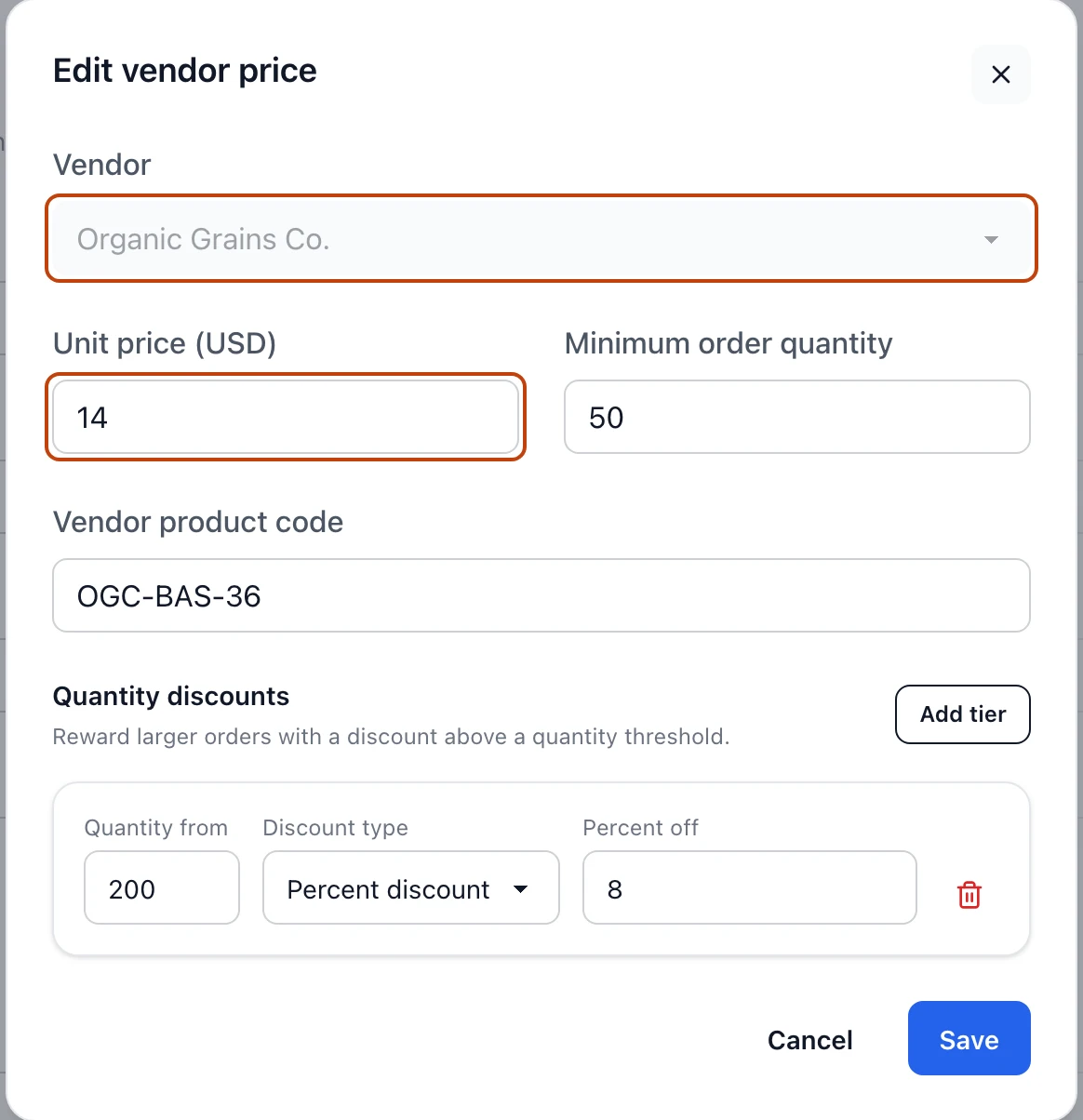
Under Quantity discounts, you can set a . Select Add tier, then
set the Quantity from and the discount: a Percent discount off the unit
price, or a Fixed amount discount in dollars. Add a tier for each break the
vendor offers — for example, 8% off once an order reaches 200 units — and remove
any tier with its trash button.
The vendor price form — a unit price, an optional vendor code and minimum order, and a quantity discount that takes 8% off at 200 units.
Two tiers can't share a quantity
Each tier starts at a different Quantity from. Bettr won't save two tiers
that both begin at the same quantity, so give each break its own threshold.
How prices flow into purchase orders
When you build a purchase order for this vendor, leaving a line's Unit price
blank tells Bettr to use the vendor price you saved here. If the quantity on the
line qualifies for a discount tier, it applies the best one automatically — so an
order of 200 sacks takes the 8% break without you doing the math. Type a number on
the line only when you've agreed a one-off price for that order.
Hover a saved price to reveal its controls. The pencil reopens the panel so you
can change the unit price, the details, or the discounts — everything except the
vendor, which stays fixed to keep the price tied to one supplier. The trash button
removes the price after you confirm.
Removing a price drops its discounts
Removing a vendor price removes its quantity discounts with it. New order lines
for that vendor won't fill in a price until you save a new one.
One price per vendor, many vendors per product
A product can carry a price from every vendor that sells it, but only one price
per vendor. When you select Add vendor, the vendor list offers only the
vendors you haven't priced yet for this product. Once every vendor has a price,
the panel tells you so — edit an existing price instead, or add the vendor to
Contacts first if
they're new.