Log the carrier, driver, trailer temperatures, and seal for the truck that hauled an order off your dock, and keep that transport record on the order.
On this page
Was this helpful?
Real help from real food people
Chef Diego runs a real food plant. If this page didn't get you there, tell us — a person reads every message.
The reefer pulls away with the jasmine rice order for Whole Foods aboard, and before the driver rolls off you want three things written down: the carrier and driver who took it, the temperature the trailer was holding, and the seal number on the doors. A captures exactly that, and you add it from the order in Sales orders. Kitchen+
This record is about the transport, not the stock. Building and shipping a shipment is what draws lots off your shelves; a truck-shipping record sits alongside that as the paper on how the load actually traveled. You can keep one on an order at any stage.
Add a truck-shipping record
1
Open the order
From Sales orders, open the order the truck carried. Scroll to the Truck shipping panel — it holds any records already on the order and an Add record button.
2
Start a record
Select Add record. The Add truck-shipping record form opens over the order, ready for the transport and trailer details.
3
Fill in the transport and trailer details
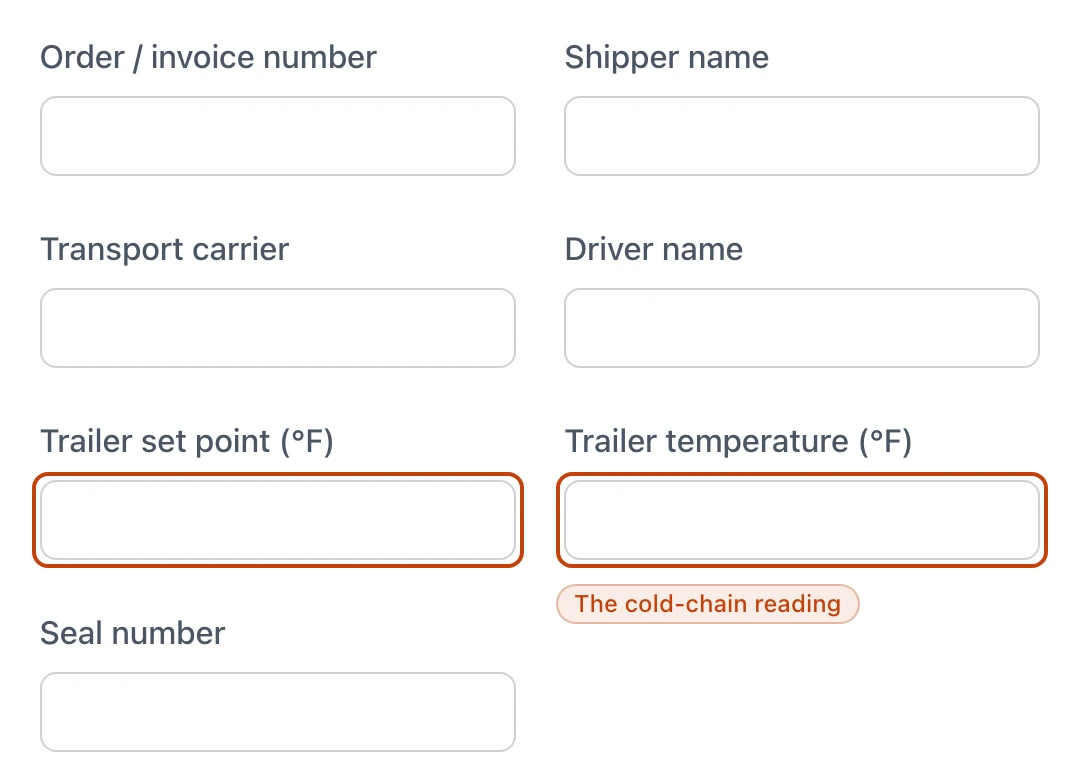
Enter the Order / invoice number, the Shipper name, the Transport carrier, and the Driver name. Add the Trailer set point and Trailer temperature in °F if the load runs cold, and the Seal number if the doors were sealed.
4
Mark the trailer condition
Under Trailer conditions, check every state that describes the trailer — Satisfactory, refrigerated for a clean reefer, or Damaged or Contaminated when something was wrong. At least one is required.
5
Save the record
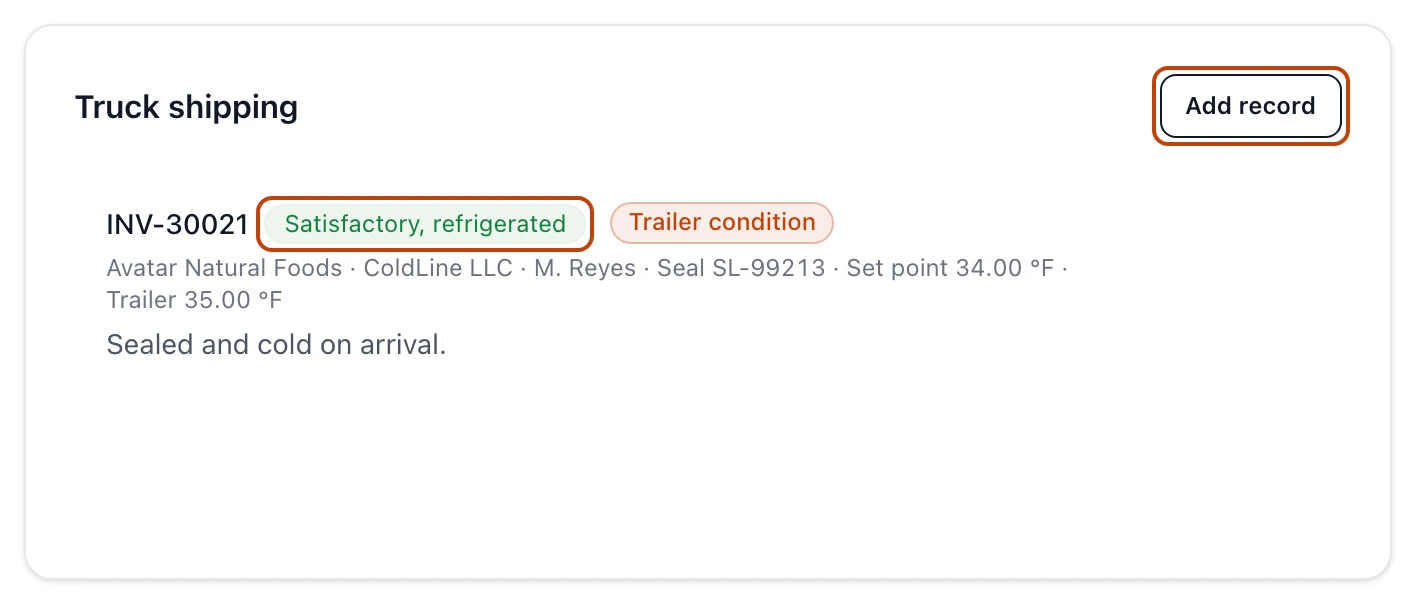
Select Add. The record lands on the order's Truck shipping panel with the carrier, driver, seal, temperatures, and condition all on one line.
The Truck shipping panel on a sales order, holding one record — carrier, driver, seal, and trailer temperatures on the detail line, with the trailer condition as a badge. Add record opens the form.
What each field captures
The form is short, and only some of it is required.
Order / invoice number — required. The reference the load traveled under, so the record ties back to the paperwork on the truck.
Shipper name — required. The plant or party that loaded and sent the truck.
Transport carrier — required. The trucking company that hauled it.
Driver name — required. Who was behind the wheel.
Trailer set point (°F) — optional. The temperature the trailer's unit was set to hold.
Trailer temperature (°F) — optional. The actual temperature you read at the dock. Recording both the and the reading side by side is how you show the reefer was truly at temperature, not just set for it.
Seal number — optional. The number on the tamper seal, if the doors were sealed.
Trailer conditions — required, at least one. The state of the trailer: Satisfactory, non-refrigerated, Satisfactory, refrigerated, Unsatisfactory, Damaged, or Contaminated.
Notes — optional. Anything else worth keeping, like Sealed and cold on arrival.
The transport and trailer fields on the Add truck-shipping record form. The set point and temperature are ringed — the target the trailer held and the reading you took at the dock.
The record doesn't move stock
Adding a truck-shipping record logs how the load traveled. It does not draw any lots off your shelves — building and shipping the shipment is the step that books stock out. The two live on the same order but answer different questions.
Edit or remove a record
Each record on the Truck shipping panel carries an edit and a remove control.
Edit reopens the same form as Edit truck-shipping record. Change what you need and select Save; the record keeps its place on the order.
Remove asks you to confirm, then drops the record from the order. You can record a new one afterward.
An order can carry more than one record: add a second when the order left on two trucks, and each stands on its own line.
Log it whenever the truck leaves
The Add record button is on the order through every stage, so you can capture the truck the moment it rolls — you don't have to wait for the order to reach a particular status.
Why it matters for traceability
The truck-shipping record is the transport half of your outbound trace. Shipping tells you which lots left; the truck-shipping record tells you how they traveled — at what temperature, sealed or not, on whose truck. When an auditor asks how a shipment held its cold chain, or a customer questions a load that arrived warm, this is the record that answers, kept on the order next to the lots that went out.
It mirrors what you capture on the way in, where an inbound truck inspection records the reefer that delivered your ingredients — the same trailer, temperature, and seal detail, read at the receiving dock instead of the shipping one.
Related
Build and ship a shipment — the step that stages lots and books stock out; the truck-shipping record sits beside it on the order.
How sales and shipping flow — where recording the truck sits in the path from a customer's order to stock leaving your dock.