Link your Odoo account to Bettr Manager, add its webhook, and bring your products, vendors, and purchase orders across.
On this page
Was this helpful?
Real help from real food people
Chef Diego runs a real food plant. If this page didn't get you there, tell us — a person reads every message.
You already run vendors and purchasing in Odoo, and Bettr doesn't ask you to
leave it. Connecting Odoo links your account, then brings that data — products,
vendors, pricing, and purchase orders — into Bettr so nobody re-keys it twice.
You set it up from the
Integrations hub under
Settings. Kitchen+
You need permission to connect it
Connecting Odoo, editing it, testing it, and pulling all take the Configure
the Odoo connection permission. Without it, the Odoo page tells you Odoo
isn't connected yet and to ask a teammate who has that permission to set it up.
Connect your Odoo account
1
Open Integrations
In the sidebar, open Settings → Integrations. Under Accounting
systems you'll see an Odoo row — "Products, vendors, and purchase
orders" — with a badge reading Not connected until you link it.
2
Open the Odoo page
Select the Odoo row to open its
connection page. If nobody
has connected Odoo yet, the connection form is waiting for you; if a
teammate already set it up, you'll see the connection details instead.
3
Enter your Odoo details
Fill in four things and select Save connection:
Odoo URL — the web address you use to sign in to Odoo, like
https://yourcompany.odoo.com.
Database — your Odoo database name, from the database menu on Odoo's
login screen.
Username — the login Bettr will use. A dedicated integration user is
best, so the sync isn't tied to one person's account.
Password — stored encrypted, and never shown again.
Bettr saves the connection and reminds you to test it, then add the webhook
in Odoo.
4
Test the connection
Select Test connection. Bettr reaches your Odoo server and reports back
at the bottom of the Connection panel — on success it names the Odoo
server version it reached. A failure says which half of the setup to look
at: whether Odoo answered and turned the login down, or Bettr never reached
the server at all. Every test stays on the panel, so you can open Earlier
tests and see whether the trouble started today or has been there a while.
Add the webhook in Odoo
Once the connection saves, the Odoo page shows a Webhook section with a URL
that belongs to your organization. A keeps
the two systems in step between pulls.
Select Copy to grab the URL, then, in Odoo, open the automation settings for
what you're syncing and create a webhook that posts to it. Point your product,
vendor, and purchase-order changes at that URL, and those changes flow into Bettr
on their own.
Run your first pull
A pull is an on-demand import you run by hand — good for the initial load, and
for catching up if the webhook ever misses something. In the Pull from Odoo
section, tick the groups you want and select Pull from Odoo:
Companies
Products
Vendors
Vendor pricing
A pull links what you already have
If an Odoo product carries a product code one of your products already has — or
an Odoo partner carries an email address one of your contacts already has — the
pull links the two and updates the record you already had, rather than bringing
in a second copy of it. The code or address has to match, and only one of your
records in that company may carry it; anything else and the Odoo record comes in
on its own.
The pull runs in the background. Each one appears under Pull history with the
groups you chose, whether it succeeded, when it ran, and how many records have
come across. While a run is still working, a bar for each group climbs from zero
to the number of records it found in Odoo, so a long pull shows you where it has
got to instead of sitting silent. If anything falls short, open the problems
underneath: each one names the group or the Odoo record it concerns and tells you
what to do next. Pull these again on any finished run starts a fresh pull over
the same groups, which is the quickest way to retry after you've fixed what it
named.
See what Odoo is sending
Once the webhook is in place, the Webhook panel keeps a running account of it.
A badge reads Receiving with the time the last update landed — "last update 12
minutes ago" — so a webhook that has quietly stopped working shows up as silence
rather than as nothing at all. After a week without a word the badge turns
Quiet and says so.
If Odoo posts to a URL you have since replaced, the panel says when that last
happened and tells you to copy the current URL back into Odoo — and the notice
clears itself once an update lands on the current URL. Updates Bettr took in but
could not apply are listed underneath, each with what to do: open the record in
Odoo and save it again, give a company its Odoo company ID, or pull the group the
record leans on before it can land.
Check your stock against Odoo
The Stock checks section lists every stock comparison your company has run:
when it started, how many products it covered, and how it ended. Check stock
now starts one, and while it runs a bar shows how many products have been
compared so far. You can start the same check from the products list — the runs
show up here either way.
A check that finishes without comparing everything reads Finished with
problems and names the products it could not compare, so you can confirm those
are still linked in Odoo before running it again. A check that never started
because Odoo was disconnected reads Skipped and says so. Per-product results
live on Products.
Regenerate the webhook URL
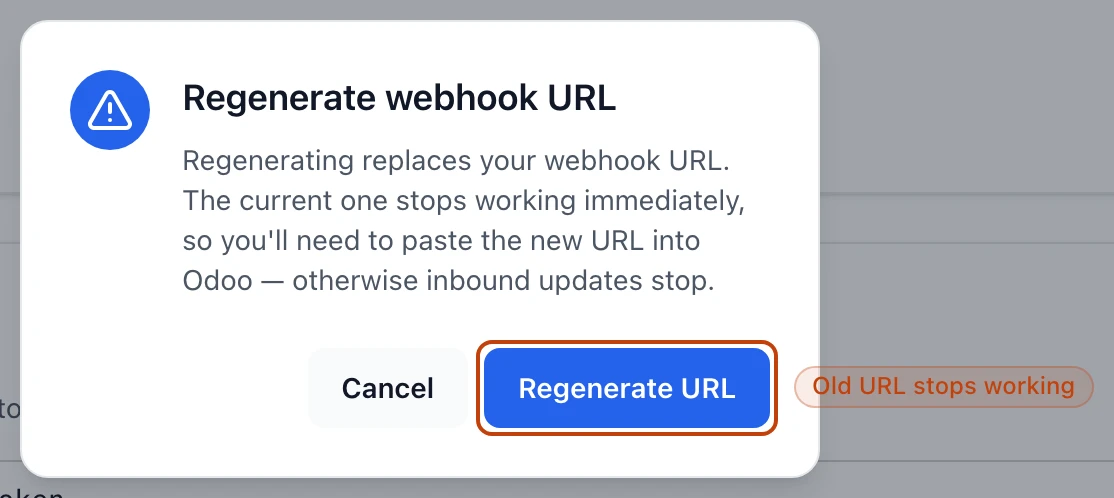
If a webhook URL is ever exposed, regenerate it. Select Regenerate URL in the
Webhook section and confirm.
Regenerating replaces the webhook URL and the old one stops working right away, so you have to paste the new URL into Odoo or inbound updates stop.
The new URL takes over immediately, so update it in Odoo the same way you added
the first one — until you do, changes in Odoo won't reach Bettr.
What comes in from Odoo
Two things bring your Odoo data into Bettr:
A pull imports the Companies, Products, Vendors, and Vendor
pricing you select, on demand.
The webhook carries product, vendor, and purchase-order changes as they
happen, so a purchase order raised in Odoo shows up in Bettr without a manual
pull.
To change the URL, database, username, or password later, select Edit on the
Odoo page. Leave the password blank there to keep the current one.
Why Odoo needs the Purchasing module
Odoo syncs purchasing data — purchase orders, vendors, and pricing — so it only
shows up once the Purchasing module is on, which is why it lands on Kitchen and
up rather than every plan. If you don't see Odoo under Integrations, check that
the company you're in has Purchasing enabled.