Every field, filter, and status on the stock items list and a lot's detail — what each one means and where its value comes from.
On this page
Was this helpful?
Real help from real food people
Chef Diego runs a real food plant. If this page didn't get you there, tell us — a person reads every message.
A case comes back off the floor with its label rubbed illegible, or a buyer calls
to ask how much of last month's batch is still good to ship. The answer is one
screen — the physical stock, lot by lot. A is counted here,
where a product is only described. Open
Stock items
under Inventory to read along.
The stock items list
The list holds every lot in the company you're working in, one per row, and opens
sorted by nearest expiry so the batch closest to its date sits at the top. Seven
controls sit above it:
Search by product name — filters the list as you type, matching the
product's name.
All products — narrows the list to a single product from the company's
catalog.
Sort — by expiration (the default), product, lot, or
quantity, with a direction toggle beside it for ascending or descending.
Include zero-quantity items — off by default; tick it to bring back lots
you've fully drawn down.
Scan QR Code — opens the lot lookup covered further down.
Opening inventory — opens the grid for loading your opening
inventory, entering many lots
in one sitting. The button renders only when your role can create stock
items.
New — opens the page for adding stock by
hand, for a lot that's in the building
with no receipt behind it. Gated the same way.
A Clear all link appears once any search, filter, or non-default sort is
active, and returns the list to its default. When nothing matches, the list reads
No stock items found. Once you hold more lots than fit on a page, a per-page
selector and a pager sit below the list. Filter to a single product and a summary
strip appears above it, totaling that product's cases on hand across every lot and
location, alongside its units per case and case weight.
The list reads in FEFO order
Because it defaults to sorting by expiration, the list reads in
. The lot you
most likely need to ship, move, or trace is usually already on top.
What each row shows
Reading a row left to right:
Product name, with the lot number in monospace underneath. When a
supplier stamped their own code on the batch, it reads alongside as Alt: —
the alternative lot number.
Generate label — a tag button that appears when you point at the row. It
prints a fresh lot label — the lot number, product, and expiry — for the floor.
Cases on hand, and under it the expiry date the list is sorted by.
A lot's fields
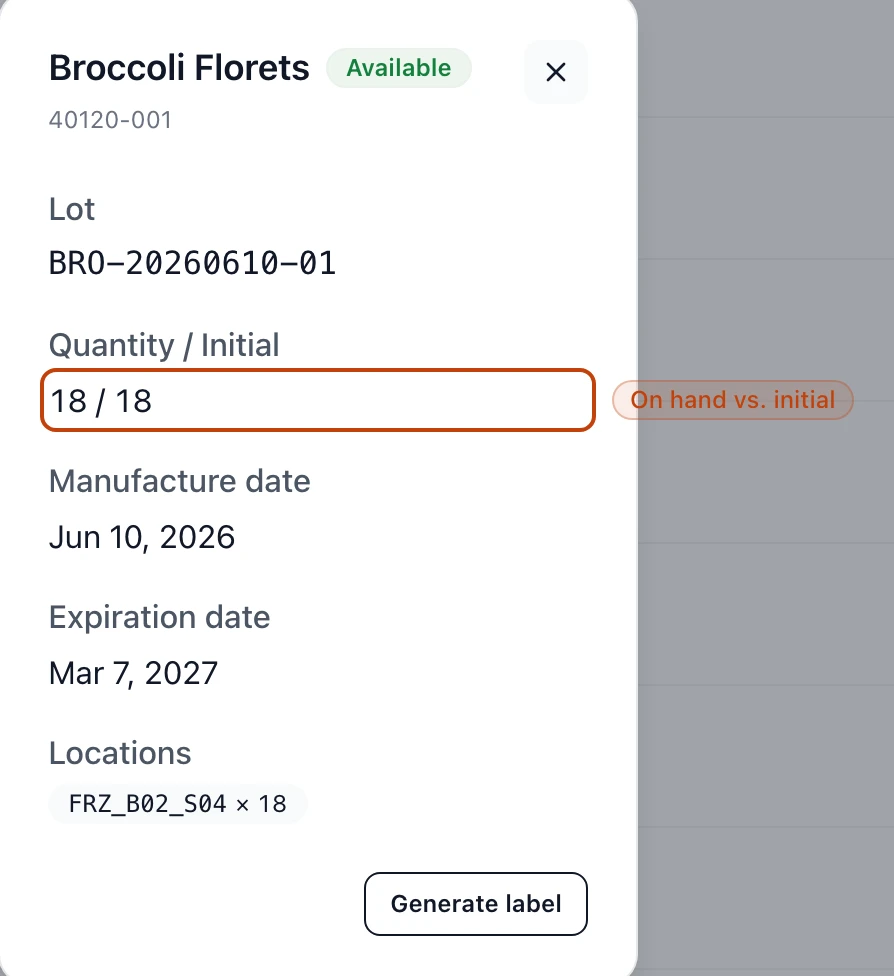
A lot's detail: its status badge, and the cases on hand read against the quantity the lot first arrived with.
Selecting a row opens the lot's detail. Its product name carries a status badge,
its product code reads underneath, and the fields below describe the batch:
Lot — the number that identifies this exact batch. A supplier's own code,
when there is one, reads below it as an alternative lot number. If the flow that
created the lot carried no number, Bettr assigns one.
Quantity / Initial — the cases on hand now, against the quantity the lot
first came in with, so you can read at a glance how much has been drawn down.
Manufacture date — when the batch was made.
Expiration date — when it's no longer good to use or ship.
Locations — the bins or rooms
the lot sits in, each with the amount stored there. One lot can be split across
more than one location; a lot placed nowhere reads Not placed in any
location.
Generate label at the foot of the detail prints the same lot label as the
row's tag button.
Lot status
The badge beside the product name reads one of two states:
Available — the lot is live and on the record, whether it's full or fully
drawn down.
Deleted — the lot has been removed. The removal is written as an event, not
wiped, so the batch stays in the history and its movements still trace.
Find a lot by its number
When you already have the number in hand, skip the list. Scan QR Code at the
top of the page opens a lookup: point the camera at the lot label's QR code, or
type the number into Enter lot number and select Find. Either way Bettr
opens that lot's detail. The lookup matches both the lot's own number and a
supplier's alternative lot number, so whichever code is stamped on the case gets
you there. A number that matches nothing reads No stock item matches this lot.
A used-up lot is still findable
Fully drawn-down lots drop off the list until you tick Include zero-quantity
items, but the lookup still finds them by number — which is exactly what a
recall reaching back to a batch you've already shipped needs.
Where a lot's numbers come from
A stock item is born when stock comes in — received against a purchase order,
produced on a run, or entered by hand
through the list's New button — and every
later change to its quantity, whether a pick, a sale, a count adjustment, or waste,
is written as its own event rather than typed over the figure before it. That
is why a lot's quantity is derived, not edited: the list adds up those events
each time you open it. See How inventory works in
Bettr for the model, Receive a purchase
order for the most common way a lot is
born, and Trace stock movements to follow
one through time.
Who can view stock items
Access is set per role, under Warehouse & Inventory in the permission catalog:
View stock items — open the list, any lot's detail, and the lot lookup.
Without it, the page redirects to an unauthorized notice.
Create stock items — governs the flows that bring a lot onto the record,
from receiving to production to the first count, and the list's own New
button. The same right also covers removing a lot, so there is no separate
delete permission.
Edit stock items — governs changes to a lot made through those same flows.