Every status, field, filter, and permission on the Purchase orders list — what each one means and where its value comes from.
On this page
Was this helpful?
Real help from real food people
Chef Diego runs a real food plant. If this page didn't get you there, tell us — a person reads every message.
A buyer calls to ask where last week's rice order stands, or an auditor wants to
see everything you ordered from one vendor last quarter. Both answers live on one
screen. A is listed here from the moment it's raised until
the last case is put away. Open
Purchase orders to
read along. Kitchen+
The Purchase orders list
The list holds every order in the company you're working in, one per row, and
opens newest first. Seven controls sit above it:
Search by order number — filters the list to orders whose number matches
what you type.
All statuses — narrows the list to one status. The filter offers Pending,
Approved, Received, Rejected, QC in progress, QC rejected,
and Pending storage.
All vendors — narrows to a single vendor from the company's contacts.
All requesters — narrows to the person who raised the order.
Memorized only — a checkbox that keeps just the orders you've starred as
templates.
Sort — by creation date (the default), order number, or expected
delivery, with a direction toggle beside it for ascending or descending.
New — opens a blank order. It shows only for people who can create orders.
A Clear all link appears once any search, filter, or non-default sort is
active, and returns the list to its default. When nothing matches, the list reads
No purchase orders found. Once you hold more orders than fit on a page, a
per-page selector and a pager sit below it.
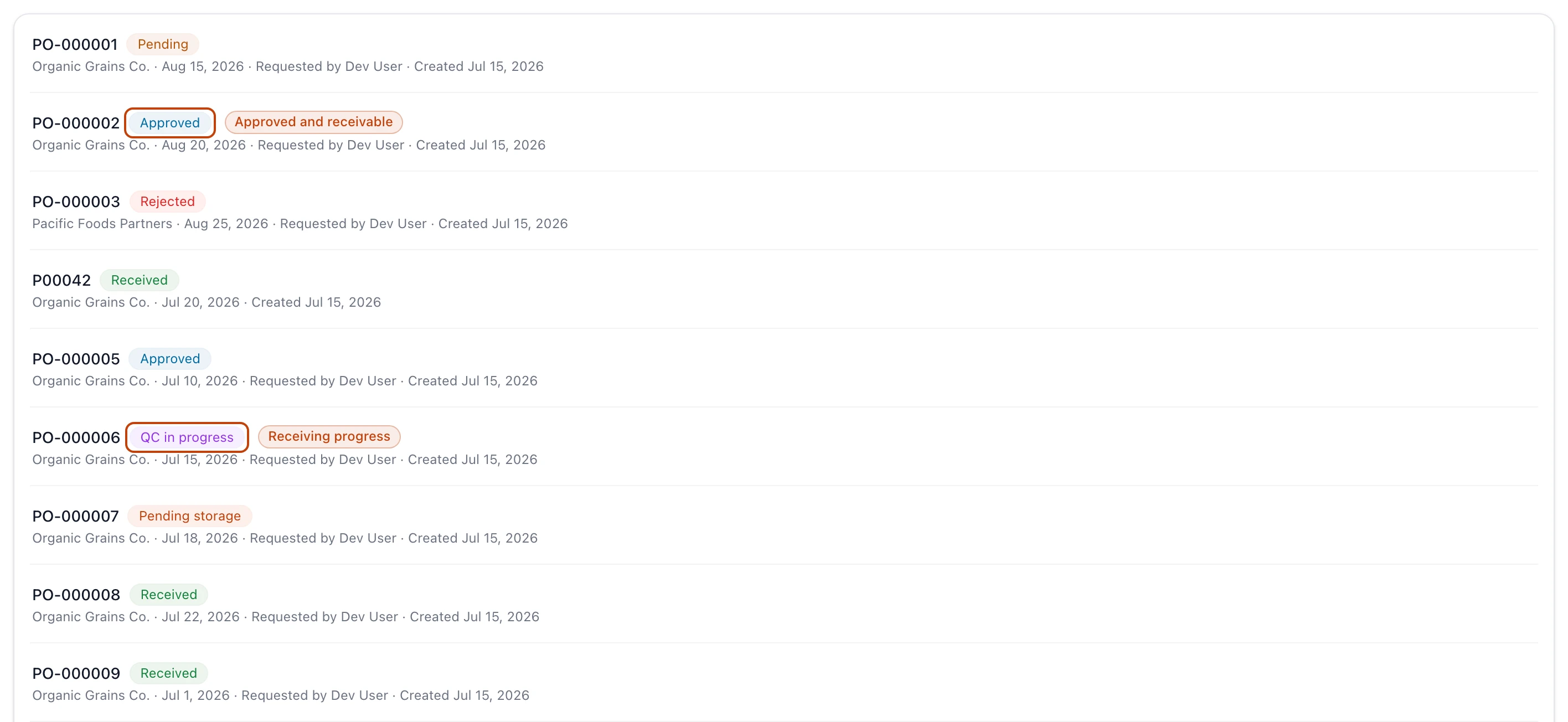
Each order carries a status badge, so the list reads at a glance from a pending request through to received stock.
What each row shows
Reading a row left to right:
The order number, then a status badge for where the order is in its
life. An order you've saved as a template also carries a Memorized badge.
Underneath, a line of detail: the vendor, the expected delivery date (or
No delivery date when none is set), who requested it, and when it was
created. An order synced from Odoo shows no requester.
A star button, at the row's right edge when you point at it, toggles the
order in and out of your memorized templates.
Order statuses
A purchase order's status is derived from what's happened to it — an approval, a
rejection, stock received, a lot put away — never typed in by hand. It moves
through two arcs.
Before any stock arrives:
Pending — the order has been raised but not yet approved. A request in the
queue, waiting on a yes or no. This is where a new order starts.
Approved — reviewed and approved. Its lines are locked and the warehouse can
receive against it.
Rejected — a reviewer turned it down and left a note. Final; it drops out of
the active flow.
Cancelled — the order was cancelled in a connected Odoo account and synced
back. This state only reaches orders linked to Odoo.
As stock comes in, the status tracks receiving progress:
QC in progress — stock has been received against the order and is being
checked before it's trusted.
QC rejected — the received stock failed its QC check.
Pending storage — the stock passed QC and is waiting to be put away into a
location.
Partially received — receiving is underway, with the order's lines at
different stages.
Received — every line has been received and put away, or the order was
completed in Odoo.
Discarding is not a status
Discarding a pending order removes it from your lists entirely rather than giving
it a status — unlike a rejection, which keeps the order and its note on the
record. See Approve or reject a purchase
order for both.
What's on an order
Selecting a row opens the order on its own page, its number and status badge at
the top, above four cards.
Order details carries the order's own fields:
Order number — PO-000001 and up, assigned in sequence. An order synced
from Odoo shows that account's reference instead, such as P00042.
Status — the same badge as the list.
Expected delivery — the day you expect the vendor to deliver, or No
delivery date.
Notes — anything recorded for the vendor when the order was built.
Total value — the order's cost, added up from its lines.
People records who touched it:
Requested by — who raised the order. Blank for orders synced from Odoo.
Reviewed by — who approved or rejected it, and when, or Awaiting review
while it's still pending.
Rejection notes — the reason, shown only on a rejected order.
Vendor repeats the contact's Name, Email, and Payment terms, drawn
from Contacts so you
don't leave the order to look them up.
Line items lists what you're buying. Each line reads the product name and code,
its quantity, and its unit price, with the line's total at the right and a
discount badge when one applies. Any per-line note or pallet schematic reads
alongside. The Purchase order total foots the list.
Odoo sync
When your organization has an Odoo connection, or the order has ever been sent to
one, a fifth card reads Odoo sync. It answers the question the order's own
fields never could: did this reach Odoo?
The badge beside the card's title is where the latest send stands:
Sent to Odoo — Odoo took it, and the history row names the Odoo purchase
order it landed on.
Sending — the send is on its way. The page refreshes itself until it settles.
Stuck — the send stopped before Odoo answered, and nothing is retrying it.
Odoo refused it — Odoo turned the change down. Bettr Manager keeps retrying
for a while.
Not sent — Bettr Manager held the send back on purpose, because something
isn't set up yet.
Anything other than Sent to Odoo or Sending opens a callout under the
badge: what happened, in plain words, and what to do about it. When the fix is a
screen you can open — the Odoo connection itself, or the pull that links a vendor
to its Odoo contact — the callout links straight to it.
When asking Odoo again could land the send, the callout carries Send to Odoo
again. That is the way out of a dead end: an order you have already received has
no edit, no approval, and no delivery date left to change, so nothing else on the
page would ever reach Odoo again. Clear whatever the callout names, then send it
again. Bettr Manager repeats what the last send carried, and the history logs the
new attempt on its own row.
An order that never reached Odoo has nothing there to update, so sending it again
carries the whole order across and the history logs it as another New order. If
you had already approved the order here, its approval crosses right behind it.
The button stays away when asking again would change nothing — while a send is on
its way or has already landed, while Odoo is disconnected, and once Odoo has moved
past the change for good.
History lists every send newest first: what was sent — New order, Order
changes, Order approval, or Delivery date — how it ended, when it was
requested, and the Odoo purchase order it reached. A send that landed but left
something behind, such as an Odoo receipt Bettr Manager could not remove, carries
its own note on the row.
Odoo's own error text stays out of the card
The card never prints the raw message Odoo sent back. You get what it means for
this order and what to do next; the wording Odoo used is kept for Bettr support.
Memorized orders
A is marked with the star on its row or detail. Starred orders
carry a Memorized badge and gather under the Memorized only filter, ready
to duplicate into a fresh order
whenever you order the same thing again.
Who can work with purchase orders
Access is set per role, under Procurement & Sales in the permission catalog:
View purchase orders — open the list and any order's detail. Without it, the
page redirects to an unauthorized notice.
Create purchase orders — raise a new order and duplicate an existing one.
Edit purchase orders — change a pending order's lines, memorize an order, and
move an approved order's delivery date.
Approve purchase orders — approve a pending order so it becomes receivable.
Reject purchase orders — reject a pending order with a note.
Delete purchase orders — discard a pending order.
Approving and rejecting are separate rights, so you can let someone raise and edit
orders while approval stays with whoever signs off on spend.