What the week grid and day panel show, every field on a shift assignment, how copying a day works, and how the schedule lines up with production.
On this page
Was this helpful?
Real help from real food people
Chef Diego runs a real food plant. If this page didn't get you there, tell us — a person reads every message.
The staff schedule lays a week across seven columns and lists, in each day, who
is on shift and in which department. You come here to read the coming week or to
name who should be in before the run sheets go out. This page walks the whole
screen — the week grid, the day panel, the fields on an assignment, and what
happens when you copy a day. Open it from
Staff schedule in the
sidebar. Plant+
The week grid
The grid runs Monday to Sunday, one column per day, with the weekday names across
the top and Saturday and Sunday shaded. Above it, a date range names the week
you're looking at — Jul 13 – Jul 19, 2026 — with Today and previous- and
next-week arrows beside it to move around.
Each day cell carries:
the date and month at the top;
a headcount badge — a people icon and a number — once anyone is scheduled;
the people on shift, grouped under their department heading with each
person's name and shift times.
A day with no one reads No schedules, and a week with no one at all reads No
shifts scheduled this week yet. An
shows a dash where the end time would be — 10:00 – —.
Filters
Two dropdowns above the grid narrow what it shows, and each applies the moment you
choose it:
Department — All departments, or one of your departments.
Employee — All employees, or one person.
When either is set, a Clear filters link appears to reset both. Filtering by a
single department also changes the day cells: instead of grouping people under
department headings, each day lists the matching people directly.
The day panel
Selecting any day opens its panel beside the grid. The panel header shows the full
date — Wednesday, Jul 15, 2026 — and a count such as 2 staff scheduled,
with a close button to send it away. Below the header sit the Add and Copy
from… actions, and two tabs that change how the day's roster reads:
Grouped stacks people under their department, each row showing the person's
name, their shift times, and any note appended after a dot.
Table puts everyone in one flat list, each row showing the person's name,
their employee code badge, their department, and their shift.
When the day has production scheduled, a Production schedules table sits above
the roster, covered under How it overlaps production and runs below. A day
with no one reads No staff scheduled for this day.
Assignment fields
Each entry on the schedule is an
.
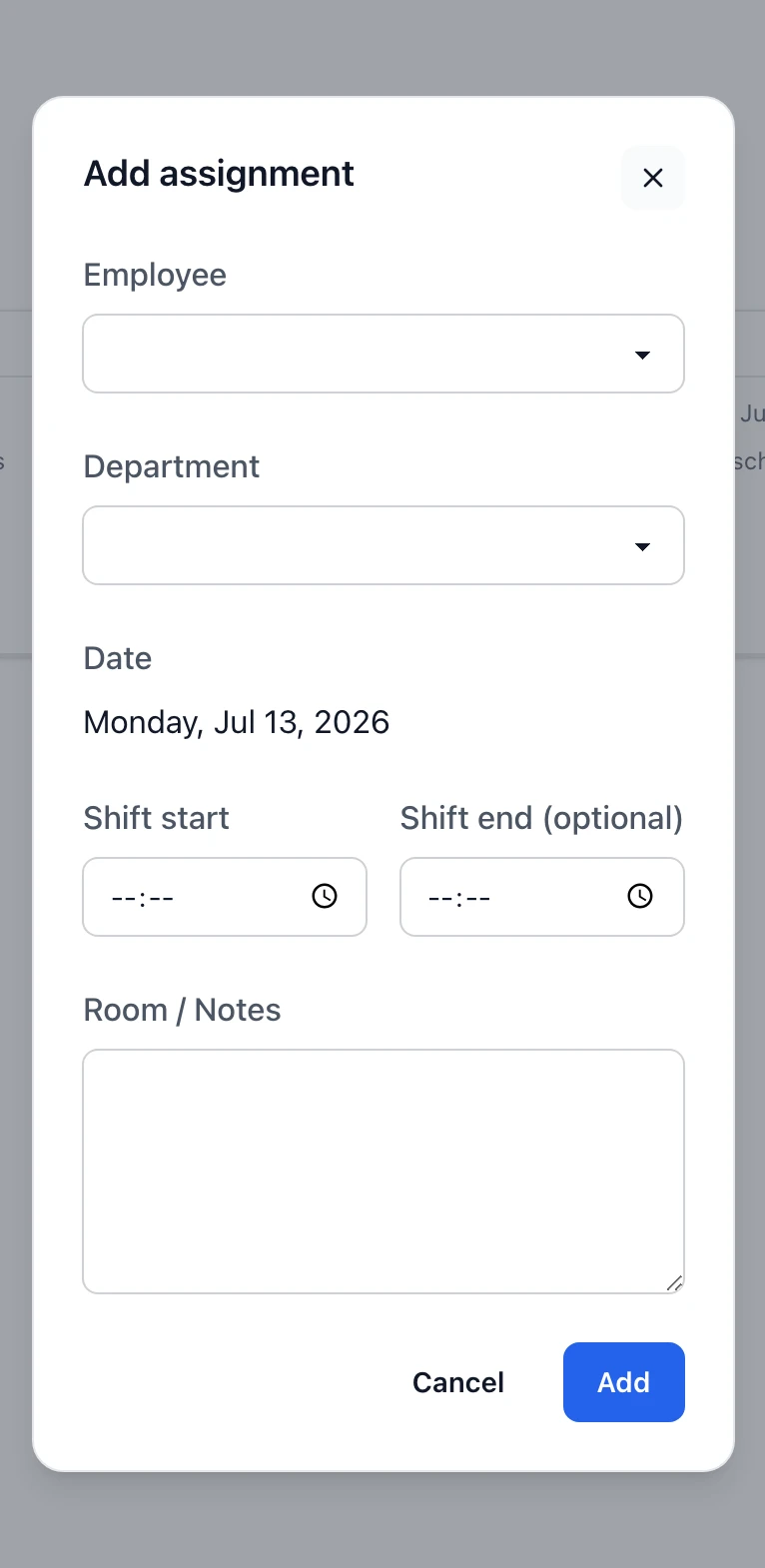
The Add assignment and Edit assignment forms carry the same fields:
Employee — the person on shift. Set when you first add the assignment, and
fixed afterward; the edit form shows the person as read-only.
Department — the crew they work that day. You can only choose a department
the employee already belongs to — scheduling someone into a department they're
not a member of is turned away.
Date — the day you opened. It's shown for reference and can't be changed on
the form; to move someone to another day, remove the assignment and add it on
the day you want.
Shift start — required, a time of day.
Shift end (optional) — leave it blank for an open-ended shift, and the
schedule shows a dash in its place.
Room / Notes — free text for the line, station, or anything the person needs
to know. It rides along after the shift times on both the grouped and table
views.
The Add assignment form. You pick the Employee and Department; the Date is fixed to the day you opened, and Shift end is optional.
One person can hold more than one assignment on the same day — a morning shift on
the line and an afternoon in QA, say — as long as the department or the start time
differs. Adding an assignment that matches an existing one exactly, same person,
day, department, and start time, is turned away as a duplicate.
Copying a day
Copy from… fills the open day from another one. You pick a Source date, and
every shift on that day is copied onto the day you have open. The copy is
all-or-nothing: if the source day has no shifts, if anyone on it no longer belongs
to their department, or if any shift would duplicate one that already sits on the
target day, the whole copy is turned away and nothing changes. When it lands, the
schedule confirms how many shifts it copied.
How it overlaps production and runs
The staff schedule is the plan for who should be in. It sits next to two other
screens that answer nearby questions.
When a day has production scheduled, the day panel shows a Production schedules
table so you can staff against the work that's actually planned:
# — the order the work runs in.
Department — the crew the work belongs to.
Recipe — what's being made.
Plan — the production plan's number, linked through to the plan, when you
can view plans.
Scheduled qty — how much to make, in the recipe's yield unit.
Recording who actually worked a batch happens later, on a production run's
Staff attendance tab — the planned roster here, the attended roster there. And
each person's recurring availability, set on their employee record, is the
standing answer to which hours they can be on the floor as you fill the week.
Who can see and change it
The staff schedule is gated by its own permissions:
Viewing the schedule needs the view permission; without it the screen isn't
reachable.
Adding an assignment and copying a day need the add permission — the
Add and Copy from… actions show only to people who have it.
Editing an assignment needs the change permission, and removing one
needs the delete permission; those controls appear on a row only for people who
can use them.
The Production schedules table has its own gate: it appears only for people who
can view production schedule days, and the plan link within it only for people who
can view production plans.