What every status, field, and record on a sales order means — the list filters, the order's panels, its line items and shipped lots, and the truck record that rode with it.
On this page
Was this helpful?
Real help from real food people
Chef Diego runs a real food plant. If this page didn't get you there, tell us — a person reads every message.
A customer calls to ask where their order stands, or an auditor points at one you shipped last week and asks which lots went out on it. You open the order and read the answer straight off the screen — once you know what each badge, panel, and number means. This is the field guide to a as it appears on the Sales orders screen — the statuses it moves through, the fields on every panel, the shipped lots on each line, and the truck record tied to it. Kitchen+
The sales orders list
The Sales orders screen opens on every order for the company you're working in, newest first. Each row carries the order number, a status badge, and a line of context beneath it: the customer, the expected shipment date, who requested the order, and when it was created.
A row of controls above the list narrows what you see:
Search matches the order number.
Status filters to a single stage — Pending, Approved, Preparing, and so on.
Customer and Requester filter to one buyer, or to one person who entered orders.
Ships from and to bound the list by expected shipment date.
Sort orders the list by creation date, order number, or expected shipment, and the arrow beside it flips between ascending and descending.
Clear all drops every filter and sort back to the default.
New, in the top right, opens the order builder for a fresh order.
Order statuses
An order's status is its stage in the flow, shown as a badge on the list and at the top of the order itself.
Pending — a new order, still open to edits: the customer, the lines, and the prices can all change. Only a Pending order can be approved, rejected, or discarded.
Approved — someone with the authority committed to the order. The lines lock, and it is ready to prepare.
Preparing — the order is being staged for shipment, one line at a time, against stock on hand.
Shipped — the staged lots have left the building. Bettr recorded which lots went out and drew them off your on-hand count.
Partially delivered — some of the shipped stock has been confirmed delivered to the customer, but not all of it.
Delivered — every shipped line has been confirmed delivered.
Rejected — the order was declined instead of approved. It carries a note explaining why, and it is final.
Each stage only opens once the one before it is done — you cannot prepare an order that is not approved, or ship one you have not prepared. A Pending order can also be discarded, which drops it from your lists for good; a discarded order shows no status because it no longer appears anywhere.
Statuses follow the work
You never pick a status from a menu. Bettr reads each one from what has actually happened to the order — an approval, a shipment, a delivery confirmation, a rejection — so the badge always matches the last real thing that was done. Move an order on with the buttons at its top, and the status catches up.
What's on an order
Open an order and its details sit in three panels, above the line items and the truck records. Its heading carries the order number and the current status badge, with a line beneath it: the customer, the expected shipment date, when it was created, and — once it ships — when it shipped. An order that came from a finished picking, or that mirrors a purchase order, shows that origin here too.
Order details
Order number — the identifier Bettr assigned, like SO-000001.
Status — the same badge as the heading.
Expected shipment — the day the order is due to leave your dock, or No shipment date.
Notes — anything the floor or the reviewer should know, or No notes.
Total value — the order's lines added up.
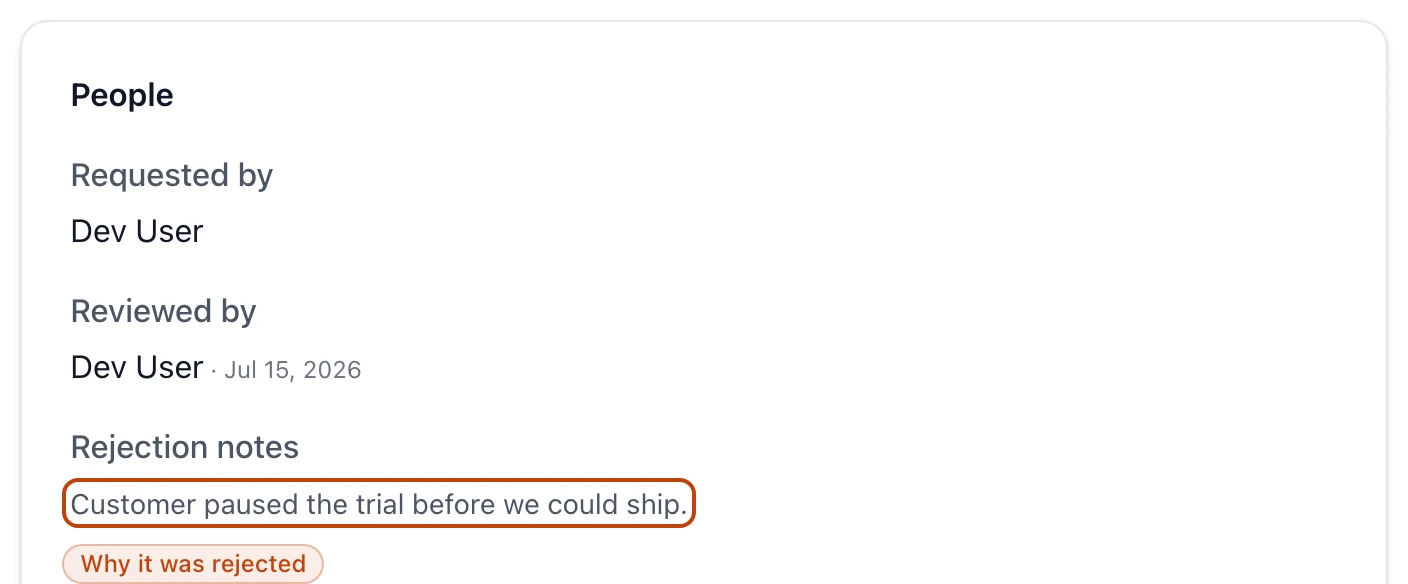
People
Requested by — the person who entered the order.
Reviewed by — who approved or rejected it, with the date. It reads Awaiting review until someone decides.
Rejection notes — the reason a rejected order was turned down. It shows only on a rejected order.
The People panel on a rejected order: who requested and reviewed it, and the note that records why it was turned down.
Customer
Name — the buyer, linked to their contact record.
Email — the contact's email, or Not defined.
Department — the department the contact belongs to, or Not linked.
An order that came from a finished picking rather than a sale can have no customer at all — the panel says so, since the stock still left the building and stays on the books.
Line items
Every product on the order is a line. Each line shows the product name and code, and a running count of how it has been fulfilled:
Ordered — the quantity the customer asked for.
Shipped — how much has left on this order so far.
Remaining — what is still owed: the ordered quantity minus what shipped.
Delivered — how much the customer has confirmed receiving. It appears once there is a delivery to count.
A line priced with a discount wears a discount badge, and its own notes sit alongside the counts. The line's total and its unit price sit at the right, and the panel foots to the sales order total.
Once stock is staged against a line, each staged lot shows beneath it as a : the lot number (and the supplier's own lot number, where it differs), the location it came from, the quantity, and the unit price it shipped at.
While an order is being prepared, each line also wears a coverage badge on the staging screen — Needs stock before anything is staged, Partially covered while it is short, and Covered once its full quantity is staged.
Truck-shipping records
Alongside the shipment you can record the truck that carried the order — the outbound half of the cold chain, and what an auditor asks for. An order holds as many truck records as it needs, and each one captures:
Order / invoice number — the paperwork number the load moved under. Required.
Shipper name — who sent the load. Required.
Transport carrier — the carrier that hauled it. Required.
Driver name — the driver at the wheel. Required.
Trailer conditions — one or more of Satisfactory, non-refrigerated, Satisfactory, refrigerated, Unsatisfactory, Damaged, or Contaminated. At least one is required, and each shows as a badge on the record.
Trailer set point (°F) — the temperature the trailer was set to hold. Optional.
Trailer temperature (°F) — the temperature actually read at loading. Optional.
Seal number — the seal on the trailer door, if there was one. Optional.
Notes — anything else worth recording. Optional.
Adding, editing, and removing a truck record is its own permission, so Add record and the edit and remove controls show only for a role allowed to manage them.
Odoo sync
When your organization has an Odoo connection, or the order has ever been sent to one, a card at the foot of the page reads Odoo sync. It answers what the order's own fields never could: did this reach Odoo, and did the shipment and the invoice go with it?
The badge beside the card's title is where the latest send stands — Sent to Odoo when Odoo took it, Sending while it is on its way, Stuck when it stopped before Odoo answered, Odoo refused it when Odoo turned it down, and Not sent when Bettr held it back because something is not set up yet. While a send is on its way the page refreshes itself until it settles.
Anything other than Sent to Odoo or Sending opens a callout under the badge: what happened, in plain words, and what to do about it. When the fix is a screen you can open — the Odoo connection itself, or the pull that links a customer to its Odoo contact — the callout links straight to it.
When asking Odoo again could land the send, the callout carries Send to Odoo again. That is the way out of a dead end: an order that has already shipped has no edit, no approval, and no shipment left to record, so nothing else on the page would ever reach Odoo again. Clear whatever the callout names, then send it again. Bettr Manager repeats what the last send carried, and the history logs the new attempt on its own row.
An order that never reached Odoo has nothing there to update, so sending it again carries the whole order across and the history logs it as another New order. Whatever the order has already been through here — the confirmation, the shipment, the invoice — follows it across, one send at a time.
The button stays away when asking again would change nothing — while a send is on its way or has already landed, while Odoo is disconnected, and once Odoo has moved past the change for good.
History lists every send newest first: what was sent — New order, Order changes, Order confirmation, Shipment, or Invoice — how it ended, when it was requested, and the Odoo sale order, delivery, and invoice it reached. A shipment that went out but left something behind, such as a lot Odoo does not have or a location that is not mapped there, carries its own note on the row so you know exactly what drifted apart.
Odoo's own error text stays out of the card
The card never prints the raw message Odoo sent back. You get what it means for this order and what to do next; the wording Odoo used is kept for Bettr support.
Actions on an order
The buttons at the top of an order change with its status and with what your role allows:
Edit — reopens the order builder. Pending only.
Approve, Reject, and Discard — the three decisions on a Pending order. Each is a separate permission.
Prepare shipment — starts preparing an Approved order.
Continue preparing — reopens the staging screen for an order already Preparing.
Download invoice — pulls the invoice your accounting system raised, as a PDF. It shows on a Shipped, Partially delivered, or Delivered order once that invoice is ready. When the pull comes back with nothing, the order reopens carrying the reason and the step that clears it.
Open in Odoo — opens the same order in your connected accounting system, for an order that synced across.