Every status, field, and control on a kitchen return — the draft sub-statuses, output-count approval, finishing back into the warehouse, and releasing to another company.
On this page
Was this helpful?
Real help from real food people
Chef Diego runs a real food plant. If this page didn't get you there, tell us — a person reads every message.
A return on the Kitchen Returns list reads KR-000012 with a Pending approval
badge, and the crew is clocking out in ten minutes. A
moves that surplus the right way — but only once every count is signed off and
every case has somewhere to land. This page names every status, field, and
control on Kitchen Returns
so you can read any return at a glance. The screen is its own module that turns
on only alongside Production, Sales, and Purchasing; among the self-serve plans,
Plant is the one that bundles it. Plant+
Not the same as Early kitchen returns
Inventory has a separate Early kitchen returns screen. Despite the shared
name, it is a different flow — for stock sent back as it leaves the line — and it
lives in its own module. See Log early kitchen returns.
This page is only about returns from the production kitchen.
The returns list
Kitchen Returns lists one row per return, newest first. Each row carries:
Number — the return's identifier: KR- and a six-digit sequence
(KR-000012), unique within your company.
Name — the optional label you gave the return ("Line 3 leftovers"), shown
next to the number.
Status — a badge for where the return stands. A completed return reads
Completed; a draft shows its sub-status instead.
Origin line — the department the stock came from, the production run it's
tied to (if any), who started the return, and the date.
Above the list, Search matches on number, name, or department, and the status
filter narrows to All statuses, Draft, or Completed — it filters on the
top-level status, not the draft sub-statuses. New starts a return;
Send kitchen stock back to the warehouse
walks through the full flow.
Statuses
A kitchen return has two top-level statuses:
Draft — still being built. Items can be added, approved, and located, and
the whole return can be edited or deleted.
Completed — finished. The cases have left the kitchen and are booked back
into warehouse stock. A completed return can't be edited or deleted — only
released or printed.
While a return is a draft, its badge shows a finer sub-status that names what
it's waiting on:
Draft — no items yet.
Pending approval — at least one final-product item still needs its output
count approved.
Pending location — every count is approved, but at least one item has no
warehouse location set.
Ready to complete — every item is approved and located, so the return can be
finished.
These are derived in that order: approval is checked before location, so a return
with both gaps reads Pending approval first.
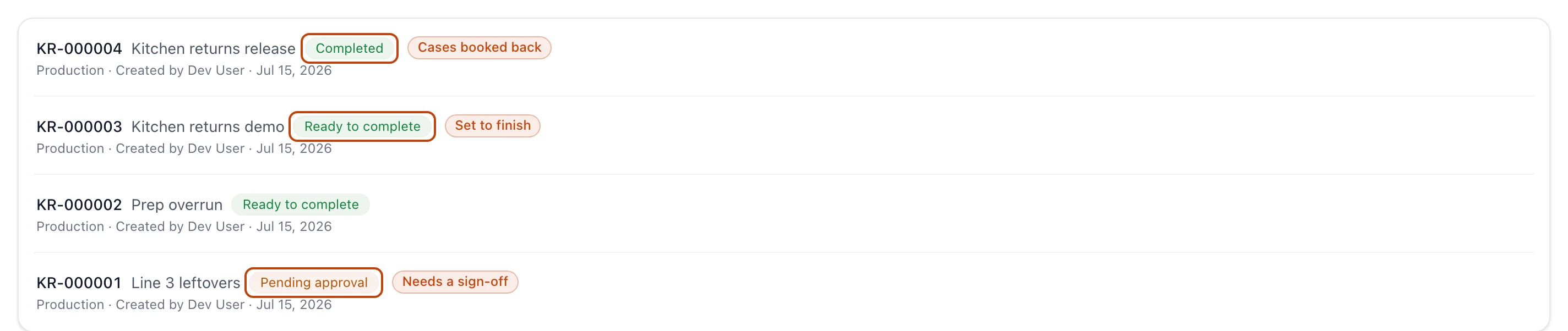
The status badge on each row: a completed return reads Completed, while a draft shows what it's still waiting on — Pending approval until every count is signed off, Ready to complete once it's set.
The return detail
Opening a return shows its number and status badge at the top, with the name
beneath. The controls sit in the top-right:
Print label — prints a lot label for the return. Always available.
Scan QR — on a draft, opens a scanner that jumps to an item by its lot
number.
Edit — on a draft, reopens the item list for changes.
Release — on a completed return, mints the transfer to another company.
View in Odoo — appears once a finished return has synced to a connected
Odoo company.
A details panel below the header lists the Department the stock came from, the
Production run it's tied to (if you linked one), who Created the return and
when, and — once it's done — who Completed it and when.
Items on a return
Each item is one returnable
and the whole cases you're sending back. An item row shows:
Product and lot — the product name and code, the recipe a made lot came off,
and the lot number.
Final product — a badge on lots that came out of a final recipe. These need
their output count approved before the return can finish; raw and ingredient
lots don't.
Cases — the whole cases being returned, and how many cases are still
available in the kitchen lot, in that lot's kitchen unit (pounds or units).
Locations — the warehouse locations the cases will land in, each with its
share of the count. An item with none shows a Missing location warning.
Approval — an approved item reads Output count approved with who signed
it and any comment; until then an Approve quantity button opens the count.
A final-product item awaiting sign-off: the Final product badge marks it as needing its output count approved, and Approve quantity opens that count to confirm.
Approving confirms a final-product item's output count. You can adjust the case
count and the location split as you approve, or accept what's there. After
approval the item's product and quantity are locked — only the location split can
still change. Raw and ingredient lots skip approval entirely.
Finishing a return
Finishing completes a draft and moves the stock: each item's whole cases are
pulled out of the kitchen lot and booked into warehouse stock at the locations you
set. The Finish panel only offers the action once the return has at least one
item, every final-product count is approved, and every item has a location — until
then it names which of those is still missing.
Finishing can't be undone
Once you finish a return its cases have left the kitchen and entered warehouse
stock. There is no reopen — a mistake has to be corrected with new movements.
Odoo sync
Finishing a return sends it to Odoo as one incoming transfer. Once the return is
completed, an Odoo sync card on its detail says whether that transfer landed.
Operators don't see the card; a supervisor does.
The badge beside the card's title reads where the send stands: Sent to Odoo,
Sending while it is on its way, Stuck when it stopped before Odoo answered,
Odoo refused it, or Not sent when Bettr Manager held it back because
something isn't set up. Anything other than a clean send opens a callout under the
badge: what happened, in plain words, and what to do about it. When the fix is a
record you can open — the kitchen's contact with no Odoo partner, the Odoo
connection itself — the callout links straight to it.
History lists the send with when it was requested and the Odoo transfer it
reached. A return is sent once, when you finish it, so a send that never landed is
put right by fixing the setup and adding that one transfer in Odoo by hand — later
returns then sync on their own.
Odoo's own error text stays out of the card
The card never prints the raw message Odoo sent back. You get what it means for this
return and what to do next; the wording Odoo used is kept for Bettr support.
Releasing to another company
Release moves stock between two companies in the same organization: the kitchen's
company sends it, another company receives it. It's available only after a return
is completed, and only once. Releasing mints two orders — a sales order at the
company that made the stock and a matching purchase order at the receiving company
— and the return then shows an SO and a PO chip linking to each.
Release needs a few things lined up first: the return's department must carry a
customer contact linked to a receiving company in your organization, that company
needs a product with the same code, and a vendor price for it. If any is missing,
Release tells you what to add.
Release mints real orders
Releasing creates a live sales order and purchase order at the two companies and
can't be undone. Confirm the receiving company and its pricing before you release.
Supervisor and operator views
The detail page renders in one of two views, set by your role. A supervisor sees
everything here: available counts, locations, who created and completed the
return, and the Edit, Finish, and Delete controls. An operator sees a stripped
floor view built for checking stock in — the item list, Scan QR, Print label, and
Approve quantity — without the editing controls. Your role's default production
view decides which one you get.
Permissions
What you can do with a kitchen return depends on your role:
View — open the list and any return.
Add — start a new return.
Change — edit a draft's items and locations.
Approve — sign off a final-product item's output count.
Finish — complete a draft.
Delete — remove a draft. Completed returns can't be deleted.