Turn a finished inventory count into corrected stock — weigh the variance on each lot, apply the ones you trust, and reject or discard the rest.
On this page
Was this helpful?
Real help from real food people
Chef Diego runs a real food plant. If this page didn't get you there, tell us — a person reads every message.
The freezer crew has finished. The last cooler came back Completed, the progress
bar is full, and IC-000003 has moved itself to Under Review — waiting on
someone with the authority to decide what's real. Two cases of teriyaki sauce
came up short; everything else on the shelf matched. Now a manager reads the gaps
and corrects the books, one lot at a time. That someone already walked the floor
and ran the count; this is the step that
turns their numbers into corrected on-hand. Open
Inventory counts and
pick the count that's waiting on review.
Open the count in review
A count lands in Under Review on its own the moment its last location is
completed — no one has to submit it. Its page shows every location Completed
and the progress bar at 100%, with two things you can do next: Adjust
Inventory to open the review, or Discard to throw the count out without
looking. Select Adjust Inventory.
Only a count that's under review has an Adjust Inventory button. A count
that's still being counted doesn't, and once a count is applied, rejected, or
discarded, the review closes — open it again and Bettr sends you back to the
count's page.
Read the variance on each lot
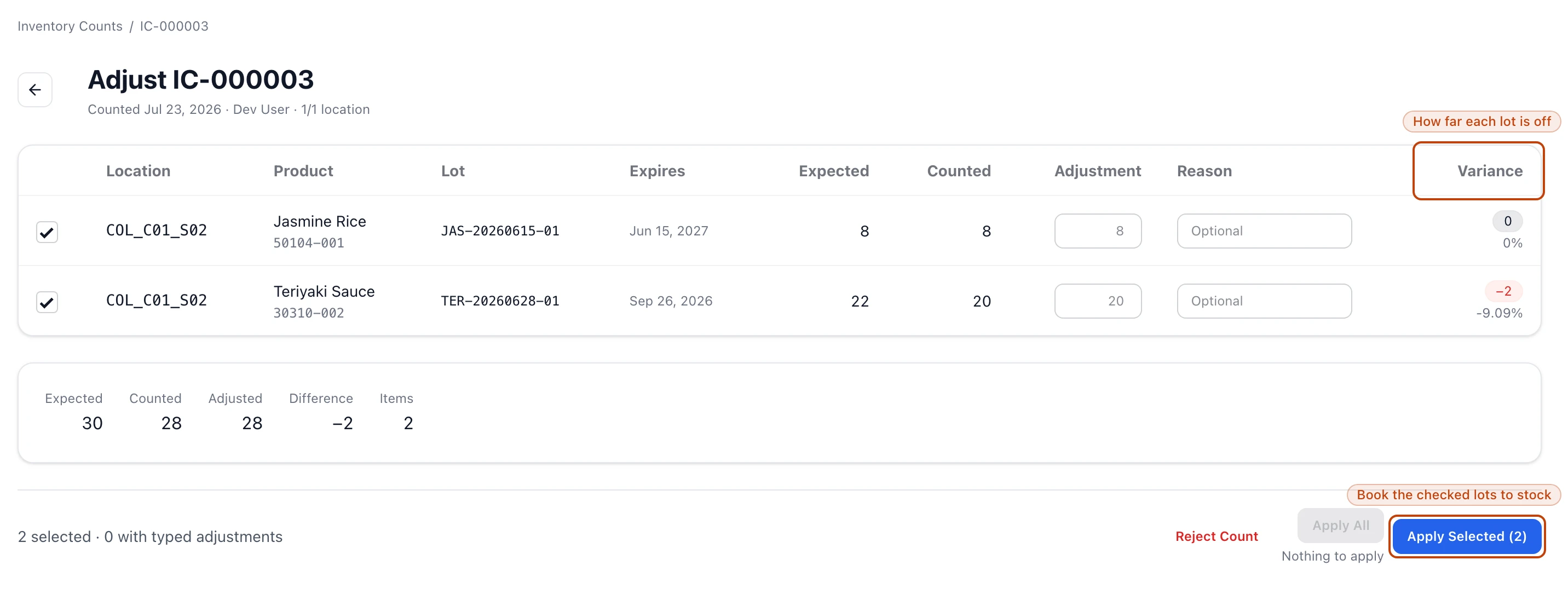
The review lists one row per lot that was counted, across every location in the
count. Read each row left to right:
Location, Product, Lot, and Expires name the exact lot and where
it sits.
Expected is what the ledger said was on hand before the count.
Counted is what the floor actually found.
Variance is the , shown as a signed number and a percentage. A short count reads
red, an over reads green, and an exact match reads 0.
Below the table, a summary strip totals the whole count: Expected,
Counted, Adjusted, the net Difference applying it would make, and the
count of Items under review.
Reviewing a finished count: each lot shows what Bettr expected against what the floor counted, and the Variance column is the gap. Apply Selected books the checked lots as corrections; Reject Count throws the whole count out.
Apply the corrections
1
Pick the lots to correct
Every counted lot starts checked. Uncheck any lot you're not ready to act on —
a number you want to re-count first, say — and leave the rest ticked.
2
Override a count you don't trust
In Adjustment, type the true quantity for a lot only if the counted number
is wrong. The field shows the counted number as a placeholder, so leaving it
blank accepts the count as-is. Numbers must be whole and zero or more. Add a
Reason — Recount confirmed 21 — when a correction needs explaining.
3
Apply the batch
Select Apply Selected — the button carries how many lots are checked,
Apply Selected (2) — to book every ticked lot at your typed number, or at the
counted number where you left it blank. Apply All is the other path: it
books only the lots you typed an override into, and stays disabled until you
type at least one.
4
Confirm
Bettr asks you to confirm, and applying writes the corrections to stock. The
count moves to Applied, and its page now carries a Manager adjustments
list showing each lot's expected, counted, and adjusted quantity.
Applying is final
Applying corrects your on-hand for good, and there's no undo. And if you apply while
a lot that has a variance is left unchecked, the count locks as Partially
Applied — those lots can never be reviewed again. Bettr spells this out in the
confirmation before it happens, so read it before you commit.
Reject or discard a count
Not every count ends in a correction. Two actions close a count while changing no
quantity at all:
Reject lives on the review screen, for a count you've read and don't trust —
the numbers don't reconcile and you want a re-count. Select Reject Count,
give a reason, and confirm. The count closes on Rejected, and your reason
shows on its page.
Discard lives on the count's own page, for a count that shouldn't have run at
all — a duplicate, or one started by mistake. Select Discard, give a reason,
and confirm. The count closes on Discarded. Discard sits right on the
count's page once counting is done, so you can abandon one without ever opening
the review.
Either way, every quantity stays exactly where it was. The only record is the
closed count and the reason you left.
What applying does to your stock
Applying never types a new number over the old one. For each lot you apply, Bettr
writes a stock adjustment — an event that sets that lot's on-hand to the quantity
you applied and records who did it and when. The adjustment is kept on the count as
a Manager adjustments entry, and your on-hand is derived from it afterward — as
traceable as any other recorded event. It doesn't post to the stock movements
feed, which tracks stock entering and
leaving the building rather than a count corrected in place. Nothing is deleted, and
nothing is overwritten; the shelf and the ledger agree again because you added a
record, not because you erased one.