Every field, status, and badge on the equipment list, a machine's detail, and equipment groups — what each one means and where its value comes from.
On this page
Was this helpful?
Real help from real food people
Chef Diego runs a real food plant. If this page didn't get you there, tell us — a person reads every message.
A belt lets go on the rotary oven halfway through the morning bake, and before
the next batch goes anywhere you need to know one thing: which machines are up,
which are down, and which are due for a calibration you can't put off. Every
machine your floor runs on lives here as a piece of
, and this page is how to read one at a glance. Open
Equipment under
Production to follow along. Kitchen+
The equipment list
The list holds every machine in the company you're working in, one per row. The
controls above it:
Search by name, model, or serial — filters the list as you type, matching
each machine's name, model, and serial number.
Filter by status — All statuses, Active, Inactive, or
Maintenance.
Filter by department — narrows to the department that runs the machine,
drawn from the departments you have access to.
Sort — Sort by name, status, department, calibration, or
batch capacity, with a direction toggle for ascending or descending.
Clear all — appears once any search, filter, or non-default sort is active,
and returns the list to its default.
New sits in the top corner and opens the equipment form; it shows only if
your role can create equipment. When nothing matches, the list reads No
equipment found.
What each row shows
Reading a row left to right, then down:
A row number, the machine name, its model in a lighter monospace,
and the status badge. A warning triangle sits at the end of the line when
the machine's calibration is due or overdue.
A second line of detail: the department that runs it, the next
calibration date when one is set — in a warning color if it's due — and what
the machine takes, read the way its type is measured. A non-continuous machine
reads Batch 20 – 250 lb, or Batch not set when the range is blank; a
continuous one reads its rate, 120.5 lb/min; a container reads what it
holds, Holds 24 lb, or Capacity not set.
Equipment statuses
A machine's status is its live state, shown as a badge on the list and in the
detail header:
Active — the machine is ready to run.
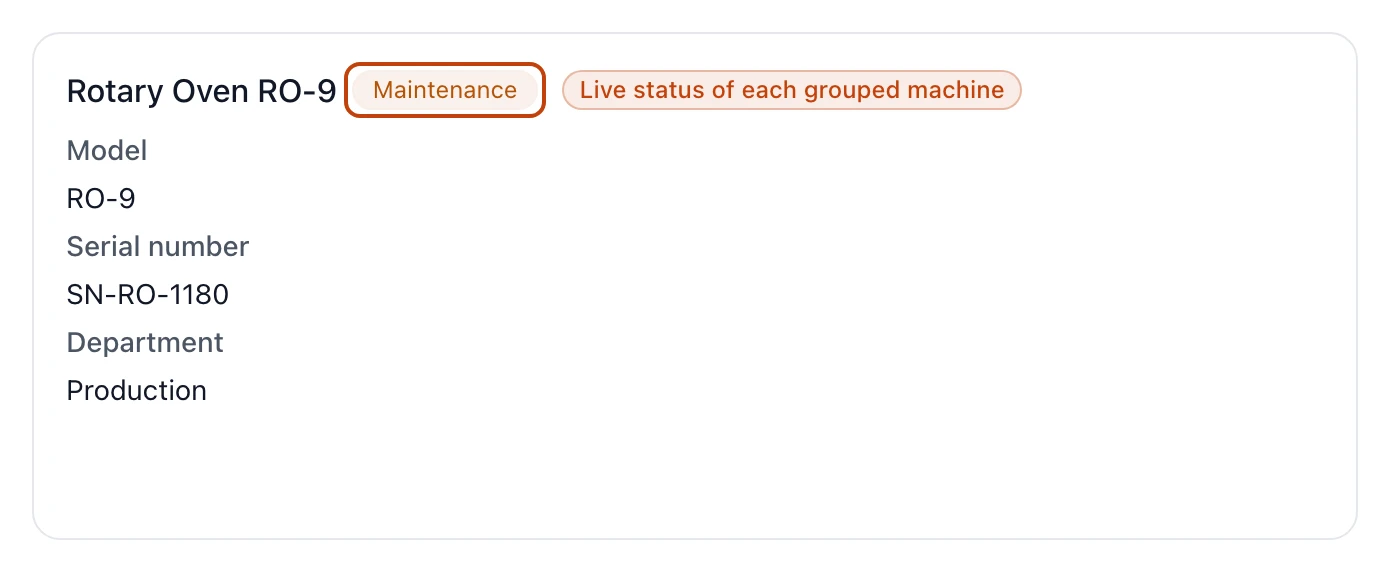
Maintenance — down for a repair or a check, so anyone planning a run can
see at a glance it isn't ready.
Inactive — retired from the line, but kept on record.
The status isn't a field you overwrite. It's derived from the machine's most
recently recorded status event, so the badge always reflects the last change
anyone logged — and every earlier state stays in the record.
A machine's detail
Selecting a machine opens its detail page. The header carries the machine name,
its status badge, and — when calibration is due — a Needs calibration
badge, above the department and equipment type. Change status and Edit
sit in the corner for roles that can change equipment. Below, a set of sections
holds everything the machine is on record for.
Basic information
Company, Department, Model, Serial number, and Internal machine
number. Model, serial, and internal number are optional, and each appears only
when it's set. Department is the one a recipe step draws from: a step can reach
for a machine only in its own department.
Type and capacity
Two fields set how a machine takes work, and a third reads differently depending
on them:
Type — Continuous for a machine that runs at a steady rate, like an
oven conveyor or a label printer, Non-Continuous for one that works a
batch at a time, like a mixer or a blast chiller, or Container for what a
batch goes into rather than through, like a tote or a bin. A container is
registered the same way as a machine so a recipe step can point at it.
Input type — LB or Unit, the measure its capacity is counted in.
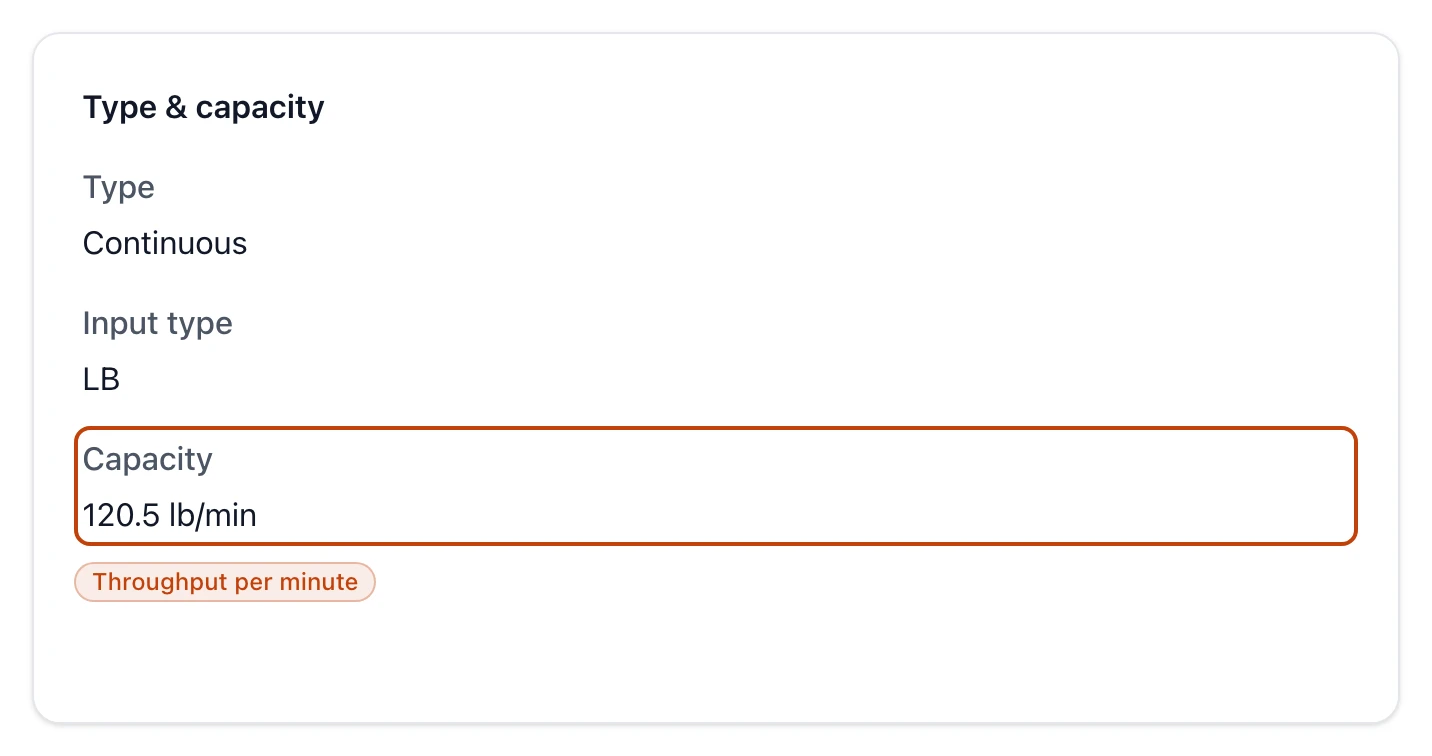
Capacity — a continuous machine shows a throughput per minute (lb/min
or units/min), and it has to carry one; a container shows How many fit,
what a full one holds in lb or units, which a recipe's count levels
read; a non-continuous machine instead shows a Batch capacity, the
minimum-to-maximum weight range it can hold, or Not set when the range is
left blank.
A continuous machine reads its capacity as a throughput per minute; a non-continuous machine shows a batch-weight range instead.
Calibration
Last calibration and Next calibration, each a date or Not set. When
the next calibration is set and falls within 30 days — or has already passed —
the machine is flagged: the date turns a warning color, the header shows the
Needs calibration badge, and a warning triangle marks the row on the list.
Links, settings, and notes
Extra information is a free-text note, shown only when it's filled in.
Links are external URLs — an operating manual or a spec sheet — each opening
in a new tab. Settings are key-and-value pairs, like a target temperature or
a cycle time, with each key shown in capitals. A section appears only when it
holds something.
Event history
The Event history is the machine's service record, newest first. It opens
with a Registered entry — the moment the machine went on the books — and
carries every status change since. Each entry shows the change, named for you
(see below), the before → after status, the note whoever made the change
wrote, and when it happened and who did it. A change that came off the floor — a
machine marked down mid-batch — links to the production run that reported it. A
machine you just registered has one entry, not none.
The list reads in the order the changes were recorded, which is also the
order the status badge is derived from: the entry at the top is always the one
the badge reflects. Backdating a change — reporting this morning's breakdown
this afternoon — doesn't move it up or down the list; it only sets the time the
entry shows.
The record is append-only
A status change is never edited over the last one — it's added on top. The
badge shows the current state; the history keeps every state the machine has
been in, so the page reads as its full service record.
How a status change is named
When you change a machine's status, Bettr names the event from where it started
and where it landed, so the history reads in plain terms:
Failure — Active to Maintenance. Something broke or failed a check.
Maintenance Start — Inactive to Maintenance. A retired machine pulled in
for work.
Maintenance End — Maintenance back to Active. The repair is done.
Activated — Inactive to Active. A machine brought back onto the line.
Deactivated — any status to Inactive. Retired from the line.
The first entry on every machine is Registered — not a change but the
starting point, carrying the status you gave the machine when you added it.
Equipment groups
Two ovens that can each bake the same line don't both need to be named on the
schedule. An
gathers them under a single name. Groups live under
Equipment groups,
and belong to the company you're working in.
The equipment groups list
One row per group. Search by name filters as you type, and Sort offers
Sort by name, Sort by equipment, or Sort by created, with a direction
toggle. Each row shows the group name, a badge with its equipment count,
and the date it was created. New opens the group form for roles that can
create groups. When there are none, it reads No equipment groups found.
A group's detail
The header shows the group name, its equipment count, and the company
it belongs to, with Edit in the corner for roles that can change groups.
Basic information repeats the name and company; System information carries
the created and last updated dates.
The Equipment section lists the machines in the group as cards. Each card
shows the machine's name and its live status badge, along with its
model, serial number, department, and batch capacity where set —
the same status the machine carries everywhere else, so a down machine reads as
down right here. An empty group reads No equipment in this group yet.
Inside a group, each machine card carries its live status — so a machine that's in Maintenance shows as down without leaving the group view.
Recipes name a machine, not a group
A recipe's production step points at one specific machine, not a group — see
Create a recipe. A group is a planning
convenience: interchangeable machines under one name, so you can reason about
them as a set.
Who can view and change equipment
Access is set per role, under Production in the permission catalog, and
equipment and equipment groups each carry their own four:
View equipment / View equipment groups — open the list and read any
record. Without it, the page redirects to an unauthorized notice.
Create equipment / Create equipment groups — show New and let you
add one.
Edit equipment / Edit equipment groups — let you change a record and,
for equipment, change its status.
Delete equipment / Delete equipment groups — let you remove one.
Deleting a machine hides it from every list and group, and deleting a group
removes only the grouping, leaving its machines untouched — and, as everywhere
in Bettr, the record is kept.