Capture stock coming back off the line early — an existing lot or a fresh one — as a draft you build through the shift, then finish it to put the stock back in the warehouse.
On this page
Was this helpful?
Real help from real food people
Chef Diego runs a real food plant. If this page didn't get you there, tell us — a person reads every message.
A kitchen run wraps ahead of schedule and there's stock left on the cart — a case
you staged for the batch but never opened, a tray of product that came off the
line early. It has to get back on the warehouse shelf before tomorrow's pick
counts on stock that isn't where the system thinks it is. An
captures exactly that. Open
Early kitchen returns,
log what's coming back as it lands on the cart, then finish the return to put it
on hand. Plant+
Log a return
A return starts as a draft. You can add to it through the shift, then finish it
once everything the kitchen is sending back is on the list.
1
Start a new return
In the top navigation, open Inventory and select Early kitchen
returns, then select New. Choose the Contact the return is tied to
and, if it helps you find it again, give it a Name like Line 3
pull-back.
2
Add what's coming back
Select Add item — each item is one thing returning. Leave it on Existing
lot to send back a that's already in
Bettr, and pick it under Stock item. Or switch to New from product to
book a fresh lot the kitchen made. Set the Quantity coming back.
3
Say where it lands
Under Locations, select Add location, pick the spot the stock goes
back to, and enter how much lands there. Split one item across two spots by
adding a second location — the running allocated count has to match the
item's quantity before you can finish.
4
Finish the return
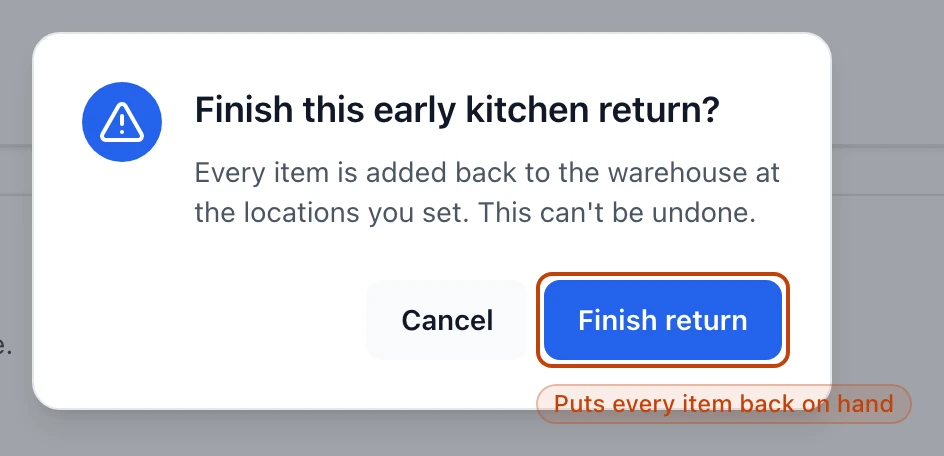
When everything's on the draft, select Finish return and confirm. Bettr
books each item back onto your on-hand at the locations you set, stamps the
return with who finished it and when, and marks it Completed.
Finishing a draft return: confirming puts every item back on hand at the locations you set, and it can't be undone.
Existing lot, or a fresh one
Every item is one of two things, and the toggle at the top of the item decides
which:
Existing lot sends back a lot that's already in Bettr. Pick it under
Stock item, and finishing adds your quantity straight back onto that lot.
New from product books a lot the kitchen produced. Choose the Product,
then record the lot's identity — an Alternative lot number, a Vendor lot
number, and its Manufacture and Expiration dates. Until you finish,
the item reads Stock item pending; finishing creates the lot and puts it on
hand.
Where it lands in stock
Finishing isn't a status change — it moves stock. Each item posts an inbound
movement against its lot, at the locations you set, with the return's number
(like EKR-000001) as the reference. Open
Stock movements and you'll find each one
in the feed: the return is a line in your history, never a quantity typed over
the old one. If your company syncs to Odoo, a finished return also carries a
View in Odoo link once its transfer posts there.
Finishing can't be undone
Every item goes back on hand the moment you confirm, and there's no reversing a
finished return. If you finish the wrong one, the fix is a fresh event — a
count that corrects the shelf, or a
waste record — never an edit of the
return you filed.
Edit or delete before you finish
A draft is yours to change. From the return, select Edit to fix the contact,
add or drop items, or re-allocate locations. Or, in the Danger zone, select
Delete return to drop the draft entirely. Both are draft-only: once a return
is finished, it's locked, because the stock has already moved.
Finish stays off until every item has a location
The Finish return button won't light up until each item's locations add up
to its quantity. A draft that's short shows a Missing locations flag and
points you to Edit to add locations, listing exactly which items still need
a spot.