Every field on a vendor price — the unit price, quantity discounts, and vendor codes — and the order Bettr follows to fill a purchase order line.
On this page
Was this helpful?
Real help from real food people
Chef Diego runs a real food plant. If this page didn't get you there, tell us — a person reads every message.
A purchase order line filled in $12.88 when your rice normally runs $14.00, and
someone wants to know where that number came from. The answer is a . You
keep these under Vendors & pricing on each product. Open
Products and pick
the one you're checking.
The vendor price record
Every vendor you buy a product from gets one price, saved under Vendors &
pricing on the product's edit page. A saved price carries four fields:
Vendor — the supplier this price belongs to, chosen from the vendors in
Contacts. It's
fixed once the price is saved, so a price always ties to one supplier.
Unit price (USD) — what the vendor charges per unit before any discount.
This is the number a purchase order line starts from.
Vendor product code — the vendor's own code for the product, the one on
their invoices and catalog, so their paperwork is easy to match to yours.
Optional, up to 100 characters. When set, it shows as a small badge beside the
vendor's name.
Minimum order quantity — the least the vendor will sell in one order.
Optional, and recorded for reference — it's a note about the vendor, not a floor
the order enforces.
Each saved price reads as a row: the vendor's name, its product-code badge if you
set one, and a summary line beneath — for example, $14.00/unit · min order 50 ·
1 tier. The row counts its discount tiers rather than listing them; open the
price to see each one.
Quantity discount tiers
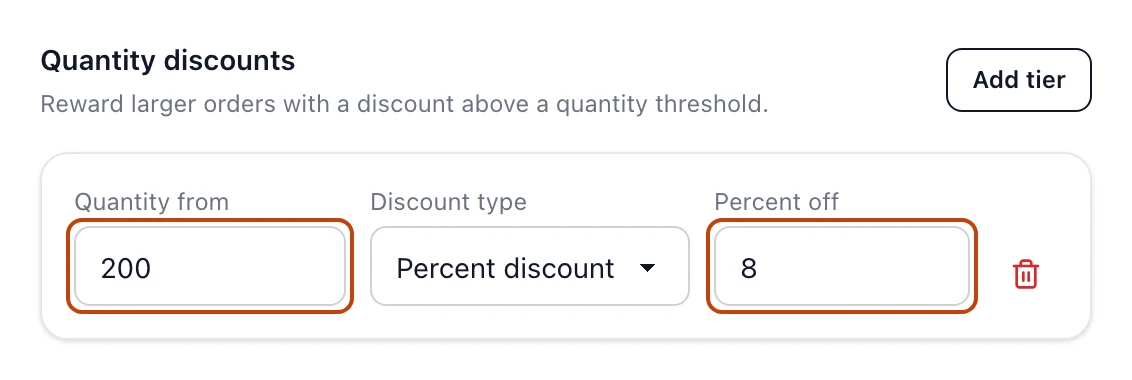
Under Quantity discounts, a price can carry one or more tiers. A has three fields:
Quantity from — the order size at which the tier starts to apply.
Discount type — Percent discount or Fixed amount discount.
Percent off / Amount off — the size of the discount: a percentage of
the unit price, up to 100, or a fixed number of dollars off each unit.
Each tier begins at a different Quantity from; two tiers can't share the same
quantity. Order the tiers however you like — Bettr reads them by their quantity,
not their position.
A quantity discount tier on a vendor price: 8% off once an order reaches 200 units.
How a purchase order picks a price
When you add a product to a purchase order, leaving the line's Unit price
blank tells Bettr to fill it from the vendor price. The number it lands on — the
— follows one order of precedence:
A price you typed on the line wins over everything else. Type a number only
for a one-off you've agreed for that order.
Otherwise, the best qualifying tier. Bettr takes the highest Quantity
from at or below the line's quantity and applies its discount, so a line of
200 sacks takes the 8% break with no math from you.
Otherwise, the vendor's base unit price.
The line shows the result as Effective unit price, notes when a tier price is
in play, and points at the next tier you'd reach by ordering more. Every price
rounds to the cent. To watch this fill in, open a
new purchase order;
for the full order flow, see create a purchase
order.
Blank is the signal
A line only draws on the vendor price when its Unit price is left blank. The
moment you type a number, that number is the price for that line, discounts and
all.
One price per vendor
A product can hold a price from every vendor that sells it, but only one price per
vendor at a time. When you add a vendor price, the picker offers only the vendors
you haven't priced yet for this product; once every vendor is priced, it tells you
so. To retire a price, remove it — the record is kept, but new order lines stop
drawing on it.
Removing a price drops its discounts
Removing a vendor price removes its quantity discount tiers with it. New order
lines for that vendor won't fill in a price until you save a fresh one.
Who can manage vendor prices
Vendor prices live on the product, so the two product permissions govern them,
under Warehouse & Inventory in the permission catalog:
View products — open a product and read its vendor prices.
Edit products — add, edit, or remove a vendor price and its discount tiers.