Every field on a waste record — the warehouse and kitchen tabs, the five reasons, and whether a write-off touched your stock — plus who can read and file one.
On this page
Was this helpful?
Real help from real food people
Chef Diego runs a real food plant. If this page didn't get you there, tell us — a person reads every message.
An auditor stops at a lot that reads four cases short of its receipt and asks
where they went. You open the entry you filed the morning the pallet tipped — four
cases, Disposal, the cold room, your name on it — and the answer sits on one
screen. That screen is a . Open
Waste records
under Inventory to page through your own. Line+
The list: warehouse and kitchen
Three running totals sit at the top of the list — Total, Warehouse, and
Kitchen — counting every waste record your company has filed, whichever tab
you're reading. Below them, three tabs split the feed:
All — every record, newest first.
Warehouse — stock written off the shelf, counted in cases.
Kitchen — stock scrapped on the line, counted by weight.
Each tab carries the same count as the total above it. Records read newest first
by the date the waste happened, not the date you keyed it. When a tab has nothing
to show, it reads No waste records found.
Every row leads with the record's number — WR-000001, WR-000002, and on — and
its reason badge. On the combined All view each row also carries a
Warehouse or Kitchen badge; open a single type and that badge drops away,
since every row on the tab shares it. The rest of the row is a line of context:
when it happened, who was responsible, the product and lot, and the amount that
left — cases for warehouse, a weight for kitchen.
The kitchen tab has a second door
The Production navigation carries its own Waste records link. It opens
this same list already filtered to Kitchen, so the line crew lands on their
own records without paging past the warehouse's.
Narrowing the list
Open Filters above the list to narrow it. You can match a waste number, a date
range (Date from and Date to), an Employee, a Product, a Lot
number (its own or its alternative), or a Reason. Apply runs the filter;
Clear all appears once anything is set and returns the tab to its full list. A
small dot on the Filters heading marks when a filter is active.
What's on a record
Open any row and the record splits into three panels.
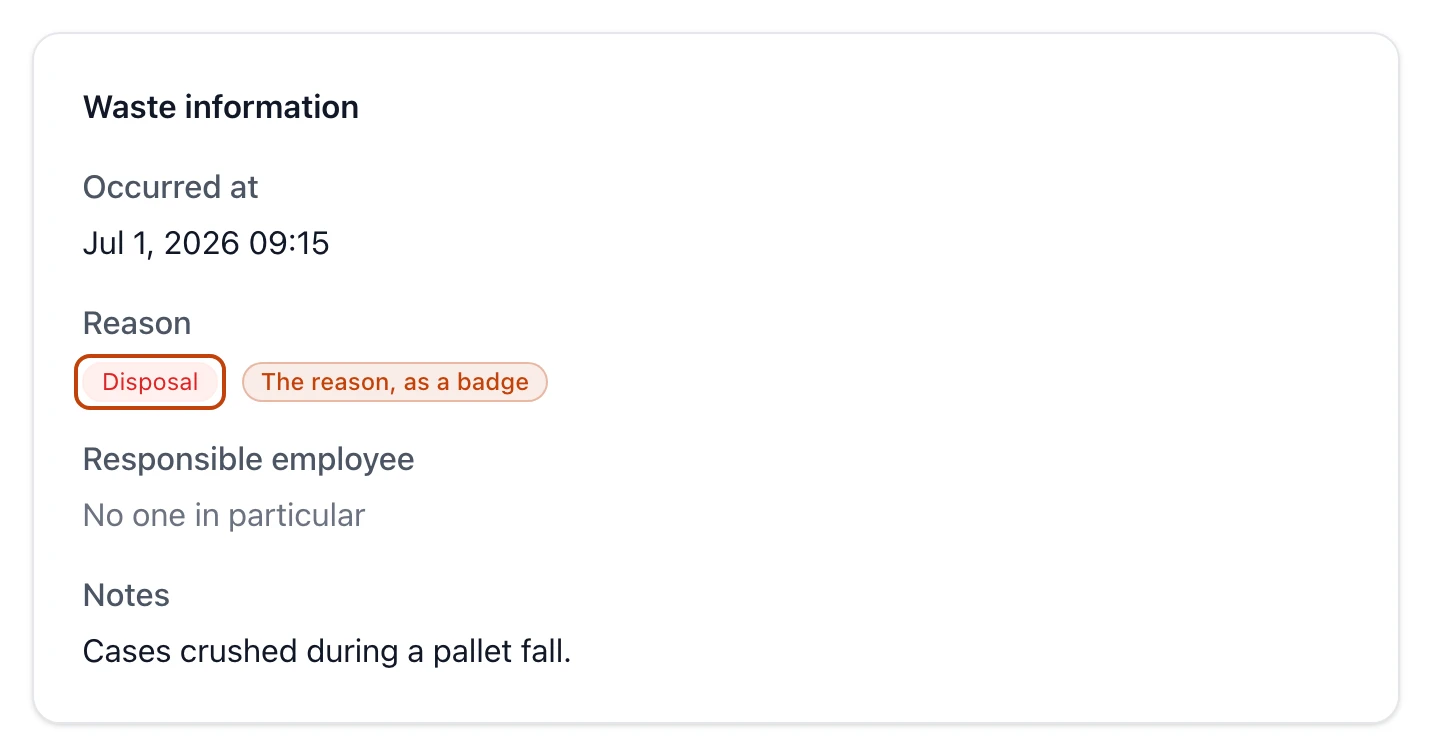
Waste information
The details that hold for every record, warehouse or kitchen:
Occurred at — the date and time the waste happened, in your company's time
zone.
Reason — one of the five reasons, shown as the same badge you scan for on the
list.
Responsible employee — the person on the hook for it, or No one in
particular when none was named.
Notes — whatever context was typed in, or No notes.
The Waste information panel of a warehouse write-off: when it happened, the reason as a Disposal badge, who was responsible, and free-text notes.
Product information
What the write-off was taken against — and this is where warehouse and kitchen part
ways.
A warehouse record shows:
Product — the received or finished item, with its product code.
Lot — the exact batch that left; an alternative lot number, if the lot
carries one, reads beside it.
Location — the spot the cases came out of.
Cases written off — the whole number of cases taken off hand.
A kitchen record shows:
WIP or Product — a lot, or a finished product when the loss is logged against one.
Recipe — the recipe behind a WIP lot, when it came off a
production run.
Lot — the lot number, when the write-off names a specific one.
Department — the kitchen department that owned the stock.
Quantity written off — the amount you entered in its weight unit, with the
pounds Bettr converted it to in parentheses.
Production run — a link to the run a WIP lot came from, when there is one.
Record information
The audit line, the same on every record:
Recorded by — who filed it.
Recorded at — when they filed it, distinct from when the waste occurred.
Last updated — when the record's details last changed.
Stock updated — whether the write-off moved stock, and the field to read
closely:
A warehouse record reads Yes with a View movement link into
Stock movements, filtered to this
record's number.
A kitchen WIP record reads Yes — it reduced the WIP lot — but carries
no movement link, since WIP moves through its own ledger, not the stock feed.
A kitchen product record reads Audit only: it changed nothing on hand,
and was logged purely for the books.
The five reasons
Every record carries exactly one reason. It's a label on the record, not a switch
on your stock — the write-off itself works the same whichever you pick:
Disposal — thrown out.
To Be Expired — pulled at or near its expiry.
Repack — taken out of one pack to go into another.
Credit Received — written off against a supplier credit.
Donated to Employee — given to staff rather than binned.
What you can change later
A filed record is mostly fixed. Open one and select Edit, and Bettr lets you
change only the date, reason, responsible employee, and notes — and
says so plainly, warning that the stock was already written off when the record was
created. The lot, the location, and the quantity can't be touched.
A record is never unwritten
There's no delete, and editing never restores stock. A write-off you shouldn't
have made is corrected by a fresh record or by an
inventory count that puts the stock
back — the original entry stands, the way an audit trail has to.
Who can view and file waste records
Access is set per role, under Warehouse & Inventory in the permission catalog:
View waste records — opens the list and any record. Without it, the page
redirects to an unauthorized notice.
Create waste records — shows the New button and lets you file one.
Edit waste records — shows the Edit button on a record.