Turn open orders and recipes into a production plan, and see how much of each product you still have to make.
On this page
Was this helpful?
Real help from real food people
Chef Diego runs a real food plant. If this page didn't get you there, tell us — a person reads every message.
A retail buyer bumps their standing order, two more orders land for next week,
and your base sauce is running low. Before you can tell the floor what to run,
you want one screen that answers a single question: what's on order, how much is
already planned, and how much is still short. That screen is
,
and it's where a plan begins. You'll find it and the plans it feeds under
Production plans.
Kitchen+
Review what's waiting to be planned
Open Production needs
— the New button on Production plans lands you here too. Every row is one
open sales-order line: the order number, the product and customer, the ship
date, how much is still remaining on the order, and how much is left to
plan after whatever a plan already covers. A line you've already folded into a
plan carries an In plan badge back to it; the rest read Not planned.
Narrow the list to the decision in front of you: filter by ship-date window,
product code, or order number, or switch the status filter to Not yet
planned to hide everything already handled. Sort newest or oldest first to
work the ship dates in order.
Create a plan from open orders
A . The most common one starts
from the orders in front of you.
1
Pick the order lines to make
On Production needs, tick the checkbox on each line you're planning. A plan
holds one product, so once a line is checked, lines for other products are
grayed out. To grab every line for one product at once, filter to that
product code, then use Select all.
2
Open the plan form
With at least one line checked, the footer shows Create production plan
with the count of selected lines. Select it.
3
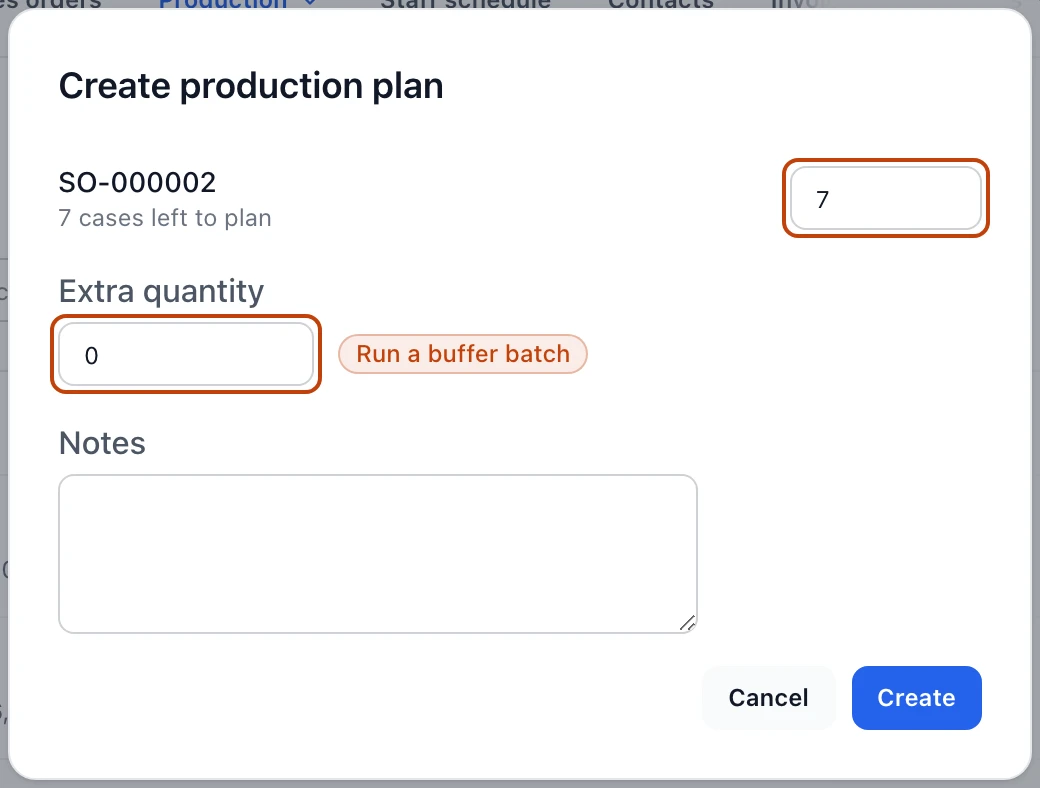
Set how much to make on each line
Each line defaults to the full amount left to plan. Lower it to make part
of the order now and the rest later. Add an Extra quantity to run a
buffer beyond what's on order, and a Note for the floor if it helps.
4
Create the plan
Select Create. Bettr opens the new plan, numbered PP-00001 and up, ready
to schedule.
The plan form opened from Production needs: each order line shows how much is still left to plan, and you set the amount to schedule plus any extra to run beyond the order.
Or plan straight from a recipe
Not everything you make is against an order. When you're building stock — a base
sauce ahead of next week's assembly runs, a blend you keep on hand — plan from
the recipe instead.
1
Open the recipe form
On Production needs with no lines checked, the footer button reads Plan
from a recipe. Select it.
2
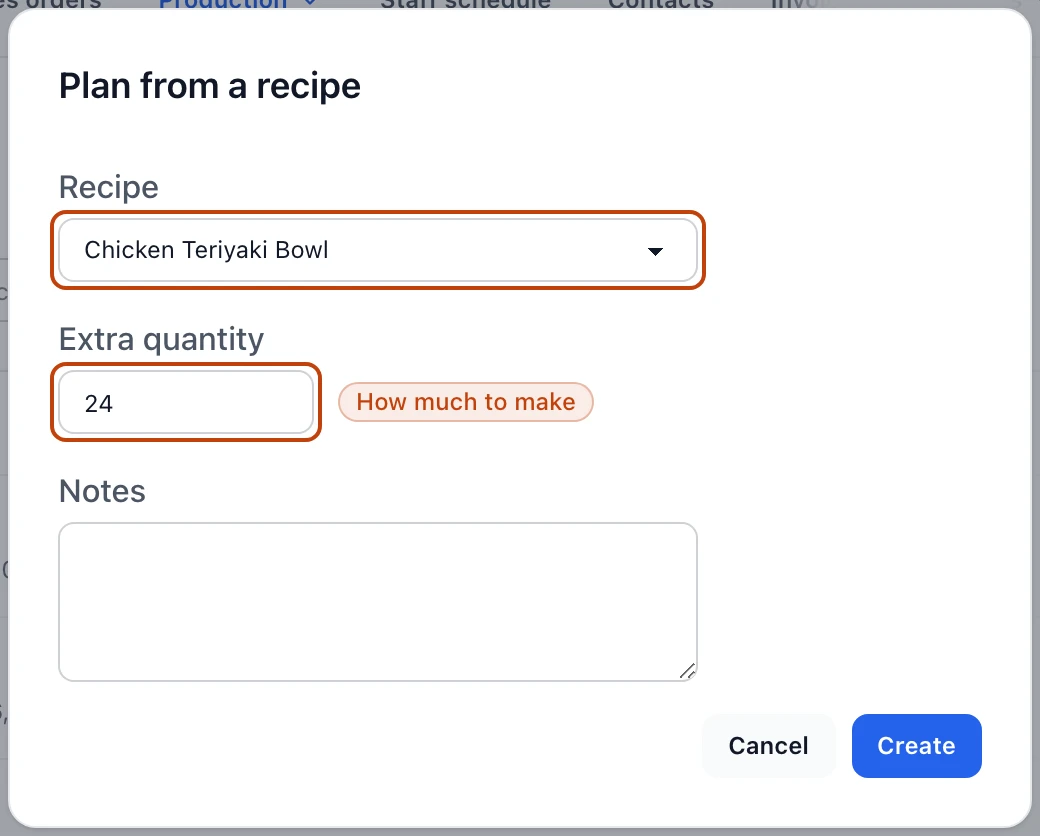
Choose the recipe and quantity
Pick the Recipe you're making. The list holds the active recipes that
carry an approved version — what the floor would actually run — so a retired
recipe or one still waiting on a sign-off is not in it. A recipe plan has no
order lines, so the whole quantity comes from Extra quantity — set it to
how much you want to make. Where the recipe sells under more than one pack, a
Product field appears under it and asks which one this plan makes: the
label the floor prints and the finished stock the run books in are written
from that answer. A recipe with one pack never asks.
3
Create the plan
Select Create. The plan opens with a Recipe badge in place of the
Sales order badge an order-backed plan carries.
Planning straight from a recipe: pick the recipe and set how much to make in Extra quantity, since a recipe plan has no order lines to draw a quantity from.
Review and adjust the plan
The plan's page carries its number, a Sales order or Recipe badge, and
its status — Pending until the floor starts, then In production and
Finished as its runs progress, or Cancelled if someone takes it out of
play. The tiles show Total quantity, the Extra quantity you added, the
share Delivered on an order-backed plan, and the Department that owns it.
An order-backed plan also lists its Order lines, each linking back to the
sales order with how much is scheduled, delivered, and remaining.
Select Edit to change the quantities, the lines, or the note; on an order
plan you can add other open lines for the same product or drop ones you've
listed. Select Cancel to take the plan out of play — it stays visible as
Cancelled and stops competing for capacity and demand, and you can
Reinstate it later. Select Delete to remove the plan and any schedule.
Either way the plan stays in your history, since Bettr records the change rather
than erasing it.
Unschedule before you change a scheduled plan
Once a plan has scheduled days, editing and deleting are blocked until you
clear the schedule — the plan shows Remove the schedule before updating this
plan. Open the schedule, remove the days, then make your change.
Hand off to scheduling
A plan says what to make; scheduling says which days to make it on. From the
plan, select Schedule to spread the quantity across production days — that's
the next step, where the plan turns
into dated runs for the floor.