Every control, column, and drawer on the demand dashboard, and where each figure — stock on hand, ingredient demand, and inbound purchase orders — comes from.
On this page
Was this helpful?
Real help from real food people
Chef Diego runs a real food plant. If this page didn't get you there, tell us — a person reads every message.
Next week's runs are on the schedule, and the question that keeps you up is plain:
will the warehouse feed them, or do you run short on rice Thursday before the pallet
you ordered lands on Friday? The
demand dashboard
answers it product by product — start-of-day stock, what production will draw down,
and what's inbound, one column per day. This page names every control, column, and
drawer on it, and where each number is figured.
Kitchen+
The window and its filters
The dashboard opens on a seven-day window that starts today. A row of controls above
the grid reshapes and narrows it:
From — the first day shown. It can't be set earlier than today.
To — the last day shown. It defaults to six days after From, and the
window can run up to a year out.
All categories — a product-category filter. The dropdown lists the categories
your products carry; pick one to show only those products.
Daily and Weekly — Daily gives one column per day; Weekly rolls the
days into ISO weeks, each headed Week of …, to fit a longer horizon on screen.
Cases and LB — the unit every figure on the grid is shown in.
Negative on hand — keeps only products that fall below zero on-hand on some day
in the window. It turns red while it's on.
Has arriving — keeps only products with stock inbound in the window. It turns
green while it's on.
What sticks and what resets
From, To, and the category and toggle filters live in the page address, so a
link to the dashboard carries them. Daily/Weekly and Cases/LB are view
switches only — they reset to Daily and Cases when you reload.
Reading the grid
Each row is one product — its name over its product code — pinned to the left as the
day columns scroll. The grid shows a product when the window's scheduled production
needs it as an ingredient, or when stock is arriving for it and it feeds production.
When nothing qualifies, the grid reads No products in the selected date range.
One product per row. Under each day sit three figures — On Hand, Need, and Arriving — and the day header's Picking link opens that day's detail.
On Hand, Need, and Arriving
Every day — or week, in the weekly view — carries the same three figures for the
product on that row. A week sums its days' Need and Arriving, and shows the
On Hand the week opens with:
On Hand — the stock available at the start of that day. The first day shows the
warehouse's current count; each day after it carries forward from the one before,
as previous On Hand − Need + Arriving. A day that ends below zero shows its On
Hand in red, so a shortfall stands out down the row.
Need — the quantity of this product that scheduled production draws down that
day, counted as an ingredient. A recipe's whole demand is exploded to the leaf
products it's built from, so a flour shows the pounds every scheduled recipe and
sub-recipe pulls, added up.
Arriving — stock inbound that day from a
purchase order that's approved or
part-received, with an expected delivery date on it. When something's arriving, the
figure underlines; hover it to read each order behind it — its number, the vendor,
the delivery date, and the cases still owed.
Forecast columns
The near window runs on your production schedule. Further out, though, the schedule
usually isn't built yet, so those days fall back to
. Every day more than two weeks out is tinted and marked
Forecast, and its Need comes from the open sales orders shipping that day
instead of from a scheduled run.
When a figure is held back
Three notices can sit above the grid, each explaining why a number isn't where you'd
expect it:
Forecast included — the window reaches past two weeks, so its far days carry
projected demand. This is the one notice a healthy setup will still see, whenever
you look far enough ahead.
Needs configuration — one or more products have no case weight set, so their
pounds can't be sized into cases. They're named here and left off the grid until a
case weight is filled in on the product.
Zero yield — one or more recipes are set to produce no yield, so there's no way
to scale their demand. They're named here and their scheduled demand is skipped.
Two notices you want to stay quiet
Needs configuration and Zero yield only appear when a product or a recipe is
set up incompletely. On a company whose products carry case weights and whose
recipes carry a real yield, neither shows — and their absence is the sign the grid
is counting everything.
A day's picking detail
The Picking link in any day's header opens the picking detail — a drawer that
slides in from the right and breaks that one day down by department. Its header names
the day; closing it returns you to the grid with your filters intact. A day with
nothing scheduled reads No picking requirements for this day.
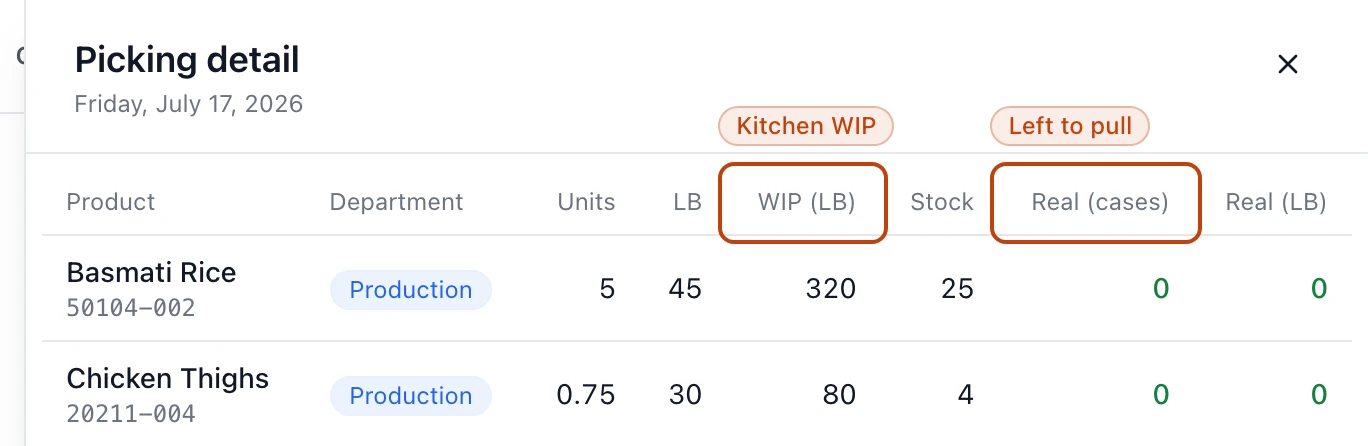
A day's picking detail. Each product's demand is netted against the kitchen work in progress already on hand; Real (cases) and Real (LB) are what's actually left to pull.
Each row is one product in one department, and its columns walk from what the day
needs to what you'll actually pull:
Product — the product and its code. A Config incomplete badge sits beside it
when the product is missing its units-per-case or case weight, which caps how far
the numbers to its right can be figured.
Department — the department that runs the recipe needing it, shown as a badge.
Units and LB — the day's demand for the product, in packaged units and in
pounds.
WIP (LB) — the pounds of this product already in the kitchen as
, which nets against the
day's demand before anything is pulled from the warehouse.
Stock — the warehouse cases on hand for the product.
Real (cases) and Real (LB) — what's actually left to pull once the kitchen's
work in progress is netted out: cases and pounds. Both read green when the kitchen
already covers the day and red when it comes up short.
Who can open it
The dashboard is read-only — it reports, it doesn't change anything — and it's gated
under Production in the permission catalog by View production plans, the same
permission that opens production plans. Without it, both the grid and a day's picking
detail redirect to an unauthorized notice. The dashboard also needs the purchasing
module switched on alongside production — the Arriving column reads from your
purchase orders.