Every part of Bettr Manager's notifications — the event types you turn on and how they're worded, the recipient rules that route each one, and the feed where they land — plus the states, controls, and permissions behind them.
On this page
Was this helpful?
Real help from real food people
Chef Diego runs a real food plant. If this page didn't get you there, tell us — a person reads every message.
Notifications are how Bettr Manager tells the right person the moment something
happens on the floor — a receipt sitting on a QC hold, an order out the door —
instead of them finding out a shift too late. There are three parts to it: the
event types you turn on, the rules that route each type to people, and the feed
where the notices land. This page describes each field, column, and state across
the three, and where every value comes from. Open Notification types to
read along.
The notification types list
A pairs
a single event — a purchase order approved, a receipt on a QC hold, a sales order
shipped — with the words your team reads. Bettr ships the events; a type is the
one you've turned on and worded for your company.
Each row on the list carries:
The title you gave the type, tokens and all.
An Active or Inactive badge.
A line beneath, joined by dots: the event key (like receiving_item_qc_pending),
the action URL the notice points at, and the date you created it.
Above the list, Search filters by title or key, and Filter by status
limits to Active or Inactive, or leaves it on All statuses. When the list runs
past 20, a per-page control and pagination appear beneath it. With nothing to
show, it reads "No notification types found." New opens a blank type.
A notification type's fields
The New and Edit screens hold the same fields under two headings.
Under Basic information:
Notification key — the event that fires the notice, chosen through the
Select button, not typed. You pick it once; the list then shows it as the
event key beneath the title.
Title — required. The headline the recipient reads.
Text — required. The body beneath the headline.
Both Title and Text accept tokens in curly braces — {order_number},
{customer_name}, {sales_order_number} — that Bettr swaps for the record's real
value when the event fires. A title of QC hold on {order_number} lands as QC
hold on PO-000010.
Under Behavior:
Action URL — where opening the notification takes someone. Bettr fills it
with the right record path the moment you pick an event, so you rarely touch it.
Active — on by default. An active type fires; an inactive one stays on the
list but sends nothing.
Editing an existing type adds a Danger zone with Delete notification type.
The event catalog
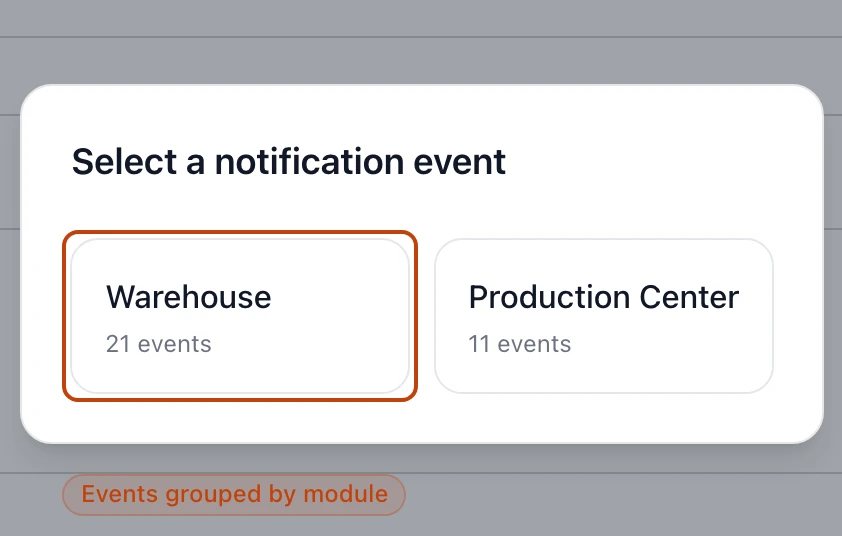
Behind the Select button is every event Bettr can fire, grouped under two
modules — Warehouse and Production Center — and within each, by the record
the event is about, like Purchase Order, Receiving Item, or Sales Order. Each
event carries an About note spelling out exactly what fires it, and a
Search events box narrows the list. An event you've already turned on for the
company reads Already configured instead of a Select button, so you never
double one up.
The event picker opens on its two modules — Warehouse and Production Center — with the count of events each one holds.
The notification recipients list
A notification type on its own reaches no one. A
draws
the line between a type and the team that hears it. Open Notification recipients to
manage them.
Each row carries:
The title of the notification type the rule delivers.
An Active or Inactive badge.
A line beneath: the recipient type — Users, Departments, or Roles — and the
date you created the rule.
The controls match the types list: Search by type or recipient, Filter by
status, and pagination when the list runs long. New opens a blank rule.
A recipient rule's fields
Notification type — the type this rule delivers, chosen through Select.
It's locked once you save the rule: you can change who's on it, but not which
type it belongs to. To move recipients onto a different type, delete the rule
and add a new one.
Recipient type — Users, Departments, or Roles. The checklist
below swaps to match, and you check everyone the rule should reach.
Active — on by default. An inactive rule stops delivering without losing who
was on it.
Editing a rule adds a Danger zone with Delete recipient rule.
Who a rule reaches
The three recipient types decide how far a notification travels and how well it
holds up as your team changes:
Users name specific people — the plant manager, the QA lead you always copy.
Departments reach everyone in a department, like Logistics or Production, so
the rule follows the team as people join or leave it.
Roles reach everyone who holds a role, like Quality or Kitchen Lead, so who
gets alerted stays in step with who has the access to act.
More than one rule can point at the same type — the Quality role for the whole
team, plus a couple of individuals who want a personal copy.
Your notifications feed
Open Notifications for
the full feed, or reach for the bell in the top bar from any screen. Each company
keeps its own inbox: switch companies in the top bar and the feed follows, so a
notice for one plant never clutters another's.
Above the feed, Refresh pulls in anything that's arrived since you opened the
page, and Mark all as read shows only while you have something unread. The
feed pages in 20s, newest first. When there's nothing waiting, it reads "You're
all caught up!"
What a notification carries
Every notice on the feed shows the same parts:
Title and message — the headline and body from the type, with the record's
real numbers filled into the tokens, like QC hold on PO-000010. A notice
for a whole import is the one exception, and words itself (below).
When it arrived — a plain relative time, from just now to 2 hours
ago to a date once it's older.
A status — where the notice stands with you, shown as a badge and a marker
down its left edge.
View more — appears when the notification points at a record; it's the same
jump you get by opening the notice.
One notice for a whole import
An event is usually about one record, and the words you wrote for the type carry
that record's values. An import is not: a spreadsheet that fills forty products
would otherwise land forty notices in the same inbox. Everyone the Product
updated event reaches hears it once instead — An import updated 40
products, named after the file it came from, in Bettr's words rather than your
title and text — and opening it lands on that import's What arrived list,
where every record it wrote is named. Somebody editing a single product still
sends the notice you worded. See
Import products from a spreadsheet.
New, Read, and Actioned
A notification sits in one of three states, and Bettr keeps each step as history
rather than overwriting it:
New — you haven't touched it. A filled primary dot marks it, and these are
what the unread count and the bell's dot track.
Read — you cleared it with Mark all as read but haven't opened its
record. The badge goes quiet and the dot turns gray.
Actioned — you opened it and landed on its record. A green check marks these,
so real follow-through reads differently from a bulk clear.
How types, recipients, and notifications fit together
The three surfaces are one chain: a type fires an event, its recipient rules
decide who's notified, and each of those people gets a notice on their feed.
Because every change is kept as an event, editing one link never rewrites what's
already been sent:
Turning a type Inactive stops it firing but leaves it on the list, ready to
switch back on. Notices it already sent stay on their feeds.
Deleting a type stops it firing for the company; the notifications it already
delivered still sit in each recipient's inbox.
Deleting a recipient rule only stops those people getting that type — the
type itself, and its other rules, live on.
Who can manage notifications
Notification types and recipients each carry a view permission and a manage
permission. Someone with only view can read the lists; the New, Create,
Save, and Delete controls appear only for people who hold the matching
manage permission. The feed is personal — everyone sees their own
notifications for the company they're in, no permission required.