Find what Bettr Manager keeps about your account, change the parts you can, and sign out.
On this page
Was this helpful?
Real help from real food people
Chef Diego runs a real food plant. If this page didn't get you there, tell us — a person reads every message.
Your profile is where Bettr Manager keeps the basics about you — your name, the
email you sign in with, and, if your company runs you as an employee, your
workforce details. It's a read-only summary, so the job here is knowing where
each piece comes from and how to change the parts you can. Open it any time from
My Profile.
Open your profile
1
Open the account menu
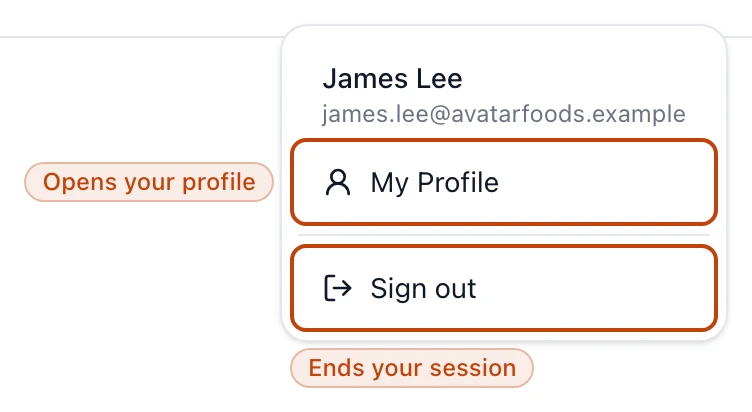
In the top-right corner of the app, select the round account icon — its label is
Account menu.
2
Choose My Profile
Pick My Profile. Your profile opens with a Basic information card showing
your first name, last name, and email.
The account menu, top-right: My Profile opens your profile, and Sign out ends your session.
Your name and how teammates see it
Your First name and Last name are the name your teammates see — in the
account menu, on the records you touch, and anywhere Bettr Manager shows who did
what. You set them the first time you signed in, and the profile page shows them
back to you read-only. There's no field to change them here.
Your Email is the address you sign in with, so it's fixed to your account. To
work under a different email, sign in with that address instead — each email is
its own account.
The profile page is read-only
Bettr Manager shows your details on this page but doesn't edit them here. Where
each field comes from, and who can change it, is below.
If you're also an employee
When your company keeps you on as an employee, your profile also shows your
photo, phone number, and address, under a line that reads These details are
maintained by your administrator. Those come from your employee record, not from
you — so to change your photo, phone, or address, ask whoever manages your team.
They update it on your record; see
Add and manage employees.
Sign out
To sign out, open the Account menu again and select Sign out. That ends
your session on this device. When you come back, request a fresh sign-in link and
open it to pick up where you left off.