Give a teammate access to the companies they work in, take it back when they leave, and see how each person counts against your plan's seats.
On this page
Was this helpful?
Real help from real food people
Chef Diego runs a real food plant. If this page didn't get you there, tell us — a person reads every message.
Access in Bettr Manager is scoped to a company. Before anyone can open a plant's
products, runs, or orders, you decide which of your companies they belong to. You
do that from User companies,
where everyone who can sign in shows up in one list.
Give someone access to a company
1
Open User companies
In the sidebar, open Settings → User companies. The list holds everyone in
your organization who can sign in, each with their name and email. Type into the
search box to find one person by first name.
2
Open Manage companies
Select the person, or point at their row and choose Manage companies. The
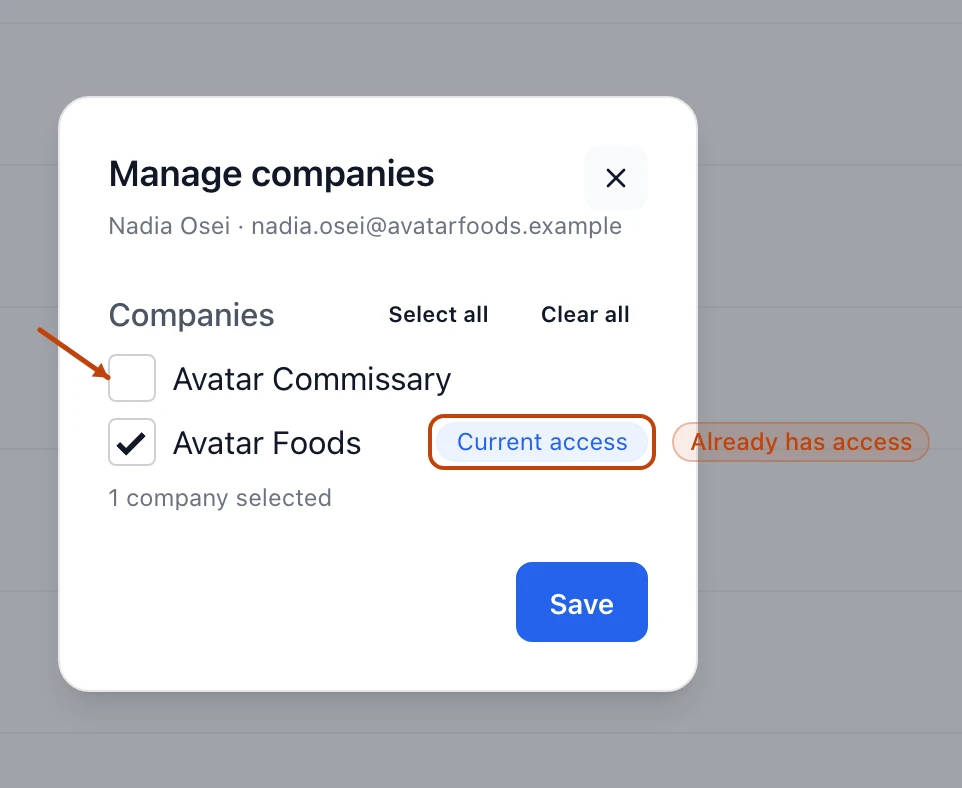
Manage companies panel opens, with their name and email at the top and a
checkbox for every company you run.
3
Check the companies they should reach
Tick each company this person works in. A company they already belong to carries
a Current access tag, and a running count under the list tells you how many
are selected. Use Select all or Clear all when someone needs every
company or none.
4
Save
Select Save. The person can now open exactly the companies you checked, and
the company switcher in the top corner offers them only those.
Manage companies lists every company with a checkbox; the ones a person already belongs to are tagged Current access.
Take access away
Removing access is the same panel in reverse: uncheck a company and save. The
person loses that company the next time the switcher loads, and it drops out of
their list.
Access is revoked as an event, not erased. The record of what that person did in
a company stays intact after you take them out of it, which is what keeps your
lot history and audit trail honest as people change teams or leave.
Seats and your plan
Every person who can open at least one company takes one
on your plan. Bringing a brand-new person onto their first company uses a seat.
Giving someone who already has access another company does not — a person counts
once, however many companies they work in.
When you are already at your seat limit, the Manage companies panel shows a
warning at the top and stops you from bringing on a new person until you free a
seat or move up to a larger plan. Freeing a seat means removing someone from
every company they belong to. Your current seat count and limit live on your
plan screen.
A seat is company access, not an employee record
Someone can have a workforce record on your team without ever taking a seat — an
employee only fills one once they can sign in and reach a company. Access and
your people directory are kept separate on purpose.
When to reach for departments instead
Managing companies decides what a person can see and change. It does not group
people by the work they do. If you want to organize the same team by function —
Production, Logistics, Quality — so they show up together on runs and in daily
staffing, use departments. Departments never grant or restrict access; they sit
alongside it.