Turn on the events worth a heads-up, write what each one says, and choose who receives it — by person, department, or role.
On this page
Was this helpful?
Real help from real food people
Chef Diego runs a real food plant. If this page didn't get you there, tell us — a person reads every message.
Bettr can tell the right person the moment something happens on the floor — a
receipt sitting on a QC hold, an order that just shipped — instead of them
hearing about it too late. Setting that up takes two pieces: the events worth a
notification, and who receives each one. Open Notification types to
turn on the events, and Notification recipients to
decide who hears them — both under Settings in the sidebar.
Turn on a notification type
A
pairs a single event — a purchase order approved, a count finished, a run
started — with the message your team reads. Bettr ships the events; you choose
which ones your company cares about and word them the way the floor talks.
1
Open Notification types and select New
Under Settings, open Notification types and select New. The list
shows every type you've already turned on, each with an Active or
Inactive badge.
2
Pick the event
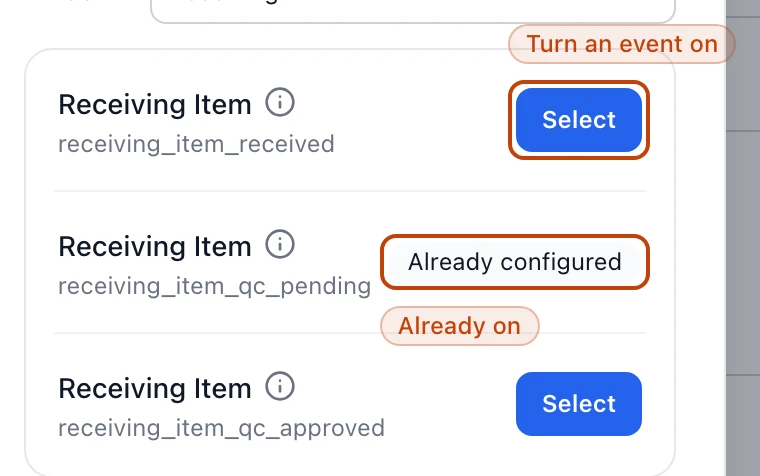
Under Basic information, select the Select button next to
Notification key to open Select a notification event. Choose a module — Warehouse or
Production Center — then the event itself. The info icon on each event
spells out exactly what fires it, and an event you've already set up reads
Already configured, so you don't double it up.
3
Write the title and message
Fill in the Title and the Text — the headline and body the recipient
reads. Both accept tokens in curly braces, like {order_number}, that Bettr
swaps for the record's real value when the event fires: a title of QC hold on {order_number} lands as QC hold on PO-000010.
4
Point it at the record and turn it on
Under Behavior, the Action URL is where the notification takes someone
when they open it. Bettr fills it with the right record path the moment you
pick an event, so you rarely touch it. Leave Active on and select
Create.
The event picker lists every event you can notify on, with a note on what fires each one. An event you've already turned on reads Already configured.
Choose who receives it
A notification type on its own reaches no one — you point it at people with a
recipient rule. Open Notification recipients to
draw the line between a type and the team that should hear it.
1
Open Notification recipients and select New
Under Settings, open Notification recipients and select New.
2
Pick the notification type
Select the Select button next to Notification type and choose the type
this rule delivers.
3
Choose users, departments, or roles
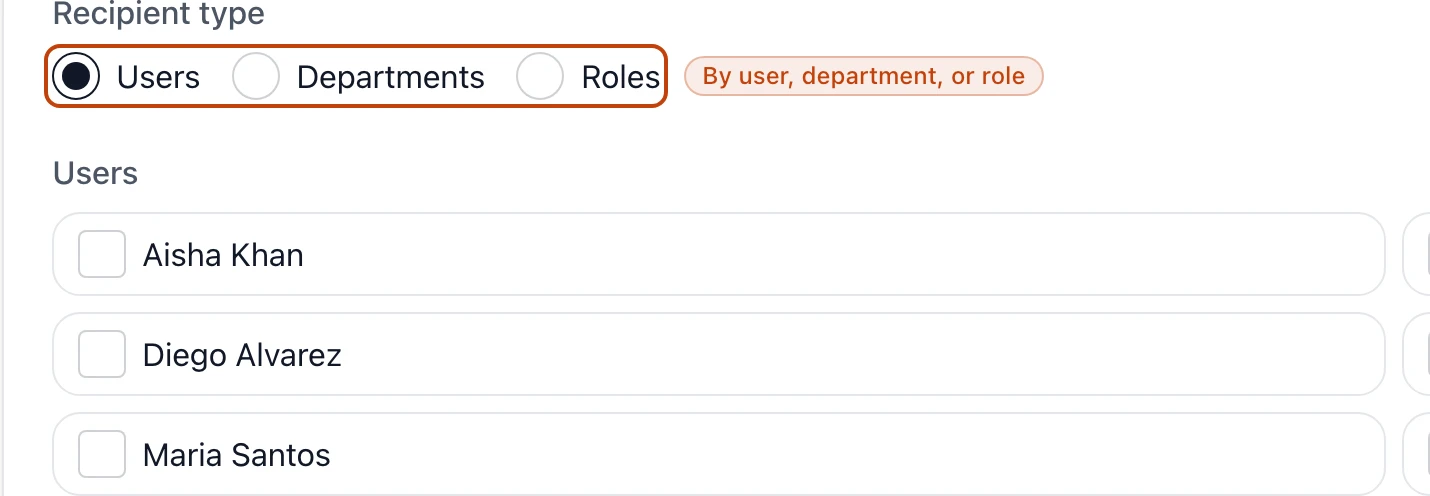
Under Recipient type, pick Users, Departments, or Roles. The
list below swaps to match — check everyone who should get this notification.
4
Save the rule
Leave Active on and select Save.
Choose whether a notification goes to named users, to a department, or to a role — the list of people below swaps to match.
Who gets what
The three recipient types decide how far a notification reaches, and how well it
holds up as your team changes:
Users name specific people — the plant manager, the QA lead you always
copy.
Departments reach everyone in a department, like Logistics or Production,
so the rule follows the team even as people join or leave it.
Roles reach everyone who holds a role, like Quality or Kitchen Lead, so who
gets alerted stays in step with who has the access to act.
You can add more than one rule to the same type — the Quality role for the whole
team, plus a couple of individuals who want a personal copy.
Edit or turn a type off
Open a type from the list to change its wording or swap its message. To stop a
type without losing your work, turn Active off — it stops firing but stays on
the list, ready to switch back on later.
To remove one for good, the Danger zone on a type's edit screen has Delete
notification type. Deleting stops the type firing for the company; the
notifications it already delivered stay in each recipient's feed. A recipient
rule has its own Delete recipient rule — deleting it only stops those people
getting that type, and the type itself lives on.
A rule's type is fixed once you save it
On a recipient rule, the notification type is locked after you save — you can
change who's on the rule, but not which type it belongs to. To move recipients
onto a different type, delete the rule and add a new one.
Turn the noise down
A notification nobody reads is worse than none. The fix is usually to aim it, not
silence it:
Target a role or department instead of every user, so only the people
who act on an event hear about it.
Turn a type Inactive when a line or a season is quiet, then switch it back
on — no need to delete and rebuild it.
Both lists filter by Active and Inactive, and each has a search box —
the types list by title or key, the recipients list by type or recipient — so
you can find the one rule that's firing too often and fix it.