Track every lot staged in the kitchen — raw materials, sub-recipes, and finished batches — and adjust, relabel, or top up what's on hand by the pound.
On this page
Was this helpful?
Real help from real food people
Chef Diego runs a real food plant. If this page didn't get you there, tell us — a person reads every message.
Halfway through a cook day, your line lead asks how much base sauce is still on
the bench and whether the chicken you pulled this morning is enough to finish
the run. That's the question
WIP inventory
answers: it's the live count of everything staged on the kitchen floor — the raw
materials you pulled from the warehouse, the intermediate bases you've batched,
and the finished lots waiting to be put away — each with its own lot number,
expiry, and pounds on hand. Kitchen+
What the WIP list shows
Every row is a
,
and the list sorts them into three tabs by where they came from, with a live
count on each:
Raw Material — ingredients picked out of the warehouse and staged in the
kitchen. They shrink as they're weighed into batches.
Sub Recipes — a
you've produced and set aside to feed the recipes that use it.
Final Recipes — finished batches carrying their own lot and expiry,
waiting on the floor to be labeled, put away, or shipped.
Each row names the product or recipe, its lot number, the department that holds
it, and its produced and expiry dates. On the right you see the quantity — by
the pound for anything weighed, or in cases for a final product counted in
packaging — and a badge that reads the expiry at a glance, green when there's
plenty of time and a red Expired once a lot's date has passed. Use the
department filter at the top to narrow a busy floor to one crew's stock.
Two sub-recipe lots of a base sauce in WIP. Each row carries its lot number, department, produced and expiry dates, the pounds on hand, and an expiry-status badge.
Adjust what a lot has on hand
When a physical count of the bench doesn't match the number on screen — a spill,
a scrap, or an amount someone weighed off the record — correct the on-hand
directly.
1
Open the lot's editor
Hover the lot's row and select the pencil, Edit quantity. The dialog
shows the lot, its number, and the current quantity in pounds.
2
Enter the new quantity
Type the pounds you actually have into New quantity (LB), then select
Save.
Bettr never overwrites the old figure. It records the difference as a movement —
an increase or a consumption, stamped with your name — and the on-hand is always
the running total of those movements. Nothing is erased, so the correction stays
on the lot's history for anyone tracing it later.
Editing needs WIP permission
The pencil only appears if your role can add to or consume work-in-progress
inventory. Without it, you can still read the list; you just can't change a
lot's quantity.
Print a label for a lot
Every lot can carry a sticker for the shelf or tote, with its name, lot number,
prep date, and a QR code that reads back to the batch.
1
Open the label
Hover the lot and select the label icon. A WIP label opens with the
sticker laid out and its lot number and quantity below.
2
Print it
Select Print label to send the sticker to your printer.
Top up the kitchen with a manual pick
When a run is going to run short and you don't want to wait on the day's
schedule, build a picking order by hand straight from WIP inventory. Select
Manual picking
to pull more of an ingredient out of the warehouse and into the kitchen.
1
Set the department and date
Pick the Department the stock is for and an Expected picking date —
the day you want the warehouse to have it pulled. The date defaults to today
and can't be earlier than today.
2
Choose the warehouse locations
Open Locations and tick the stock locations Bettr may pull from. You
have to select at least one before the order can be built.
3
Add ingredients by the case
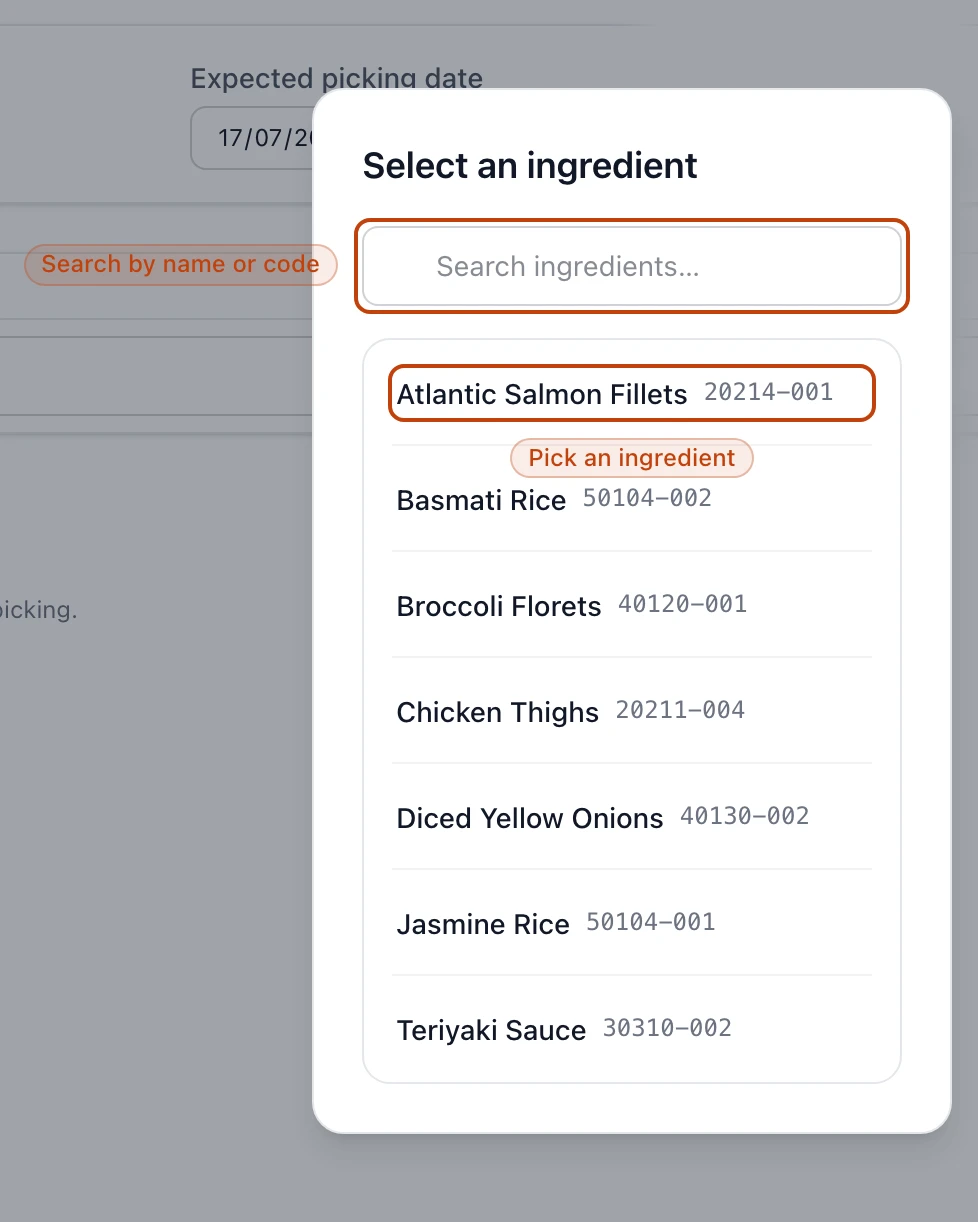
Select Search ingredient by name or code, pick a product with warehouse
stock, and set how many cases you need. Use Add ingredient for another
line.
The ingredient picker on a manual pick. Search by name or code, then choose a product that has warehouse stock to pull.
4
Create the picking order
Select Create picking order. Bettr creates a picking in the warehouse
queue and reaches for lots by
.
Once the floor works that picking, the stock lands in the kitchen as
raw-material WIP.
A short warehouse means a partial pick
If you ask for more cases than the chosen locations hold, Bettr lists each
product with the cases requested and missing and offers Create partial
picking. Confirm it and the order pulls only what's there, leaving the rest
short — top it up once more stock is in the building.
Raw materials and sub-recipes are inputs: they sit in WIP until they're weighed
into a batch, and each weigh draws their pounds down until the lot is gone. A
final-recipe lot is the other end of the line. The moment you
record its output, it becomes finished,
traceable inventory — its own lot, its own expiry — that traces forward to every
shipment and backward to its ingredients, exactly like a lot you booked in at the
dock. It shows here because it's finished stock still sitting in the kitchen,
labeled and ready to put away or ship.