The three lot origins on WIP inventory, how each lot number and expiry date is built, how on-hand pounds are kept, and the controls that correct and label a lot.
On this page
Was this helpful?
Real help from real food people
Chef Diego runs a real food plant. If this page didn't get you there, tell us — a person reads every message.
You pulled 250 lb of Basmati Rice into the kitchen this morning and batched some
of it into base sauce, and now the count on the bench is a question mark. WIP
inventory keeps the answer: a live tally of every lot staged on the kitchen
floor — raw materials pulled from the warehouse, sub-recipes you've cooked, and
finished lots not yet put away. Open
WIP inventory
and this page names what every tab, field, and badge means, and where each
figure comes from. Kitchen+
The three lot origins
Every row is a
,
and the screen sorts them into three tabs by where each lot came from, with a
live count on every tab:
Raw Material — an ingredient picked out of the warehouse and staged in the
kitchen. Its lot number, unit, and expiry all carry over from the warehouse
stock it came from, and it draws down as it's weighed into batches.
Sub Recipes — a
you've produced and set aside. It carries a fresh lot from the batch that made
it.
Final Recipes — a finished batch of a sellable product, carrying its own
lot and expiry, sitting in the kitchen until it's labeled, put away, or
shipped.
WIP inventory opens on Raw Material. The number in each tab's label — like
Sub Recipes (4) — counts the lots that still have stock on hand in that
origin, after any department filter. A tab with nothing on hand reads No lots
in progress.
What a row shows
Each row names one lot and totals what's on hand. Reading left to right:
Name — the product, on the Raw Material and Final Recipes tabs; the recipe,
on Sub Recipes. Product rows also show the product code next to the name;
sub-recipe rows show the recipe name alone.
Lot number — for a raw material, the lot the stock arrived under at the
dock. For a produced lot, a number Bettr builds from the date the batch started
and the run line's own number, like 07152026-6 for a lot first weighed on
July 15, 2026 — so every batch on that line shares the one lot number.
Department — the department holding the lot on the floor.
Produced — the date the batch started. It shows on produced lots only; a
raw material carries no produced date.
Expires — the lot's expiry date. A raw material inherits its stock's
expiration date; a produced lot takes the batch's start date plus the recipe's
shelf life, and shows no date when the recipe sets no shelf life.
On hand — the quantity, on the right. Anything weighed reads in pounds to
three decimals, like 50.000 LB; a product measured in packaging reads in
whole cases instead.
Expiry badge — a status read from the expiry date, covered next.
Expiry badges
The badge on the right of each row reads the lot's expiry date at a glance and
escalates as the date nears:
Green, Expires in N days — more than a week out.
Amber — 4 to 7 days out.
A warning triangle appears — 3 days or fewer out, so a short-dated lot
catches the eye.
Red, Expires today — the lot's date is today.
Red, Expired N days ago — the date has passed.
Grey, Unknown — the lot has no expiry date, which is normal for a produced
lot whose recipe sets no shelf life.
Filters and the live count
Below the tabs, a department dropdown narrows every tab and its count to one
department's stock, and a Clear filter link appears once a department is set.
The list only ever shows the departments your role covers, so two supervisors on
different lines see different floors. The whole screen revalidates on its own
while the floor works, so a correction someone else makes shows up without a
reload. A long list pages, and a control sets how many lots show at once.
Staging more stock from here
Two buttons sit above the tabs. Schedule picking opens the schedule-picking
worklist and carries your department filter across, to stage a whole scheduled
day at once. Manual picking — shown when your role has access to
picking — builds a warehouse pick one ingredient at a time. Both land their
stock back here as raw-material WIP;
Manage work-in-progress lots and
Pick ingredients for scheduled production
walk each.
Row actions
Hovering a row reveals up to two icons on its right:
A label icon opens a printable WIP sticker. It shows on every Final Recipes
row; on the Raw Material and Sub Recipes tabs it appears only if your role can
add to or draw down work-in-progress inventory.
A pencil, Edit quantity, opens the correction dialog below. It shows only
for a role that can add to or draw down WIP.
Read access is enough to look, not to touch
Anyone whose role can view WIP inventory can open the list and read every
figure. Correcting a quantity needs the permission to add to or draw down
work-in-progress inventory; without it, the pencil never appears.
Correcting a lot's quantity
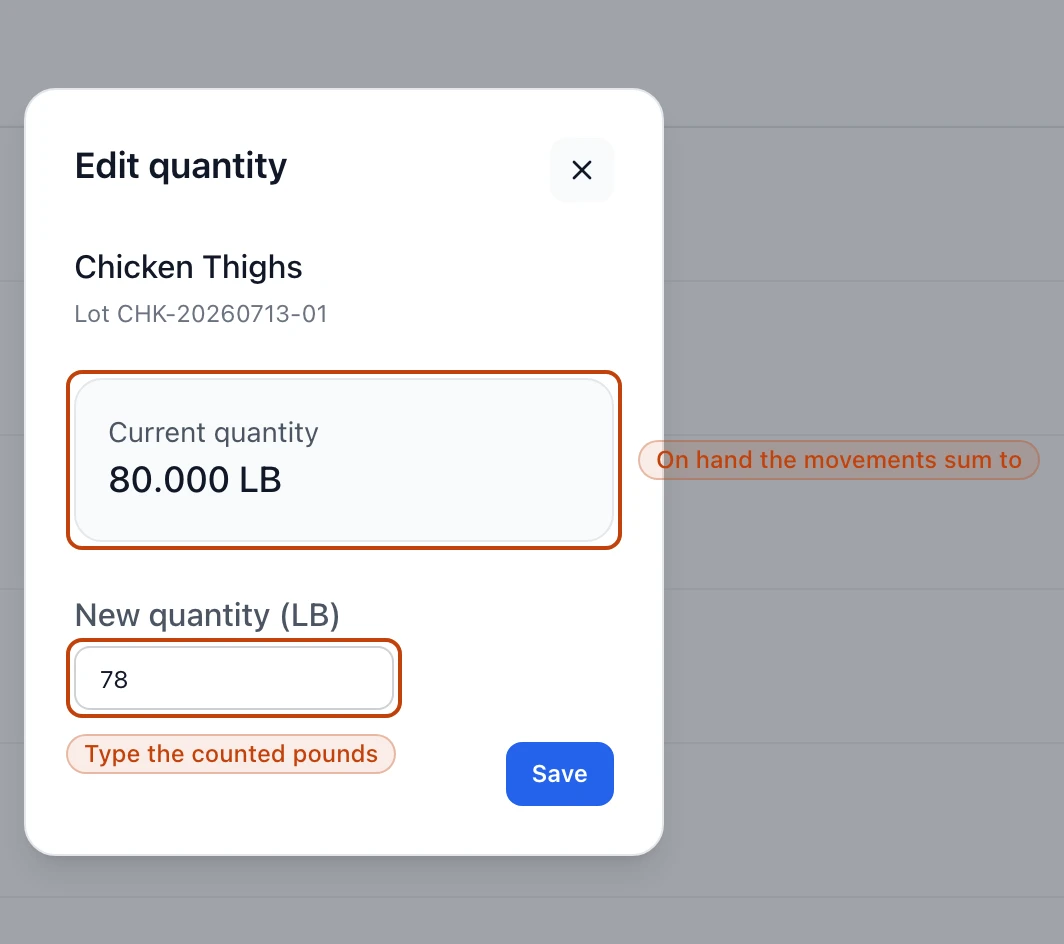
The pencil opens Edit quantity on the lot. It names the lot and its number,
shows the Current quantity the movements add up to, and takes a New
quantity (LB) — always in pounds, even for a lot the list counts in cases. Save
it and Bettr never overwrites the old figure: it records the difference as a
.
So the on-hand is always the running total of every movement, and the correction
stays on the lot's history for anyone tracing it later. Raising a quantity needs
the permission to add to WIP; lowering it needs the permission to draw it down.
The Edit quantity dialog on a raw-material lot: the current on-hand the movements sum to, and a New quantity field in pounds. Saving logs the difference as a movement rather than overwriting the old count.
The WIP label
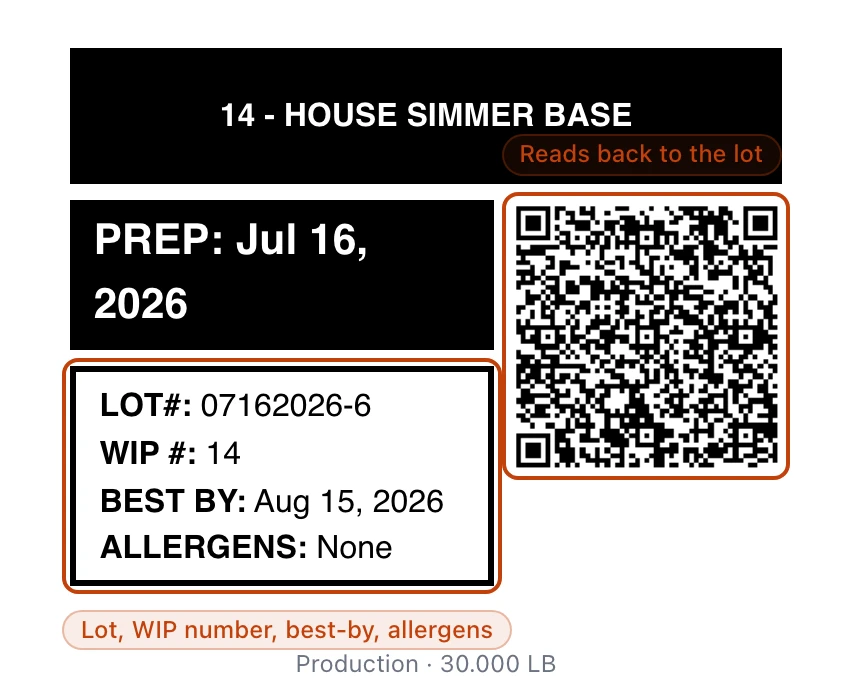
The label icon opens a WIP label — a sticker for the shelf or tote with the
lot's name, code, prep date, lot number, and a QR code that reads back to the
lot. A sub-recipe sticker adds its WIP #, a BEST BY date, and its
allergens. Print label sends it to your printer; the department and the
on-hand quantity sit under the sticker.
A sub-recipe WIP label: the header code and name, the prep date, and a boxed panel with the lot number, WIP number, best-by date, and allergens, beside the QR code that reads back to the lot.
What a lot's numbers mean over time
A raw material and a sub-recipe are inputs: each weigh into a batch draws their
on-hand down, and a lot drops off the list once it hits zero. A final-recipe lot
is the other end of the line — the moment you
record its output it becomes finished,
traceable stock, and it shows here only while it's still sitting in the kitchen
waiting to be put away. To act on any of this — correct a lot, print a label, or
top the kitchen up with a manual pick —
Manage work-in-progress lots
walks the procedures.