Turn a day's scheduled recipes into a run the floor works from — build it, read the screen, and start the first batch.
On this page
Was this helpful?
Real help from real food people
Chef Diego runs a real food plant. If this page didn't get you there, tell us — a person reads every message.
Monday, 6 a.m. The schedule says base sauce and marinara, the kettles are cold,
and the crew needs one screen that tells them what to make and lets them start
weighing. That screen is a production run — the floor's working copy of a day's
scheduled recipes. You build it in the morning, and it carries each batch from
the first weigh to the last label. Open
Production runs to
see what's on the floor today, or start a new one.
Kitchen+
Build the run
A run is assembled from recipes you already scheduled onto a day. If a day has
nothing scheduled yet, schedule a plan into runs
first — there's nothing to add without it.
1
Start a new run
From Production runs, select New. If a run for today already exists, open
it from the list instead of building a second one for the same work.
2
Pick the day you scheduled
Set Scheduled for to the date those recipes were scheduled. The recipes
for that date appear below, grouped by department. If you see Nothing
scheduled for this date, that day has no scheduled work — pick another date
or schedule the plan first.
3
Set the run's date and name
Run date is the day the run is stamped with — today, unless you change it.
Name is optional; leave it blank and the run goes by its number instead.
Add Notes if the crew needs them.
4
Choose the recipes to include
Check each scheduled recipe you're producing, or use Select all to take a
whole department at once. A recipe already on another run is greyed out and
marked In PR-6, so you can't schedule the same work twice.
5
Create the run
Select Create run. Bettr opens the new run, ready for the floor. The
button stays disabled until you've checked at least one recipe.
What's on the run screen
When the run opens, each recipe you picked becomes a
. Line items
are grouped by department, under a heading with the department's name and how many
recipes it holds.
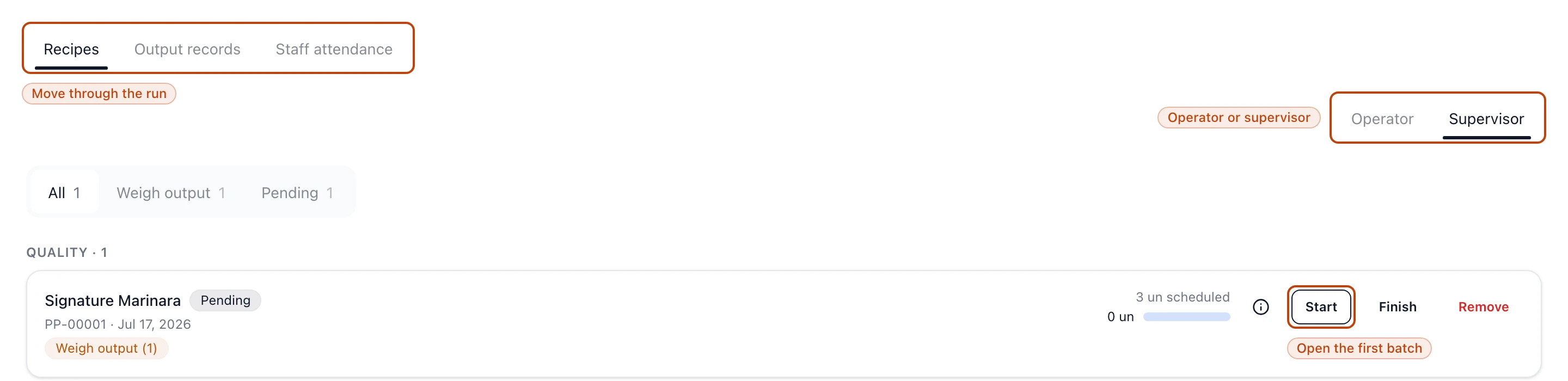
The tabs across the top move you through the run:
Recipes — the line items and their status, where the floor starts each one.
Output records — what each batch produced, batch by batch.
Cooking Log and Cooling Log — shown only when a recipe on the run
records those temperatures.
Staff attendance — who worked the run, in the supervisor view.
When a run spans more than one department, a Department filter appears on the
left. A row of counts — All, Weigh inputs, Weigh output, Pending,
Finished — narrows the recipe list to the work that still needs doing.
A run's Recipes tab: the tabs across the top, the Operator and Supervisor toggle on the right, and Start on a Pending recipe to open its first batch.
Operator and supervisor views
Which view you land in comes from your role. If your role opens runs as a
supervisor, a toggle sits at the top-right to switch between Operator and
Supervisor. If it opens as an operator, you get the operator view with no
toggle — the floor works from a single, focused screen.
The operator view trims the run to running the batch. Each recipe shows its
progress — Batch 2 of 3 for a recipe weighed per batch, or Continuous
production for one weighed per run — next to the button that moves it forward.
The supervisor view adds the planning detail: scheduled versus produced
amounts, a details toggle on each recipe, an Add recipe button, and the
Staff attendance tab.
Add a recipe you missed
In the supervisor view, Add recipe on an open run pulls in another of the
day's scheduled recipes that isn't on a run yet. Use it when a batch gets added
to the plan after the run is already going.
Start a recipe
Every line item carries a status, and its button follows from it:
Start on a Pending recipe opens its batch so the floor can weigh the
first ingredient.
Continue on one that's In progress picks up where the last weigh left
off.
View on a Finished recipe shows what it produced.
Select Start, or the recipe's name, to open the line item and
weigh ingredients into the first batch.
Once the floor records that first weigh, the
recipe reads In progress and the run moves from Pending to Ongoing —
the day is now underway.
A run can't be deleted once it's produced
You can delete a run right up until its first recipe is finished. After that,
Delete disappears — the run has produced something the batch record needs
to keep.