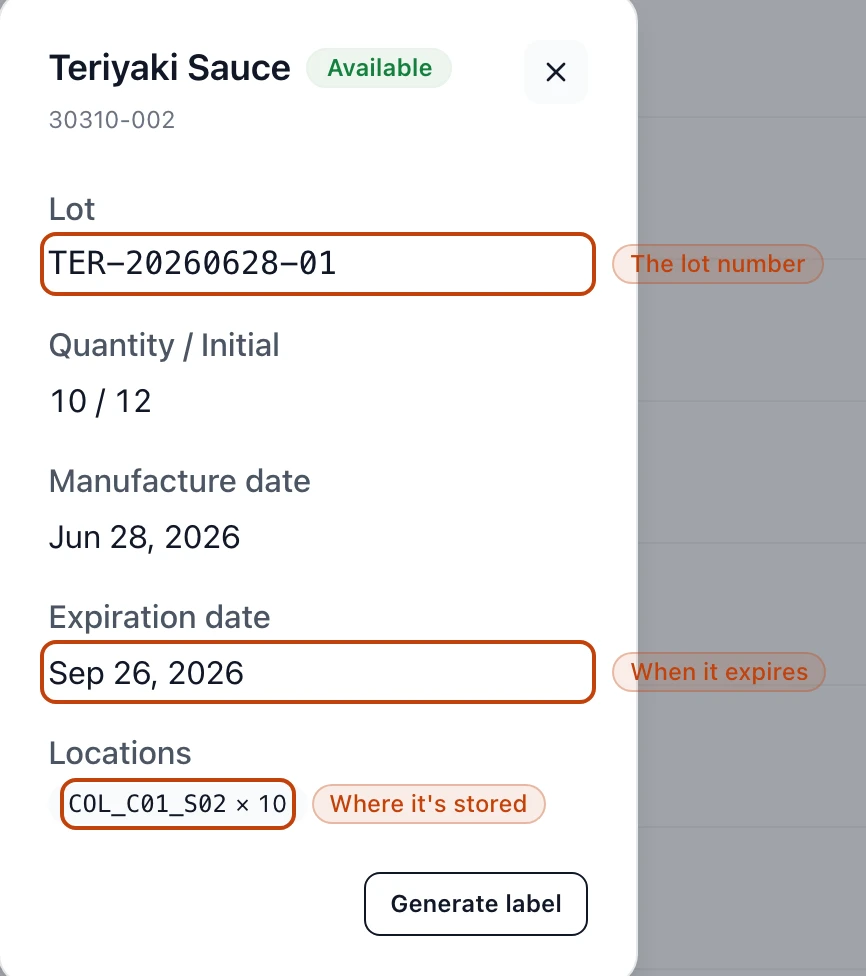
Find any physical lot on the stock items list or by its number, then open it to see where it's stored, how much is left, and when it expires.
On this page
Was this helpful?
Real help from real food people
Chef Diego runs a real food plant. If this page didn't get you there, tell us — a person reads every message.
A driver idles at the dock, or an auditor stands at your desk, and someone reads
you a lot number off a case: they need to know where that batch is, how much is
left, and when it goes off — now, not after an afternoon in a spreadsheet that
stopped matching the floor months ago. In Bettr that's a lookup. Open
Stock items
and every lot in your active company is there to search, open, and read.
Find a lot on the stock items list
The list holds every in your active company, and it opens sorted by
nearest expiry so the batch closest to its date sits at the top.
1
Open Inventory → Stock items
In the top navigation, open Inventory and select Stock items.
2
Search or filter to the product
Type a name into Search by product name, or pick one from the All
products filter, to cut the list down to the product you're chasing.
3
Sort to bring the lot up
Choose Sort by expiration (the default), product, lot, or
quantity, and flip between ascending and descending with the direction
toggle beside it.
4
Open the lot
Select the row to open the lot's detail. Each row already shows its product,
lot number, cases on hand, and expiry date.
The nearest-expiry lot sits on top
Because the list defaults to sorting by expiration, it reads in
. The lot you most likely
need to move, ship, or trace is usually the one already at the top.
What a lot's detail shows
A lot's detail: its lot number, expiration date, and the location it's stored in.
Opening a lot reads like the label on the box:
Lot — the number that identifies this exact batch. When a supplier stamps
their own code, it shows underneath as an alternative lot number.
Quantity / Initial — how many cases are left, against the quantity the lot
started with, so you can see how much has been drawn down.
Manufacture date and Expiration date — when the batch was made, and when
it's no longer good to use or ship.
Locations — the bins or rooms it sits in, each with the amount stored there.
One lot can be split across more than one place.
An Available badge sits beside the product name; a removed lot reads
Deleted instead. Generate label prints a fresh lot label — the lot number,
product, and expiry — for the floor.
Looking for a lot you've used up?
Fully drawn-down lots are hidden by default. Tick Include zero-quantity items
to bring them back — which is exactly what you need when a recall reaches back to
a batch you've already shipped out.
Jump straight to a lot by its number
When you already have the number in hand, skip the list. Select Scan QR Code
at the top of the stock items page, then point the camera at the lot label's QR
code, or type the number into Enter lot number and select Find. Either way
Bettr opens that lot's detail. It matches both the lot's own number and a
supplier's alternative lot number, so whichever code is stamped on the case gets
you there.
Trace a lot back and forward
A lot's detail is a snapshot: where it is, how much is left, when it expires. To
follow the batch through time — every receipt, pick, shipment, and production
output it touched — read the movement ledger instead.
Open Stock movements
to walk a lot's in both directions — forward to every shipment it went into, and
backward to the supplier it came from. That's the trail a
mock recall
or an audit runs on, and it's kept in full: nothing is ever typed over.