Work a recipe in numbered versions — duplicate a draft, collect the sign-offs it needs, and know which version the floor is allowed to run.
On this page
Was this helpful?
Real help from real food people
Chef Diego runs a real food plant. If this page didn't get you there, tell us — a person reads every message.
You reworked your marinara to cut the sodium, and now you want the kitchen making
the new formula — but not before your quality lead has looked at it, and not in
the middle of a shift that's already weighing to the old target. Bettr keeps the
two apart. Every recipe is worked in numbered versions, the way V17 and V18 sit
side by side in one workbook, and a run only ever cooks the version your approvers
signed. All of it happens on the recipe's own page, under
Recipes.
Kitchen+
A is not a
place you go. It's the same page wearing a different number.
Switch versions from the chip
Opening a recipe without naming a version opens the one the company works from:
its approved version, whoever you are. The chip beside the name reads that version
and where it stands — V2 · Approved. Select it and the recipe's whole ladder
opens under it, oldest at the top, each with its own badge, so a draft in flight
is one tap away. Pick one and the page switches to it: its ingredients, its yield,
its sign-offs. A recipe nobody has approved yet opens on its newest draft instead,
so the page is never blank.
The version chip open on Master Marinade: V1 superseded, V2 approved, V3 the draft still open, with Duplicate at the foot of the list.
The badge on each is where that version stands:
Draft — still open. Editable, and waiting on the roles that have to sign it.
Approved — every required role signed this version, and it's the one the
rest of the company works from.
Superseded — approved once, then a higher-numbered version was approved and
took the lead. It stays in the list and on the sheets it was printed on.
Rejected — a required role turned it down. It's still a draft you can edit
and ask about again.
Drafts belong to the people who can change recipes
For a view-only teammate the chip is a plain label rather than a way in: no
ladder, no Duplicate, and no draft — the work in progress isn't theirs to read.
A recipe that has never been approved shows them its newest draft, badge and
all, so the page is never blank for them either.
Collect the sign-offs a version needs
A draft is approved when every role named on the recipe has signed that
version. The line under the recipe's name is where that stands: one entry per
required role with its state, and who decided and when. Until a role is named
there is nothing to wait on, so the line offers Name who signs; once roles are
named the button reads Who signs and opens them to change.
1
Open the version you're deciding
From Recipes,
open the recipe. If the draft you want isn't the one showing, pick it from the
version chip.
2
Decide as a role you hold
Approve and Reject sit on the rows for roles you hold, and nowhere
else. Select Approve and Bettr asks once — Approve as Quality, record
your approval for this version on behalf of this role — then reports Version
3 approved for your role. Someone holding the other required role signs on
theirs.
3
Watch the version close
When the last required role approves, Bettr reports Version 3 is fully
approved. From that moment the card is frozen: the quantities, the units and
the yield are plain text, Add ingredient and the row menus are gone, and
the standing says to duplicate it to keep working. Desired batch size stays
live, because scaling is looking rather than editing.
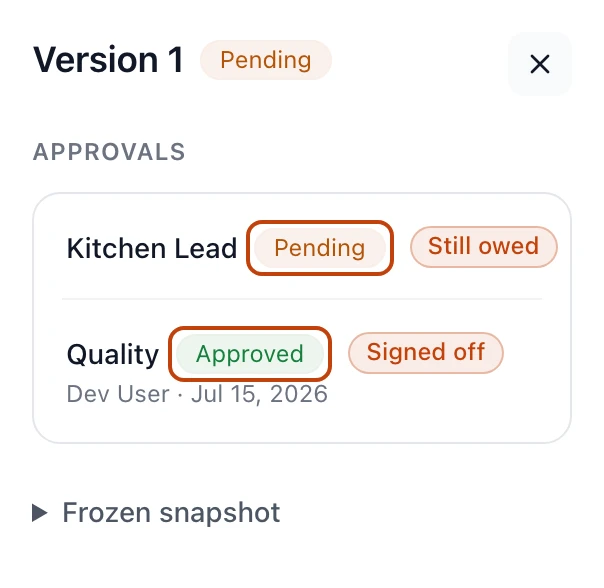
A draft mid-approval on Signature Sauce: Kitchen Lead still owed with Approve and Reject on its row, and Quality already signed, named and dated.
Any draft can be decided, not just the newest — so a version you're still working
out never blocks the one your quality lead is ready to sign.
Editing a draft resets the sign-offs
A signature binds to what was signed. Change a draft's quantities, its yield, or
its steps and every sign-off it had stops counting: each role goes back to
Pending and is asked again. The standing says so before you type — Editing
it resets the sign-offs already given — and the earlier decisions stay on the
record; they just no longer speak for the recipe as it now reads.
A rejection is not a dead end
Reject asks once too, and says what it costs: your rejection stays on the
record, and the draft can be edited and asked again, or duplicated past. Either
way the rejection stays named and dated, so the history shows what was turned
down.
Four things are checked at the signature that would complete the approval, and
nowhere earlier. Whatever is missing, the answer arrives under the role row you
signed on, beside the decision it refused. The first is the batch yield: a version
can't be signed off until someone has cooked a test batch and typed what it made,
because the floor scales by that number and the costs divide by it. Try it without
one and Bettr answers Cook a test batch and enter the batch yield before signing
this version off. The yield block says the same thing before you select
anything, so you can see it coming.
The second is the size a fixed-size step runs at. A step set to Fixed with no
number is a step nobody can run, so the sign-off is refused — Step 1 runs at one
fixed size — say that size before signing this version off, naming the step. The
step's own row says it too, so you can close the gap before anyone signs.
The third is the pack the recipe sells under. A final recipe that names no
product can't be signed off — Bettr answers Name the product this recipe sells
as before signing this version off, because the spec sheet and the label are
written from it. A recipe born by detaching a draft starts this way, carrying no
product of its own; name one under Output product on the recipe's edit form
and the same signature goes through.
The fourth is the recipe's foundations. The final sign-off is refused while the
recipe builds on a sub-recipe nobody has approved — Bettr answers Approve Prep
Base first — this recipe builds on it, naming the sub-recipe. You can see that
one coming too: the line wears No approved version, and a warning under the
table says its cost is coming from the newest draft and that the gap closes before
this version can be signed off. Approve that one, then come back and finish the
signature; the other roles can sign theirs in the meantime.
Duplicate a version to work on the next change
Duplicating is the one gesture that starts a change, and it lives with the
versions. It's on every version, approved or not.
1
Open the chip and select Duplicate
Bettr cuts the next free number, copies the version you were on whole — its
ingredients, steps, batch yield, and everything attached to its steps — and
opens it, reporting Version 4 is open for editing.
2
Work the new draft
Type into it the way you type into any draft. Nothing you do here touches the
approved version, so the floor keeps weighing to the numbers it was running
this morning.
3
Ask for the sign-offs when it's settled
Collect the sign-offs as above. The moment the new version is approved, it
takes the lead and the older approved one reads Superseded.
Two drafts can sit side by side — duplicate the same approved version twice and
you get two experiments off one parent, each with its own number. A duplicate
never asks for approval on its own, because a test is not a decision. Numbers are
handed out in order and never reused, so a ladder can read V1, V2, V3, V5 once a
draft has been detached.
Write down what a version taught
Under the yield block, What this version taught takes what worked and what
went wrong. Type it and click away — there is no save button, and no confirmation
to wait for; the words are the feedback. Notes are writable on approved versions
too, and writing one never resets a sign-off: notes record what happened, not what
the recipe is. That way V18's verdict survives into V19.
Detach a draft into its own recipe
When an experiment turns out to be a different product — a spicy variant you mean
to keep beside the original — it belongs in a recipe of its own, not in this
recipe's ladder.
1
Select the draft, then name the new recipe
On a draft version, type a name under Detach into its own recipe. The name
is checked against your company like any other.
2
Select Detach
Bettr answers The draft is a recipe of its own now and opens it. The new
recipe starts at V1 with the content the draft had, its own item number,
and no sign-offs. The draft leaves the original recipe's version list.
What the floor is allowed to run
A run pulls the recipe's approved version and nothing else. Approving a newer
version is what changes the floor's numbers, so no edit and no test can quietly
rewrite what an operator is weighing to today. A recipe with no approved version
can't be planned or run at all — it isn't offered when you plan from a recipe, and
a run refuses it by name. Approve one first.
Print carries the same answer. Print prints the page you are reading, and the
sheet's heading carries the recipe's name with the version number and its standing
beside it — V3, Draft. What was cooked can always be tied back to what
was signed.
Carried at the crossing
Recipes that were already in Bettr before versions worked this way kept their
numbers and their history. Where the old model had promoted a copy to the floor,
that version reads Approved with a line saying it was carried at the
crossing — the standing came across from the old world rather than from a
signature in this one, so no sign-offs are listed for it. Duplicate it and sign
the next version to put your own names on the record.
Retire a recipe you no longer make
When you stop making something, retire it. Retire sits at the top of the
recipe's own page, beside Print. Bettr asks first, and names the recipes that
build on this one if any do; they keep naming it until someone changes them.
Confirm and the recipe's status becomes Inactive: it leaves the everyday list
and every picker where new work is composed, while its versions, sign-offs, and
history stay whole.
An inactive recipe isn't hidden from you — set the status filter on the recipes
list to Inactive recipes to find it. Bring back, in the same place on the
page, makes it Active again in one act.