Reuse an order you place over and over — memorize it so it's easy to find, and duplicate it to start a new order from one you've already built.
On this page
Was this helpful?
Real help from real food people
Chef Diego runs a real food plant. If this page didn't get you there, tell us — a person reads every message.
Every week you place the same order: 100 sacks of jasmine rice from the same
grain supplier. Rebuilding it line by line each time is wasted effort, and it's
easy to fat-finger a quantity when you're retyping from memory. Instead, keep the
last one around — mark it so you can find it fast, then copy it whenever you're
ready to order again. Open
Purchase orders to
find the order you want to reuse. Kitchen+
Duplicate an order
Duplicating copies an existing into a brand-new one you can edit. It works on any order,
whatever its status, so you can reorder from last week's pending request or from
an order you received months ago.
1
Open the order you want to reuse
From Purchase orders,
select the order. It opens on its own page with its actions along the top.
2
Select Duplicate
Select Duplicate. Bettr makes a copy — same vendor, same line items, same
notes — named after the original with - Copy on the end, and drops you
straight onto the copy's edit screen.
3
Set a new delivery date
The copy starts with no delivery date, since last time's date won't do for
the new order. Pick an Expected delivery date, adjust any quantities or
prices that have changed, and select Save.
4
Send it through approval
The copy is a fresh Pending order, requested by you — a request, not a
placed order. It moves through
approval like any other
order before the warehouse can receive against it.
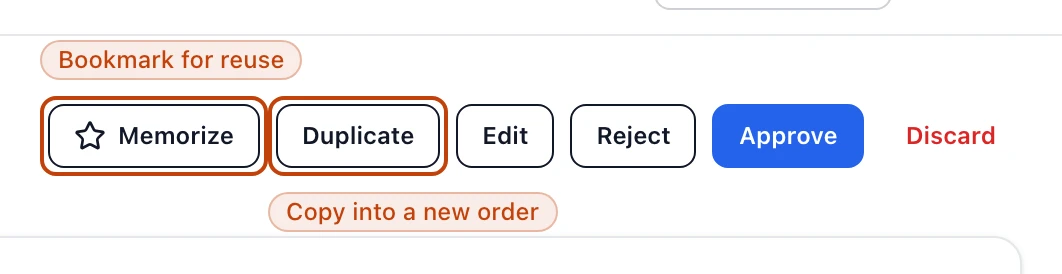
The actions at the top of a purchase order. Duplicate copies it into a new pending order; Memorize flags it so you can find it again.
The delivery date starts blank
A duplicated order carries over everything except the delivery date. You can't
save the copy until you set a new Expected delivery date, which keeps you
from placing an order against last time's window by accident.
What carries over
The copy is a faithful duplicate of the order's contents:
The vendor and its terms.
Every line item — product, quantity, unit price, discount, and any per-line
notes.
The order notes.
What doesn't carry over is anything specific to the original's run through the
system: the copy gets a new order number, no delivery date, and a clean Pending
status with you as the requester. The original is untouched.
Reorder exactly what you received
Duplicate works on a received order too. When you want to buy the same thing
again, open the order you received last time and duplicate it — you keep the
vendor and the exact quantities without hunting for them.
Memorize an order you reuse often
To an order, open it and select Memorize at the top. The button
fills in and reads Memorized, and a Memorized badge appears on the order in
your list. Select Memorized again to remove the flag.
Memorizing changes nothing about the order itself — it's a bookmark, not a copy.
Its whole job is to make the order easy to find when it's time to reorder.
Find your memorized orders
On Purchase orders,
tick Memorized only to narrow the list to the orders you've flagged. You can
also toggle the flag straight from the list: hover an order and select the star on
its right.
When to duplicate and when to memorize
The two go together, but they do different jobs:
Memorize marks your go-to order so you — or anyone on your team — can find it
without scrolling. It's a bookmark.
Duplicate is the reorder itself: a new, editable order built from an existing
one, so nobody re-adds every line by hand.
For a recurring buy, memorize the order once. When it's time to place it again,
filter to Memorized only, open the order, and select Duplicate — then set
the new delivery date and send it through.
If you don't see these buttons
Duplicate needs the permission to add orders, and Memorize needs the
permission to change them. If either is missing on an order, ask whoever manages
your roles to grant it.